
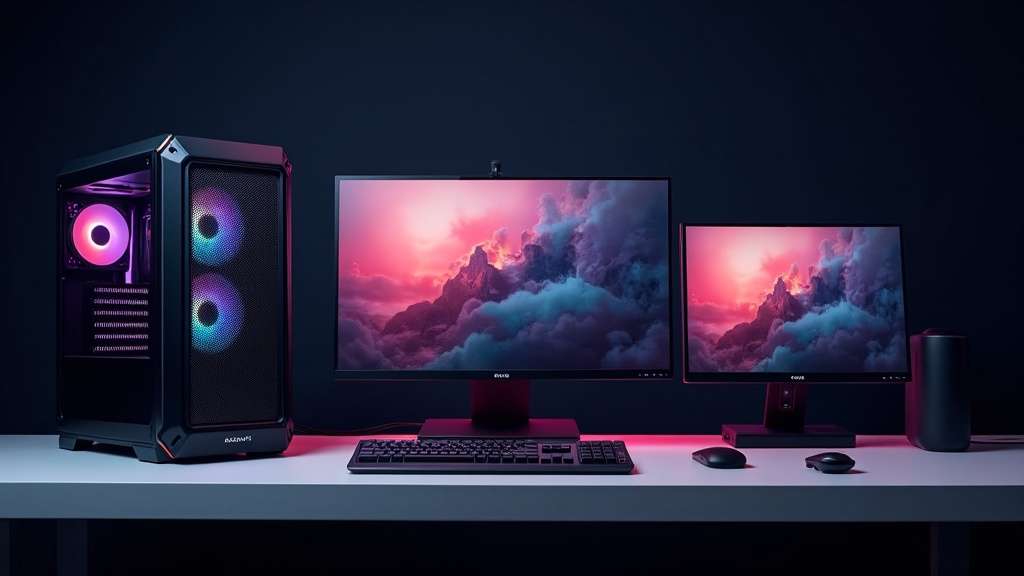
Bottom Line: Quick-Reference Guide by Use Case
“I’ve read all the spec comparison charts, but I still can’t figure out which one to buy.” Sound familiar? Desktop PCs are one of those product categories where the sheer number of options makes it easy to get overwhelmed with information. In this section, we narrow things down to two axes — use case and budget — so you can quickly find the right machine for you.
[Quick Reference] Find Your Recommended Model by Use Case and Budget
As of 2026, rising memory and SSD prices have pushed up street prices for high-end tower PCs. At the same time, mini PCs and slim PCs have become relatively better value, and depending on your needs, there are more options than ever for solid performance under $1,000.
| Use Case | Budget Range | Example Models | Key Points |
|---|---|---|---|
| Gaming (Entry-Level) | $1,000–$1,700 | Alienware Aurora R16 (base config) | Starting around $1,300. Tower form factor is best for expandability |
| Gaming (Mid to High-End) | $1,400–$2,400+ | RTX 5060 or better, 32GB+ RAM | The price range that meets the 2026 recommended spec baseline |
| Creative & Business | $600–$1,500 | Apple Mac mini M4 / M4 Pro | M4: from $599, M4 Pro: from $1,399 |
| Remote Work & Office Tasks | Under $700 | HP EliteDesk 8 Mini, Lenovo ThinkCentre M75q Tiny Gen 5, etc. | Compact and energy-efficient. Check each manufacturer’s site for current pricing |
Prices in the table are estimates only. Since they vary by configuration and sales channel, we strongly recommend checking the latest pricing on each manufacturer’s official website or major online retailers before purchasing.
2026 Gaming PC Minimum Baseline
A GeForce RTX 5060 or better paired with at least 32GB of RAM is considered the practical minimum for running current titles comfortably. Anything below this threshold may feel underpowered within the next one to two years.
3 Compelling Reasons to Choose a Desktop Over a Laptop
Why would anyone choose a desktop PC when you can’t take it with you? The answer comes down to a fixed workflow. For people who work from a dedicated home setup or specific location, desktops offer clear advantages over laptops in the same price range.
One to Two Tiers More Performance for the Same Price
Laptops split their budget across a slim chassis, battery, and cooling system. Desktops, on the other hand, can put nearly all of their budget into the CPU and GPU — which often means you can step up one or two performance tiers for the same money. The gap is especially pronounced with GPU performance, making desktops significantly more cost-effective for gaming, video editing, and 3D work.
Lower Long-Term Costs Through Upgradability
More and more laptops are shipping with soldered-in memory and storage, meaning an upgrade essentially requires buying a whole new machine. Tower desktops, by contrast, make it relatively easy to swap out RAM, SSDs, and GPUs — so you can upgrade just the GPU a few years down the road. Over a five-to-seven year window, that phased approach can keep total ownership costs meaningfully lower.
Thermal Headroom Means Sustained Performance Under Heavy Loads
Laptop chassis are constrained by their slim profiles, which makes them prone to “thermal throttling” — automatically reducing clock speeds when heat builds up during demanding tasks. Desktops have far more internal space and cooling capacity, so they can maintain peak performance through long rendering sessions or extended gaming. For workloads like video encoding or large-scale data processing — tasks you can’t just pause — this difference is very real.
In short, desktop PCs shine when you’re doing intensive, sustained work from a fixed location. For light users, a desktop may be overkill — so taking stock of your actual workflow is the fastest path to a purchase you won’t regret.
How to Choose a Desktop PC: 5 Key Factors
Once you’ve spotted a promising model in the quick-reference table, it’s worth understanding why certain specs matter for your needs. Chasing numbers on a spec sheet without that context often leads to post-purchase disappointment — either “it’s not as smooth as I expected” or “this is way more than I needed.” Here’s a structured breakdown of what to look for.
CPU and GPU Requirements by Use Case
Understanding how CPUs and GPUs divide their responsibilities makes spec selection a lot clearer. The CPU handles general-purpose processing — the “thinking” — while the GPU is a specialized processor dedicated to rendering graphics. Which one deserves more of your budget depends heavily on what you’re doing.
Recommended Specs by Use Case
| Use Case | CPU | GPU |
|---|---|---|
| Business, Web, Documents | Mid-range or better (Core i5 / Ryzen 5 equivalent) | Integrated graphics are sufficient |
| Video Editing / Creative Work | High-performance multi-core (Core i7 / Ryzen 7 or better) | Mid-range discrete GPU recommended |
| Gaming (Mid-Range) | Core i5–i7 / Ryzen 5–7 class | GeForce RTX 5060 or better (2026 baseline) |
| Gaming (High-End) | Core i7–i9 / Ryzen 7–9 class | GeForce RTX 5070 or better |
For gaming in 2026, a GeForce RTX 5060 or better with at least 32GB of RAM is widely considered the baseline for a smooth experience. Older-generation GPUs will still run games, but given that recommended specs for new titles keep creeping up year over year, buying new means building in some headroom from the start.
For video editing, CPU core count directly impacts encoding speed. If you’re regularly running demanding software like Adobe Premiere Pro or DaVinci Resolve, an 8-core or higher CPU will make a noticeable difference in day-to-day productivity.
How to Think About RAM and Storage
“More RAM is always better” is half true — and half myth. RAM is like a workbench: it holds whatever you’re actively working on, and the more apps and browser tabs you have open at once, the more you’ll use. Once you have enough for your workload, you’ll barely notice the difference going higher.
RAM Capacity Guidelines
- 16GB: The minimum for business use and casual gaming
- 32GB: The practical standard for gaming and video editing
- 64GB+: Specialized use cases — 3D animation, machine learning, large-scale video production
For storage, an SSD as your primary drive is the current standard. SSDs dramatically outpace HDDs on access speeds, which translates directly to faster boot times and snappier application launches. A practical approach is a hybrid setup: keep your OS and frequently used apps on an SSD, and store large video files or photo archives on a high-capacity HDD. This balances performance and cost-efficiency well.
Note that as of 2026, market prices for both RAM and SSDs have been trending upward, pushing the overall price of high-end desktop configurations higher than in previous years. Keep an eye on timing and budget allocation when you’re ready to buy.
Narrowing Down by Expandability, Noise Level, and Footprint
Beyond specs, “where will this live?” and “how might my needs change?” are questions that meaningfully affect which model is right for you. One of the most commonly overlooked factors is form factor — the physical shape and size of the machine.
STEP 1
Work Backward from Your Space
Check your setup first — on your desk, under it, in a rack? Mini PCs (like the Mac mini M4 at roughly 5 inches square) have a tiny footprint but limited expandability. Tower PCs are flexible for adding components, but they need room.
STEP 2
Plan for Future Upgrades
If you want to add more RAM or storage later, make sure the configuration you buy has open slots for expansion. Slim and compact models often have limited room for additional components due to their smaller chassis.
STEP 3
Decide Whether Noise Matters
If you’re working from home or the machine will be near a bedroom, fan noise is worth considering. Mini PCs and compact machines tend to run quieter under load because they’re designed with lower thermal envelopes. Gaming towers, on the other hand, need serious cooling — so some level of fan noise is just part of the deal.
In recent years, compact machines like the HP EliteDesk Mini and Lenovo ThinkCentre Tiny have grown in popularity — largely because the rise of remote work has made desk space efficiency a higher priority. If your work is primarily office-based, these space-saving models are a strong option worth considering.
Buying Checklist: 5 Key Questions
- Define your primary use case first (gaming, work, creative)
- Identify the CPU and GPU grade your use case requires
- Match RAM to your use case guidelines; make SSD your primary storage
- Cross-reference your setup space with available form factors
- Decide whether future expansion or upgrades are a priority
Understanding Desktop PC Architecture: How the Pieces Affect Performance
Have you ever stared at a spec sheet and wondered which numbers actually matter for your day-to-day work? Core count, clock speed, VRAM — these aren’t independent variables. They work together to determine overall system performance. Here’s a practical breakdown of what each element does and how it affects real-world use.
How Core Count, Thread Count, and Clock Speed Affect Real-World Tasks
When evaluating CPU performance, three metrics come up repeatedly: core count, thread count, and clock speed. Each plays a different role, so knowing which one matters for your workload is key.
For example, if your workload is primarily web browsing and spreadsheets, a high-clock CPU will often feel snappier than one with more cores but lower clock speeds. Flip that around for video editing or machine learning, where more cores translate directly to faster completion times. The key takeaway: the “best” spec depends on what you’re actually doing.
TDP (Thermal Design Power) is another spec worth paying attention to. Higher-TDP CPUs deliver more performance but also generate more heat — which means the chassis cooling design becomes a critical factor. Pairing a high-TDP CPU with a compact mini PC is a setup that’s prone to thermal throttling, and that’s something to keep in mind.
VRAM and Memory Bus Width: The GPU Specs That Actually Matter
If you’re evaluating GPUs based on VRAM capacity alone, you may be missing part of the picture. Even with the same amount of VRAM, differences in memory bus width can lead to very different real-world data transfer speeds — and that affects actual rendering performance.
For gaming PC builds in 2026, a GeForce RTX 5060 or better with at least 8GB of VRAM is a realistic starting point. If you plan to game at 4K or use high-quality ray tracing regularly, looking at models with 16GB or more of VRAM will give you meaningful headroom for the future.
Form Factor and Its Impact on Cooling and Expandability
Form factor — the physical size and specification standard of the chassis — fundamentally determines how many expansion slots you get, how well the system stays cool, and how much flexibility you have in where you put it. Here’s a breakdown of the main options available today.
| Standard | Size | Expandability | Cooling | Best For |
|---|---|---|---|---|
| ATX (Full Tower) | Large | High (multiple PCIe slots) | High (good airflow) | Gaming, creative work |
| Micro-ATX | Mid-size | Moderate | Moderate | Balanced general use |
| Mini-ITX | Small | Low (one expansion slot) | Constrained | Compact builds, secondary machines |
| Mini PC (proprietary) | Ultra-compact | Essentially none | Design-dependent | Office use, home theater PCs |
The growing popularity of ultra-compact machines like the HP EliteDesk Mini and Lenovo ThinkCentre Tiny in 2026 reflects a shift in office priorities — space efficiency, quiet operation, and cost are increasingly valued over expandability for business use. Gaming and video production still favor ATX towers. If you think you’ll want to add a GPU or extra storage down the road, starting with a form factor that has open PCIe slots is the smarter long-term investment.
Top 10 Desktop PCs: Full Spec Comparison Table
To put the architecture knowledge from the previous section into practice, here’s a side-by-side breakdown of price range, CPU, GPU, memory, storage, and use-case fit across all models. Rather than just reading the numbers, understanding why each spec matters will help you avoid overspending — or underspending.
Note: All specs listed were verified from official sources as of the time of writing (March 2026). Prices are subject to significant fluctuation due to rising memory and SSD costs. Always check the latest pricing on each manufacturer’s official website or authorized retailers before purchasing.
Spec Comparison by Price Tier (Entry-Level to High-End)
As of 2026, the desktop PC market is seeing notable price increases at the high end, driven by rising memory and SSD costs. At the same time, mini PCs and slim desktops are making a strong case for themselves under $1,000, and depending on your use case, skipping the full tower is increasingly a smart move.
| Model | Price Range (incl. tax) | CPU | GPU | Memory | Storage | Form Factor |
|---|---|---|---|---|---|---|
| Apple Mac mini M4 | From ¥94,800 | M4 (10-core CPU) | M4 integrated GPU (10-core) | 16GB+ | 256GB SSD+ | Mini PC (130×130mm) |
| Apple Mac mini M4 Pro | From ¥218,800 | M4 Pro (12-core CPU) | M4 Pro integrated GPU (16-core) | 24GB+ (up to 64GB) | 512GB SSD+ | Mini PC (130×130mm) |
| Alienware Aurora R16 | From ~¥190,000 | Core i7-14700F to i9-14900KF | RTX 3050 to RTX 4090 | 16–64GB DDR5 | 1TB–8TB SSD | Compact Tower (~40% smaller than previous gen) |
| ASUS ROG Strix G15CF | Check official site | Core i7-12700KF / i5-12400F | RTX 3060 to RTX 3080 | 16–32GB DDR4-3200 | 512GB–1TB PCIe Gen4 SSD | Mid-Tower |
| Lenovo Legion Tower 7i Gen 8 | Check official site | Intel Core 13th–14th Gen | RTX 40 Series | 16–128GB DDR5 | 512GB–2TB SSD | Mid-Tower (high expandability) |
| HP OMEN 45L Desktop | Check official site | Intel Core Ultra 9 285K (top config) | RTX 5090 (top config) | Up to 64GB DDR5 | 2TB NVMe SSD (top config) | Full Tower (CRYO CHAMBER cooling) |
How to read the pricing: Prices listed (e.g., “from ~¥190,000”) reflect the base configuration. Upgrading the GPU or memory can significantly increase the final price — for example, configuring the Alienware Aurora R16 with an RTX 4090 can push the cost to 2–3x the base price. Always verify the price of your specific configuration before buying.
Use-Case Fit Matrix: Gaming, Video Editing, Business, and Value
Raw specs alone don’t tell you whether a machine is right for you. Using the architectural concepts covered in the previous section — CPU core efficiency, GPU VRAM capacity, and memory bandwidth — here’s how each model stacks up across different use cases.
For example, video editing is dominated by multi-core CPU performance and memory bandwidth. 4K gaming, on the other hand, depends heavily on GPU VRAM and raw compute power. For business use, power consumption and thermal design during extended work sessions are what determine day-to-day comfort.
| Model | High-Performance Gaming | Video / 3D Editing | Business / Everyday Use | Value for Money | Upgradability / Future-Proofing |
|---|---|---|---|---|---|
| Mac mini M4 | △ (no discrete GPU) | ◎ (M4 SoC, highly efficient) | ◎ (compact, low power draw) | ○ (from ¥94,800) | △ (no expansion slots) |
| Mac mini M4 Pro | △ (no discrete GPU) | ◎ (M4 Pro, ProRes support) | ◎ | △ (from ¥218,800) | △ (no expansion slots) |
| Alienware Aurora R16 | ◎ (up to RTX 4090) | ○ (depends on config) | △ (gaming-focused design) | △ (from ~¥190,000) | ○ (compact but expandable) |
| ASUS ROG Strix G15CF | ○ (up to RTX 3080) | ○ (DDR4 limits memory bandwidth) | △ | ○ (RTX 3060 config offers strong value) | ○ (standard ATX, easy to upgrade) |
| Lenovo Legion Tower 7i Gen 8 | ◎ (RTX 40 Series) | ◎ (up to 128GB DDR5) | △ | △ (check official site for Japan pricing) | ◎ (best-in-class expandability) |
| HP OMEN 45L Desktop | ◎ (up to RTX 5090) | ◎ (Core Ultra + high-bandwidth DDR5) | △ (large, high power draw) | ✕ (high-end only) | ◎ (full tower, maximum expansion) |
Rating key: ◎ = Excellent fit / ○ = Good fit / △ = Conditional / ✕ = Not recommended. Ratings may vary depending on configuration and budget.
One column worth paying close attention to is “Business / Everyday Use.” Gaming PCs are built around large fans and high-wattage power supplies to cool their GPUs — which means idle power consumption is noticeably higher than a standard office machine. For anyone doing 8–10 hours of desk work a day, a power-efficient machine like the Mac mini M4 can make more financial sense over the long run when you factor in electricity costs.
On the flip side, if you’re doing serious video editing or 3D production, memory bandwidth is often the hidden bottleneck. The Lenovo Legion Tower 7i Gen 8’s top configuration with up to 128GB of DDR5 starts to matter when you’re doing real-time 4K or 8K previews, or working with multi-camera footage simultaneously. The bottom line: spec sheet numbers only mean something when you match them against your actual workflow.
What to look for in 2026: For gaming, a GeForce RTX 5060 or better paired with at least 32GB of RAM is a solid baseline for smooth performance. The entry-to-mid range sweet spot sits around ¥150,000–¥250,000, while serious gaming builds tend to land in the ¥200,000–¥350,000 range for the best performance-per-yen. That said, memory and SSD prices fluctuate frequently — always check current market prices before pulling the trigger.
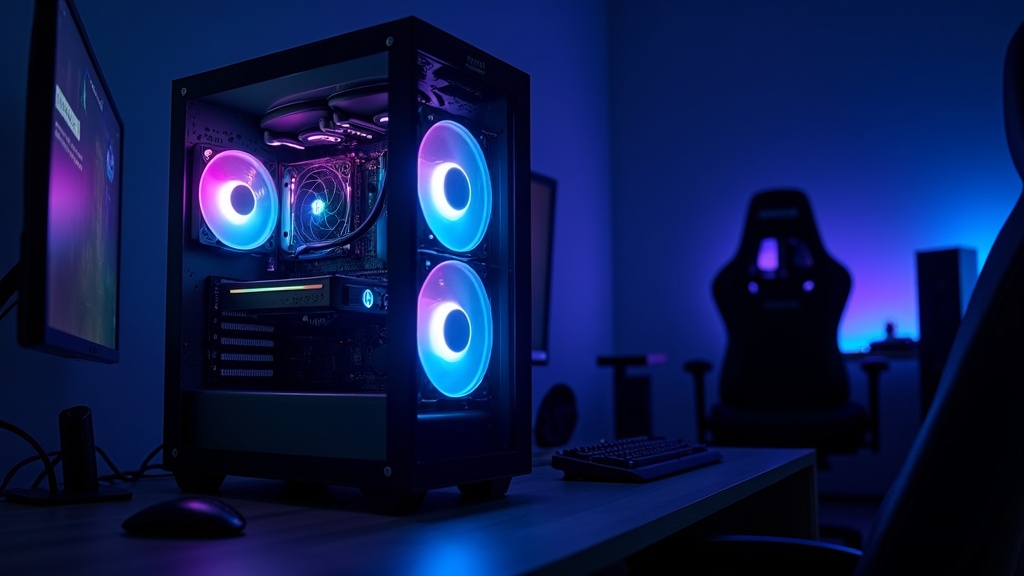
Best Gaming Desktop PCs: Top 4 Picks
Whether you want to game at 4K with high frame rates or run a live stream alongside your gameplay, a tower gaming desktop is built for exactly that. Unlike laptops, they aren’t constrained by thermal limits or power budgets — letting your GPU and CPU run at full potential.
As of 2026, a solid gaming desktop should have at least a GeForce RTX 5060 and 32GB of RAM as a baseline. In terms of price, models in the $1,300–$2,300 range tend to hit the sweet spot between performance and value. Below, we take a deep dive into four carefully selected machines.
📋 How to read this section
Each model is broken down by Strengths, Weaknesses, and Who It’s Best For. Read this alongside the spec comparison table in the previous section to zero in on the right machine for your needs.
Alienware Aurora R16: The Ultimate Answer for High-End Gamers
The Alienware Aurora R16 is Dell’s flagship gaming tower, pairing 14th-gen Intel Core processors with NVIDIA GeForce RTX graphics. Entry-level configs (Core i7-14700F + RTX 3050) start around $1,300, while the top-tier option goes all the way up to a Core i9-14900KF + RTX 4090 build.
One of the biggest upgrades here is the redesigned chassis — roughly 40% smaller than its predecessor, which makes the “where do I even put this thing?” problem a lot more manageable. The internal airflow has also been reworked to better handle thermal management under heavy load.
✅ Strengths
- Wide configuration range from RTX 3050 all the way up to RTX 4090
- 14th-gen Intel delivers strong high-clock performance
- 40% smaller chassis makes desk placement realistic
- Alienware’s dedicated support and warranty coverage
⚠️ Weaknesses
- Price climbs steeply as you move toward high-end configs
- Proprietary chassis limits DIY upgrades and part swaps
- Cooling system and PSU capacity details should be verified on the official spec sheet
Who It’s Best For
Gamers who want brand reliability and solid support, with the flexibility to choose a config that fits their budget — from entry-level to high-end. An RTX 4080 or 4090 build handles demanding 4K/144Hz+ gaming without breaking a sweat.
Check the Dell official site for the latest configurations and pricing.
For the most up-to-date pricing and detailed specs on the Alienware Aurora R16, check the official site or major online retailers.
Alienware Aurora R16の最新価格や詳細スペックが気になる方は、公式サイトや各販売店でぜひ確認してみてください。キャンペーン時期によっては通常より割安で入手できる場合もあります。
HP OMEN 45L Desktop: A Serious Machine Built Around Cooling and Expandability
The HP OMEN 45L’s standout feature is its proprietary “OMEN CRYO CHAMBER” cooling system. The large 45L chassis allows for an optimized airflow path that actively keeps both CPU and GPU temperatures in check under sustained heavy loads.
At the top of the spec sheet, you can configure it with an Intel Core Ultra 9 285K and an NVIDIA GeForce RTX 5090, with up to 64GB of DDR5 RAM. Thunderbolt support is also included, making it easy to connect high-speed external storage and other fast peripherals.
✅ Strengths
- OMEN CRYO CHAMBER delivers serious thermal management
- Configurable with an RTX 5090 for flagship-level performance
- DDR5 and Thunderbolt support for future-proofing
- Spacious 45L chassis makes maintenance and upgrades straightforward
⚠️ Weaknesses
- The 45L form factor demands a decent amount of desk or floor space
- Current pricing and availability should be confirmed on the HP official site
- High-end configurations will come with a premium price tag
Who It’s Best For
This is an advanced-user machine built for long gaming sessions and demanding streaming setups where thermal performance and expandability are non-negotiable. It’s especially worth considering if you’re planning component upgrades down the road.
Check the HP official site for the latest pricing and availability.
If you’re eyeing this as your next high-end gaming rig, check out the official page for full specs, pricing, and water-cooling upgrade options.
HP OMEN 45L Desktop GT22の最新価格や詳細スペックが気になる方は、公式ページで確認してみてください。送料や在庫状況もあわせてチェックできます。
ASUS ROG Strix G15CF: The Go-To Gaming Desktop for Value-Conscious Buyers
Released in July 2022, the ASUS ROG Strix G15CF pairs 12th-gen Intel Core processors (i5-12400F / i7-12700F / i7-12700KF) with GeForce RTX 30-series graphics (RTX 3060 through RTX 3080). It comes with 16–32GB of DDR4-3200 RAM and a PCIe Gen4 SSD, which noticeably cuts down game load times.
Like all ROG systems, it includes ASUS’s Aura Sync RGB lighting, which syncs up with other ROG peripherals if you’re building a unified setup. It ships with Windows 11 Home 64-bit pre-installed, so you can get into your games right out of the box.
✅ Strengths
- RTX 30-series handles 1080p to 1440p gaming comfortably
- Aura Sync ties into the broader ROG peripheral ecosystem
- PCIe Gen4 SSD keeps load times fast
- Solid ASUS ROG brand support and reliability
⚠️ Weaknesses
- Launched in 2022, so it’s showing its age by 2026 standards
- RTX 30-series falls behind RTX 40 and 50 in ray tracing performance
- Current stock and pricing need to be confirmed with retailers
- Successor models may already be available
⚡ A Note for 2026 Buyers
Since this model launched in 2022, we’d recommend checking whether a newer ROG Strix desktop has been released before pulling the trigger. The RTX 30 series is still perfectly capable for most games, but the gap is widening when it comes to 4K gaming in newer titles and AI-powered features like DLSS 4 — both of which favor newer-generation GPUs.
Check the ASUS ROG official site and local retailers for the latest successor models and stock status.
If you’re interested in the ASUS ROG Strix G15CF, check current prices and availability — its strong price-to-performance ratio means it can sell out quickly.
ASUS ROG Strix G15CFの最新価格や詳細スペックが気になる方は、ぜひ公式ページで確認してみてください。ゲーミング性能と拡張性のバランスを実際にチェックできます。
Lenovo Legion Tower 7i Gen 8: A Gaming and Creator Powerhouse Built for Multitasking
The Lenovo Legion Tower 7i Gen 8 combines 13th- and 14th-gen Intel Core processors with NVIDIA GeForce RTX 40-series graphics, and supports up to a massive 128GB of DDR5 RAM — one of the highest memory ceilings you’ll find in any gaming desktop. That headroom makes it equally capable of handling video editing, 3D rendering, and large development environments without skipping a beat.
Storage options range from 512GB to 2TB SSD, which gives you plenty of room to keep your game library and creative project files on the same machine. Legion’s proprietary cooling system is designed to maintain consistent performance even during extended high-load sessions.
✅ Strengths
- Up to 128GB DDR5 — an exceptional memory ceiling for any use case
- RTX 40-series with full DLSS 3 and ray tracing support
- Ideal hybrid machine for gaming and creative work
- Strong upgrade path with accessible component swap options
⚠️ Weaknesses
- Exact pricing in your region should be verified on the Lenovo official site
- Top-spec configurations will be expensive
- Legion’s gaming brand recognition trails Alienware and ROG
Who It’s Best For
This machine shines for users who game and create — think video editing, streaming, and 3D work all on the same rig. If your answer to “I want one machine that does everything” needs to be taken seriously, the 128GB RAM support makes a compelling case.
Check the Lenovo official site for the latest pricing and configuration options.
| Model | GPU Generation | Max Memory | Key Strength | Watch Out For |
|---|---|---|---|---|
| Alienware Aurora R16 | RTX 30–40 series | 64GB | Config flexibility, compact design | Limited DIY upgradability |
| HP OMEN 45L | RTX 50 series (top config) | 64GB DDR5 | Thermal design, expandability | Verify pricing on official site |
| ASUS ROG Strix G15CF | RTX 30 series | 32GB DDR4 | Value, ROG ecosystem | 2022 release — aging hardware |
| Legion Tower 7i Gen 8 | RTX 40 series | 128GB DDR5 | Creator-friendly, expandable | Verify pricing on official site |

You can check out the full specs and current pricing for this gaming desktop on the official site.
Lenovo Legion Tower 7i Gen 8の最新価格や詳細スペックが気になる方は、公式ページで在庫状況もあわせて確認してみてください。
Best Desktop PCs for Work & Business: Top 3 Picks
While gaming desktops compete for raw performance, business desktops prioritize two things above all else: reliability and security. When you evaluate machines along three axes — stable operation, security, and IT manageability — a very different set of contenders rises to the top. In 2026, with remote work now firmly established and corporate PC refresh cycles in full swing, here are three models worth serious consideration.
Selection Criteria for This Section
- Thermal design and noise levels suited for long operating hours
- Security features (TPM, encryption, remote management)
- Expandability and serviceability (ease of parts replacement and upgrades)
- Enterprise support (warranty period, on-site service)
Apple Mac mini (M4): Compact Footprint, High Efficiency — A Game-Changer for Creative Work
The Mac mini M4’s standout feature is packing professional-grade processing power into a chassis roughly the size of a business card at just 130mm × 130mm. Pricing starts at $599 for the base M4 model, with M4 Pro configurations going higher — giving you a solid range of options depending on your workload.
The M4 chip integrates a 10-core CPU and 10-core GPU in a single SoC (System on a Chip) design, using Apple’s Unified Memory Architecture where the CPU and memory share the same die. This eliminates the traditional bandwidth bottleneck between CPU and RAM, meaning tasks like video editing and large spreadsheet processing feel noticeably smoother in practice.
Workflows Where the Mac mini M4 Really Shines
- Video editing in Final Cut Pro or DaVinci Resolve
- Daily Adobe Creative Cloud use (Premiere, Lightroom, Illustrator)
- Web design and desktop publishing across multiple monitors
- Data analysis with Python or R (configurable up to 64GB unified memory)
The port selection includes Thunderbolt 4/5, USB-C, HDMI, and Ethernet, with dual-display output supported out of the box. It also supports Apple Intelligence, making it a compelling choice if you want to integrate AI-assisted features — like document summarization and smart email compose — into your daily workflow.
A few honest drawbacks worth mentioning: Memory is built into the SoC and cannot be upgraded after purchase, so getting the right configuration at the time of buying is critical. Additionally, integrating with existing enterprise Windows infrastructure — such as Active Directory — can be more complex than with a Windows machine. If your organization is heavily Windows-centric, plan for a compatibility testing phase before committing to a Mac mini deployment.
Check the latest pricing and full specs for the Mac mini (M4) using the link below. If you’re building your own setup with a preferred display and peripherals, this is one of the best values you’ll find at this performance level.
Apple Mac mini M4の最新価格や詳細スペックが気になる方は、ぜひ販売ページで確認してみてください。コンパクトなボディに凝縮されたM4チップの実力を、実際のベンチマーク結果とともにチェックできます。
Dell XPS Desktop 8960: Quiet Operation and Expandability for Power Users
The XPS Desktop sits at the top of Dell’s consumer lineup, yet its quiet operation and internal expandability make it a strong contender for business use as well. The tower form factor means memory, storage, and graphics card upgrades are relatively straightforward — a significant advantage for organizations planning multi-year deployments.
The quiet operation comes from Dell’s proprietary thermal management system, which dynamically adjusts fan speeds based on workload. The result is near-silent performance during light tasks, with sufficient cooling headroom when things get demanding. In an office environment where ambient noise matters, this is a genuinely practical consideration.
Note: Detailed specs and pricing for the XPS Desktop 8960 vary significantly by configuration. Check Dell’s official website or contact their business sales team for the most current information.
This machine is particularly well-suited for creative freelancers and small-to-medium businesses that need high performance while staying on Windows. That said, enterprise IT management features like vPro support aren’t a primary focus of the XPS line — if you have a dedicated IT department managing a large fleet, the ThinkCentre covered below is likely a better fit.
Check the latest pricing and specs for the Dell XPS Desktop 8960 on the official site or Amazon. It’s worth checking availability and current pricing before you buy.
Dell XPS Desktop 8960の最新価格や詳細なスペックが気になる方は、公式サイトで確認してみてください。構成カスタマイズの幅が広く、用途に合わせた選び方ができるのも魅力のひとつです。
Lenovo ThinkCentre M70t Gen 5: The Enterprise Standard Built for IT Management and Security
The ThinkCentre line is engineered not around “what’s great for the individual user” but around “what’s easy for an organization to manage.” That distinction may be invisible to end users, but for IT administrators, it’s everything.
Concretely, this means Intel vPro support (configuration-dependent) for OS-independent remote management and recovery, TPM 2.0 as a foundation for encryption, and centralized BIOS/UEFI security policy deployment. When rolling out 100 or 1,000 units at once, combining these capabilities with Lenovo’s suite of management tools can dramatically reduce IT labor costs.
The tower chassis also makes internal access straightforward, which directly reduces maintenance costs. Memory and SSD upgrades can be performed on-site, minimizing downtime during repairs. For detailed specs, pricing, and warranty options, visit Lenovo’s business site or contact an authorized reseller.
| Model | Key Strengths | Best For | Watch Out For |
|---|---|---|---|
| Mac mini M4 | Compact size, energy efficiency, AI features | Creatives and freelancers | Memory not upgradeable; Windows integration can be tricky |
| Dell XPS Desktop 8960 | Quiet operation, expandability, design | Windows power users with demanding workloads | Limited enterprise IT management features |
| ThinkCentre M70t Gen 5 | Manageability, security, serviceability | Mid-to-large enterprises with IT departments | Graphics performance trails consumer-grade machines |
If you’re weighing reliability and value for business use, check the official site for the latest pricing and availability. Corporate discounts and free shipping promotions may apply, so it’s worth a look before you commit.
価格や詳細なスペックが気になる方は、公式ページで最新の構成と価格を確認してみてください。法人向けサポートや保証内容もあわせてチェックしておくと安心です。
Best Budget-Friendly Desktop PCs: Top 3 Value Picks
If you’re looking to keep costs down while handling everything from daily work tasks to casual gaming, this section is for you. Unlike the business-focused models we covered earlier, here we’ve handpicked machines that shine in price-to-performance ratio—versatile enough for everyday use, remote work, and entertainment all in one box.
As of 2026, rising memory and SSD prices have pushed mid-range tower PC prices higher across the board. That said, there are still solid options under $1,000 (or equivalent budgets) if you know what to look for. The key is finding the right balance between use case fit and expandability.
What these 3 picks have in common
- Relatively affordable street prices (including refurbished options)
- Room to grow with future upgrades and parts swaps
- Well-rounded versatility rather than being locked into a single use case
HP EliteDesk 800 G9 Tower: A Trusted Workhorse with Strong Refurbished Market Presence
The HP EliteDesk 800 G9 Tower is HP’s business-class tower PC that has seen widespread adoption in the corporate market. Built on Intel’s 12th Gen platform, the G9 generation was engineered and manufactured under enterprise-grade quality standards, giving it a clear edge over typical consumer PCs in terms of durability and serviceability.
One big reason this model gets attention from value-focused buyers is its strong presence in the used and refurbished market. Large quantities flow through the market as corporate lease returns, meaning you can often find a certified refurbished unit at a significantly lower price than new. HP’s business-class PCs are also known for standardized components, making DIY upgrades like RAM additions or storage expansions straightforward.
- Enterprise-grade build quality with long-term support
- Abundant supply in the refurbished market
- Standard ATX form factor for easy expansion
- Support for HP’s proprietary BIOS management tools (HP Sure Start, etc.)
Things to watch out for
Refurbished units vary in condition and warranty coverage depending on the seller. Always check the grading system, warranty terms, and included accessories before buying. Also note that the G9 generation is based on a ~2022 platform, so it has inherent limitations for newer standards like PCIe Gen 5. For the latest specs and pricing, check the HP official website or a reputable refurbished retailer.
Who it’s best for: If you want a reliable PC without breaking the bank but worry about quality with used hardware, a business-grade refurbished unit is a genuinely smart choice.
If enterprise-level durability and expandability are what you’re after, check out the latest pricing and configuration options for the HP EliteDesk 800 G9 Tower. Its design built for long-term deployment can also mean lower total cost of ownership over time.
業務用途で長期間安定して使いたい方には、最新価格や在庫状況をぜひ確認してみてください。拡張性や信頼性を重視するなら、候補のひとつとして押さえておく価値があります。
ASUS ExpertCenter D700SE: Packed with Expansion Slots for Value and Future-Proofing
The ASUS ExpertCenter series is ASUS’s business desktop lineup, and the D700SE stands out within it for its exceptional expandability. With multiple PCIe slots built in, this tower is designed from the ground up for staged upgrades—add a dedicated GPU later, expand storage when you need it, and grow the system on your own schedule.
Future-proofing is often overlooked when thinking about value, but it matters. Starting with a modest base configuration and adding parts as needed can actually be more cost-efficient in the long run than buying top-spec upfront. The ExpertCenter D700SE is built around exactly that kind of phased upgrade philosophy.
- Multiple PCIe slots ready for future GPU or expansion card additions
- ASUS business-class support infrastructure
- Standard ATX form factor makes sourcing compatible parts easy
Things to watch out for
As a business-focused machine, the ExpertCenter series doesn’t come with gaming aesthetics or flashy RGB lighting—it’s purely utility and expandability first. For current specs, pricing, and available configurations, we recommend checking the ASUS official website for the latest information.
If you need a machine that covers all your business essentials while keeping costs in check, take a look at the latest pricing for the ASUS ExpertCenter D700SE. It’s built for the enterprise but handles personal use just as well.
ASUS ExpertCenter D700SEの最新価格や詳細スペックが気になる方は、ぜひ公式ページで確認してみてください。法人向けの信頼性とコストパフォーマンスを両立したモデルとして、在庫状況もチェックしておく価値があります。
MSI Aegis Ti5: A Compact Powerhouse That Punches Above Its Price
The MSI Aegis series is MSI’s gaming desktop lineup, and the Ti5 sits in it as a model built around balancing gaming performance with a smaller footprint. It cuts down on the floor space of a full tower while still packing in the essentials for desktop gaming—a concept that translates naturally to home office setups where space is at a premium.
MSI has decades of experience in gaming hardware, and that expertise in thermal design and component selection carries over into their consumer gaming PCs. Think of this one as a value-oriented all-rounder built on gaming brand know-how—capable enough for serious tasks, compact enough to not dominate your desk.
- Inherits MSI’s gaming-grade cooling and component selection expertise
- Compact chassis that fits in tighter spaces
- A natural fit for the hybrid remote work + casual gaming lifestyle
Things to watch out for
A compact chassis means more restricted internal airflow compared to a full tower—keep an eye on thermals under sustained heavy loads. Aegis Ti5 configurations, specs, and pricing also shift frequently, so always check the MSI official website for the most current information before buying.
Which of these 3 is right for you?
| Model | Best For | Key Strength |
|---|---|---|
| HP EliteDesk 800 G9 | Budget-conscious buyers who don’t want to compromise on reliability | Durability, refurbished market availability |
| ASUS ExpertCenter D700SE | Buyers who plan to upgrade gradually over time | Expansion slots, future-proofing |
| MSI Aegis Ti5 | Work-from-home users who also game | Compact size, gaming-capable performance |
For any of these models, we strongly recommend verifying current specs and pricing at the manufacturer’s official website or a trusted retailer before making your final decision. When value is your priority, accurate information at the time of purchase makes all the difference in long-term satisfaction.
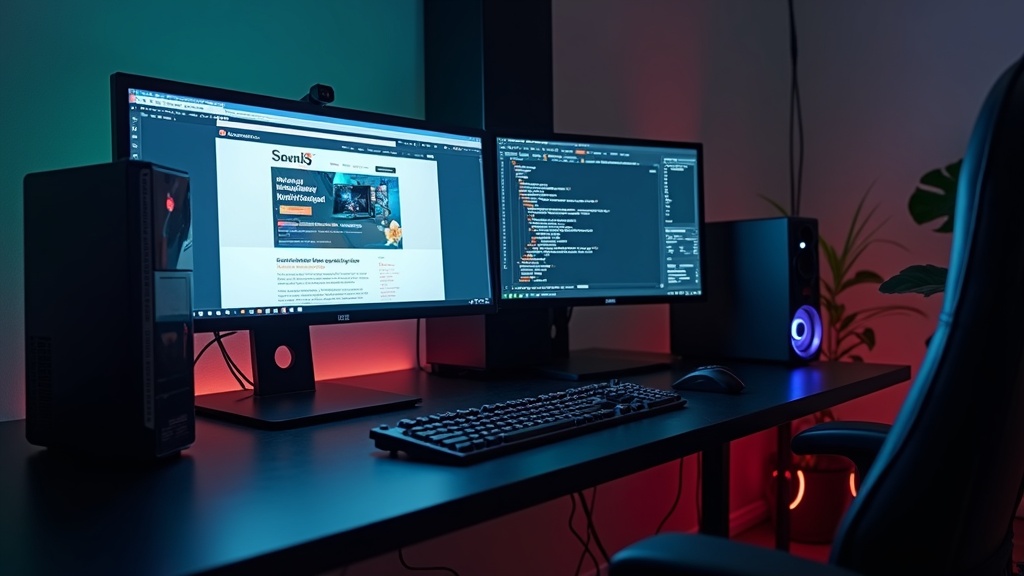
If you’re ready to build out a serious gaming or work setup, check the latest prices and stock availability for these models. Comparing specs and value side by side will help you land on the one that truly fits your needs.
MSI Aegis Ti5の最新価格や詳細スペックが気になる方は、ぜひ公式ページで確認してみてください。ハイエンドゲーミングPCとしての実力を、実際の販売情報と合わせてチェックしてみる価値があるでしょう。
Workflow-Based Tips: How to Maximize Productivity with Your Desktop PC
Have you bought a desktop PC but feel like you’re not really getting the most out of it? To fully unlock your hardware’s potential, you need to set up your environment and optimize your settings. Here are three practical approaches you can start implementing right after unboxing.
Boost Coding and Editing Efficiency with a Dual-Monitor + Portrait Setup
The benefits of a multi-monitor setup go beyond simply having more screen real estate. Due to how human vision works, vertical scrolling actually places more cognitive load on us than horizontal eye movement. A portrait-oriented monitor is a practical solution to this problem.
Recommended Layout (for Coders and Writers)
- Main monitor (landscape): browser, design tools, video preview
- Secondary monitor (portrait, 1080×1920): code editor, documentation, chat
Rotating your secondary monitor to portrait mode can increase the number of visible lines in your code by roughly 1.5 to 2x compared to landscape, significantly reducing how often you need to scroll.
On Windows, all it takes is going into Display Settings and changing “Display orientation” to “Portrait.” Desktop PCs often come with graphics cards that have multiple output ports, making it easy to set up a dual-monitor configuration without any additional adapters.
NVMe SSD + HDD Two-Drive Setup: Getting the Best of Speed and Storage
The classic dilemma — “SSDs are fast but fill up quickly” vs. “HDDs are cheap but slow” — can be solved once and for all with a two-drive setup. This kind of expandability is one of the biggest advantages that tower desktop PCs offer.
NVMe drives plug directly into your motherboard’s M.2 slot — the narrow slot on the board itself — with no SATA cable required. Due to the difference in interface, some NVMe drives can reach theoretical maximum transfer speeds several times faster than SATA SSDs. That said, real-world performance depends heavily on random access speeds, so don’t judge based on sequential specs alone.
Keep Your PC Running Fast with Startup Optimization and Background Process Management
Even the most powerful PC will underperform if unnecessary processes are constantly consuming resources. Brand-new PCs are especially prone to this — manufacturer-preinstalled software is often configured to auto-start, and that bloat is usually the main culprit behind sluggish initial performance.
3 Things to Check Right Now
- Task Manager → Startup tab: Review apps marked as “High” impact and disable anything you don’t need
- Power Options → High performance: Since desktop PCs are always plugged in, battery-saving mode is unnecessary — switch to a performance-first setting
- Windows Update → Advanced options → Active hours: Set your working hours so Windows doesn’t automatically update or restart during them, keeping you in the zone
Managing background processes is the most effective way to speed up your PC at zero cost. For CPU- and memory-intensive tasks like video editing or compiling code, trimming unnecessary processes directly translates to faster completion times. Making software-side optimization a habit — alongside investing in hardware — is the key to long-term productivity gains.
Pre-Purchase Checklist: What to Verify Before You Buy
Have you ever carefully compared specs and prices, only to have the PC arrive and discover it doesn’t fit in your room, you don’t have enough outlets, or getting it repaired takes weeks? Because a desktop PC is something you’ll use daily for years, taking a few minutes to check your environment before buying can make a huge difference in your long-term satisfaction.
What to Check: Space, Power Capacity, and Airflow
Tower desktops range from compact models around 20cm wide all the way to full towers exceeding 40cm. Measure the actual height, width, and depth of your intended placement area with a tape measure, and confirm you can leave at least 4 inches (around 10cm) of clearance on all sides for airflow. If you’re placing it under a desk, make sure it won’t interfere with drawer operation either.
Installation Environment Checklist
- Have you measured the actual dimensions (width, depth, height) of the placement area?
- Can you maintain at least 4 inches (10cm) of clearance around the unit for airflow?
- If placing on the floor or a shelf, can it support the weight? (Tower PCs often exceed 22 lbs / 10kg)
- Do you have enough available outlets? (PC unit, monitor(s), peripherals)
- Does your outlet’s rated capacity cover the PC’s power draw?
- Is the placement away from direct sunlight and heat sources like radiators?
Power capacity is an easy thing to overlook. High-end gaming PCs with powerful GPUs can draw over 600W under load, so you’ll want to check the rated capacity of any power strips or extension cords you’re using (most consumer-grade ones max out at around 1,500W). Connecting multiple high-draw devices to the same outlet chain can create a risk of overheating or tripped breakers.
Airflow also depends on the room itself. Placing a PC in an enclosed office or inside a cabinet can cause room temperatures to spike in summer, leading to thermal throttling — where the CPU or GPU reduces its performance to manage heat. If your machine has a high-performance GPU, plan your placement with airflow in mind from the start.
How to Evaluate Warranty, Extended Protection, and Repair Support
Unlike laptops, desktop PCs aren’t easy to carry in for service. Most repairs are handled via depot service (the manufacturer ships you a box and picks it up) or send-in service (you pack and ship the unit yourself). From drop-off to return, repairs can take two to four weeks depending on the model and issue — so if you rely on your PC for work, managing potential downtime is critical.
Warranty and Repair Checklist
- How long is the standard warranty? (1 year vs. 3 years makes a big difference)
- Is an extended warranty available, and what does it cost?
- What is the repair method — depot, send-in, or walk-in?
- Is the repair center domestic, or does the unit need to be sent abroad?
- Does the manufacturer offer a loaner device during repairs?
- What components are covered under the warranty?
Domestic brands and business-oriented manufacturers like HP and Lenovo tend to have strong local support infrastructure. On the other hand, parallel imports and global models may have limited support in your language and region, so it’s worth checking the official support page for available languages and coverage areas before you buy.
For extended warranties, you typically have a choice between the manufacturer’s own extended plan and retailer-offered long-term warranties (often 5 or 10 years). Retailer plans sometimes cover accidental damage like drops and liquid spills in addition to standard failures, so comparing the coverage details before choosing where to buy is a smart move.
Don’t Forget to Check the Upgrade Path
If you plan to add more RAM or storage down the line, check the spec sheet before buying: available slots, supported memory standards (DDR4 vs. DDR5), and open PCIe slots. Mini PCs and slim desktops are compact by design, which often means limited expandability — if you want flexibility as your needs evolve, a tower form factor will serve you better over time. Check the detailed expansion specs for each model on the manufacturer’s official spec sheet.
Final Verdict: How to Choose a Desktop PC in 2026 Without Second-Guessing Yourself
Now that you’ve reviewed the pre-purchase checklist, let’s cut straight to the question everyone actually wants answered: “Which one should I buy?” Decision fatigue from comparing too many spec sheets is real. Here are the clear final recommendations to break the tie.
Use Case Breakdown: The Definitive “Just Buy This” Guide
The 2026 desktop PC market is splitting into two camps: high-end tower prices are trending upward due to rising memory and SSD costs, while mini PCs and slim desktops are drawing attention for their relative value. Given this landscape, the best choice for each use case becomes pretty clear.
Final Recommendations by Use Case
| Use Case | Recommended Model | Budget Range | Why |
|---|---|---|---|
| Serious Gaming | Alienware Aurora R16 (RTX 4070 or higher config) | $1,700–$2,400 | Expandability, cooling, and brand support — the full package |
| Creative Work / Video Production (Mac) | Apple Mac mini M4 Pro | From ~$1,400 | Unmatched in power efficiency, noise levels, and performance per watt |
| Remote Work / Space-Constrained Setup | Apple Mac mini M4 / HP EliteDesk 800 Mini series | Under $700 | Best balance of footprint, noise, and price |
| Gaming on a Budget | RTX 5060 with 32GB RAM config | $1,000–$1,700 | The realistic sweet spot for entry-level gaming in 2026 |
The standout pick is the Apple Mac mini M4. Starting at $599 (M4 base config), it packs into a 5.1 × 5.1 inch (130 × 130mm) footprint and supports Apple Intelligence. For creatives and remote workers who don’t need Windows, it remains one of the best value-for-money options available in 2026.
On the gaming side, “RTX 5060 or better with at least 32GB of RAM” is becoming the practical baseline for 2026. Anything below that risks falling short of recommended specs for new titles within a year or two, which means you’ll likely end up spending more on upgrades down the road. Even if you’re on a tight budget, this is one area where we strongly recommend not cutting corners.
Upcoming Architectures in Late 2026 and How to Think About Timing Your Purchase
“Should I buy now, or wait a little longer?” is a question that comes up in virtually every PC buying decision. But the honest answer is that new CPU and GPU architectures launch every year — there is no perfect time to buy. What matters is whether the current generation meets your needs.
How to Think About Purchase Timing: 3 Guiding Principles
- Can the current generation meet your needs? RTX 50-series GPUs and the latest-gen CPUs are already on the market as of 2026 — the current lineup is more than capable for real-world use
- Watch the price cycle: When a new architecture launches, previous-gen prices tend to drop. If value is your priority, targeting the 1–3 months after a new product announcement is a reliable strategy
- Keep an eye on memory and SSD prices: During the current period of elevated prices, shopping during major sale events (year-end deals, big retail promotions) can yield meaningful savings
Waiting for a new model only makes rational sense when an official announcement or release date has already been confirmed. Waiting indefinitely for something that hasn’t even been announced just means losing productive time you could have spent using a perfectly capable current-gen machine. If a model available today meets your requirements, there’s almost no reason to hold off.
If you’re still on the fence, start by using the use-case recommendations in this article to narrow your choices down to two or three candidates, then check the latest pricing and availability directly on each manufacturer’s website. In particular, prices for models like the HP OMEN 45L Desktop and Lenovo Legion Tower 7i Gen 8 can vary significantly by retailer and timing, so always confirm before you buy.
Final 3-Point Check Before You Buy
- Does the GPU and RAM meet the requirements for how you’ll use it?
- Have you confirmed the placement space and power capacity?
- Do you know the warranty period and what it covers?
Most people keep a desktop PC for three to five years or more after buying it. We hope this guide helps you make a purchase you’ll be happy with for the long haul. For the latest info and purchase links on each model, be sure to check the official product pages and the links throughout this article.

Comments