
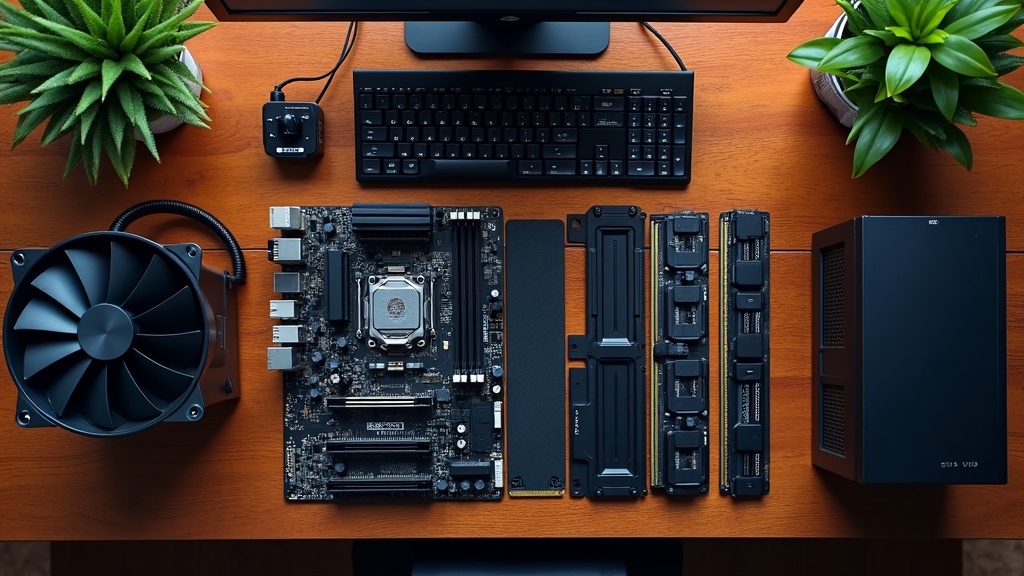
Why People Choose Custom-Built PCs and the 2026 Trends
“If I’m getting the same specs anyway, why not just buy a pre-built?” It’s a fair question. With BTO systems and off-the-shelf PCs more capable than ever, it’s worth stepping back and asking why anyone would bother building their own. The short answer: a custom PC gives you two fundamental advantages — maximum value for your money and long-term flexibility.
Custom PC vs. BTO vs. Pre-Built: The Real Cost and Freedom Difference
When you buy a BTO or pre-built system, the price includes the manufacturer’s profit margin, support costs, the OS license, and bundled software fees. With a custom build, you’re only paying for the parts you actually need — which means you can typically get significantly more performance for the same budget.
Pre-built systems also tend to lock you in: the chassis, motherboard, and power supply are often designed as a fixed unit, making GPU upgrades physically impossible in many cases. With a custom build, you can choose a case and PSU from the start with future expansion in mind, dramatically reducing upgrade costs down the road.
Key Advantages of Building Your Own PC
- Better real-world value by cutting out middleman costs (support fees, bundled software)
- Part selection tailored to your specific use case (e.g., GPU-heavy build for video editing)
- Easier troubleshooting — you can isolate and replace individual components
- Freedom to upgrade your CPU, GPU, or RAM down the line
That said, it’s worth being honest about the downsides. Assembly takes several hours. If something goes wrong, you’re responsible for diagnosing it yourself. And unlike BTO systems, there’s no unified warranty covering everything. Whether the time investment and potential troubleshooting are worth it to you is the key question when deciding whether to build.
| Custom Build | BTO | Pre-Built (Brand Name) | |
|---|---|---|---|
| Value for Money | ◎ | ○ | △ |
| Part Selection Flexibility | ◎ | ○ | × |
| Upgrade Ease | ◎ | △〜○ | × |
| Warranty & Support | △ (per-part warranty) | ◎ | ◎ |
| Beginner Accessibility | △ | ○ | ◎ |
2026 Architecture Trends: AM5, LGA1851, and Choosing in the DDR5 Era
As of 2026, the CPU platform landscape is going through a major shift. DDR5 has firmly established itself as the mainstream memory standard, while DDR4 builds are increasingly positioned as entry-level, cost-focused options. Since this directly affects platform selection, understanding the current socket landscape before you buy is essential.
AMD moved to the AM5 socket starting with the Ryzen 7000 series, making DDR5 the native standard. The older AM4 socket (compatible through Ryzen 5000 series) still supports DDR4 and remains a strong contender for entry-level builds. On the Intel side, the transition from LGA1700 (12th–13th Gen) to LGA1851 (14th–15th Gen, including Arrow Lake) is well underway.
Important: Always Verify Socket and Memory Compatibility
AM5 motherboards require DDR5; AM4 motherboards require DDR4. These standards are physically incompatible — buying the wrong RAM means it simply won’t fit. Always check the memory specification on the motherboard’s product page before purchasing.
For practical platform guidance: at the $500 budget tier, AM4 offers the best cost efficiency. If you have $1,000 or more to work with, investing in AM5 or LGA1851 makes sense for long-term expandability. DDR5 pricing has come down considerably, but a price gap with DDR4 still exists — so decide where your budget priorities lie before finalizing your build.
Part Selection Basics and How to Think About Budget Allocation
One of the most common mistakes first-time builders make is assuming that picking the highest-spec parts automatically results in the best build. In reality, if your parts aren’t well-matched to your actual use case, spending more won’t translate to a noticeable performance difference. Defining what you’ll use the PC for is the fastest path to a high-value build.
Your “First Piece” by Use Case: How Gaming, Video Editing, and Office Work Change Your Priorities
Designing a custom PC starts with identifying the single most important component for your use case. This “first piece” determines your budget allocation and limits your socket and chipset options — so that initial choice shapes the entire build.
Most Important Part to Prioritize by Use Case
| Use Case | Top Priority Part | Why |
|---|---|---|
| Gaming | GPU (Graphics Card) | Directly determines frame rate and resolution. CPU just needs to be good enough not to bottleneck the GPU. |
| Video Editing / Streaming | CPU + RAM | Encoding workloads depend heavily on CPU core count and memory bandwidth. 16GB+ RAM has a real impact on workflow speed. |
| Office / Web / Light Tasks | CPU with integrated graphics | No dedicated GPU needed, so your budget goes entirely toward the core system. |
For gaming builds, the principle is simple: choose a CPU that’s “good enough not to bottleneck the GPU.” That’s why mid-range options like the Ryzen 5 5600 (6-core/12-thread, up to 4.4 GHz boost) and Core i5-12400F (6-core/12-thread, up to 4.4 GHz) are considered the right call for most gaming builds — the philosophy is to minimize CPU spending so you can put more money where it counts: the GPU.
Video editing is a different story. Applications like Adobe Premiere Pro and DaVinci Resolve actively leverage multi-core CPU performance for rendering. While GPU-accelerated encoding has improved significantly, timeline responsiveness and export speed tend to scale with CPU core count — making CPU investment the highest-return choice for content creators.
The Golden Ratio for Budget Allocation: How to Split Your Money Across CPU, GPU, RAM, and Storage
Once you know your priorities, it’s time to think about budget allocation. The custom PC community has developed rule-of-thumb ratios over the years based on experience. These aren’t hard rules, but they’re a solid starting point when planning your first build.
Recommended Budget Allocation by Use Case (as % of total component cost)
| Component | Gaming | Video Editing | Office / Light Use |
|---|---|---|---|
| CPU | 15–20% | 25–30% | 25–35% |
| GPU | 35–45% | 15–20% | None–10% |
| RAM | 10–15% | 15–20% | 10–15% |
| Storage | 10–15% | 15–20% | 20–30% |
| Motherboard | 10–15% | 10–15% | 15–20% |
| PSU, Case, etc. | 10–15% | 10–15% | 10–15% |
※ OS and peripherals are separate. Percentages will vary by configuration.
The parts most often underbudgeted are the power supply unit (PSU) and the case. A low-quality PSU increases the risk of electrical noise and inrush current damage to your other components. Choosing a model with 80 PLUS certification is a straightforward way to ensure long-term stability.
💡 Tip: Don’t Cheap Out on Storage
For video editing and large data workflows, pairing an NVMe SSD with an HDD is the standard approach. Keep your active project files on the NVMe for speed, and use the HDD for archiving — you get fast performance where it matters without overspending. Since storage has a direct impact on how responsive your system feels, it should be the last place you look to cut costs.
The most practical way to allocate your budget is to work backward from your “first piece.” Start with your use case, identify the highest-priority component, assign the bulk of your budget there, and distribute the rest from there. This approach makes it much easier to avoid unbalanced builds.
[2026 Edition] Custom PC Build Recommendations by Budget | Best Parts for ~$350, ~$700, and ~$1,400 Builds
Entry-Level Custom PC Build (~$350 / ¥50,000 Range)
The Concept Behind a ¥50,000 Build | A Practical Solution for Web, Office, and Light Gaming
Thinking about building your own PC but not ready to drop serious cash right away? The ¥50,000 budget range is anything but a compromise. By adopting a current-generation CPU architecture, you get a highly cost-effective entry point that handles everyday digital tasks without breaking a sweat.
Here’s what this budget can realistically cover: web browsing, video streaming, and office productivity are obvious wins — but you can also handle light photo editing (think Lightroom or GIMP rather than Photoshop), esports gaming (using integrated graphics or with a GPU added later), and a solid remote work setup.
The Core Principle: Prioritize CPU Spending at This Budget
Applying the golden ratio of budget allocation to the ¥50,000 range means putting 50–60% of your budget toward the CPU and motherboard. At this price point, the strategy is to skip a dedicated GPU and run integrated graphics — or plan for a phased upgrade later — which frees up resources to invest in a stronger CPU and more memory.
Your platform choices come down to two main paths: AMD (AM4 socket) or Intel (LGA1700 socket). While DDR5 is becoming mainstream in 2026, the DDR4 platform — now mature and competitively priced — remains a practical and smart choice at this budget level.
Recommended Parts for a ¥50,000 Build | CPU, Motherboard, RAM, and SSD Combinations
At the ¥50,000 level, two viable configurations emerge: the AMD route (AM4) and the Intel route (LGA1700). Here’s a breakdown of each and why they make sense.
| Component | AMD Route | Intel Route |
|---|---|---|
| CPU | Ryzen 5 5600 (¥17,980) | Core i5-12400F (¥17,580) |
| Motherboard | ASUS PRIME B550-PLUS (check official site for current price) | MSI PRO B760M-A WIFI DDR4 (¥20,480) |
| RAM | Crucial DDR4-3200 16GB (¥22,650) | |
| SSD | 240–500GB M.2 NVMe (check official site for current pricing at time of purchase) | |
If you’re looking for the best balance of value and expandability, check the latest price and availability for the ASUS PRIME B550-PLUS. It’s a go-to AMD Ryzen motherboard that can anchor builds well into the ¥100,000 range.
AMD Route: Ryzen 5 5600 + B550 Motherboard
The Ryzen 5 5600 is a 6-core, 12-thread CPU (released April 2022) with a base clock of 3.5GHz, a boost clock up to 4.4GHz, and a 65W TDP — making it highly power-efficient. Built on AMD’s 7nm Zen 3 architecture, it delivers strong instruction-per-clock performance across both multi-threaded and single-threaded workloads. The generous 32MB L3 cache also helps with responsiveness in games and creative applications.
Paired with the ASUS PRIME B550-PLUS — an ATX motherboard for AM4 — you get PCIe 4.0 support, dual M.2 slots, and up to 128GB DDR4 capacity, giving you plenty of room to grow.
AMD Route: What to Watch Out For
AM4 is a mature, end-of-life platform. If you want to upgrade your CPU down the road, you’ll need to move to AM5. Think of this build as a “get up and running” solution rather than a long-term upgrade path.
If you’re putting together a value-focused build, check Amazon for the latest price and stock on this CPU. Even within a ¥50,000 budget, it delivers solid gaming performance and a great all-around balance.
AMD Ryzen 5 5600 BOXの最新価格や在庫状況が気になる方は、ぜひ一度チェックしてみてください。コストパフォーマンスの高さから人気が続いているため、購入を検討しているなら早めに確認しておくと安心です。
Intel Route: Core i5-12400F + B760 Motherboard
The Core i5-12400F is a 12th-gen Alder Lake 6-core, 12-thread CPU (¥17,580) with a base clock of 2.5GHz, a boost up to 4.4GHz, 18MB Intel Smart Cache, and a TDP of 65W base / 117W maximum. The “F” suffix means no integrated graphics, so you’ll need to plan for a dedicated GPU now or later.
The MSI PRO B760M-A WIFI DDR4 (¥20,480) comes with Wi-Fi 6E, Bluetooth 5.3, and 2.5GbE wired LAN built in. Its Micro-ATX form factor fits a wide range of cases, and two PCIe 4.0 x4 M.2 slots give you flexible storage expansion. Note that MSI’s B760M-A series has multiple variants — always double-check the exact model number before purchasing.
Tips for Choosing RAM
The Crucial DDR4-3200 16GB kit (¥22,650, 2×8GB) works with both platforms. DDR4-3200 offers some of the best value-per-dollar in this budget range, and 16GB is plenty for video streaming, browsing, and light gaming. The fact that it’s a 2-slot configuration also means you have room to upgrade to 32GB down the line.
SSD prices can fluctuate significantly, so we recommend checking current prices at retailers and official product pages at the time of purchase. Choosing an M.2 NVMe SSD (PCIe 4.0) over a SATA drive dramatically improves read/write speeds — you’ll notice the difference in OS boot times and application load times right away.
Be sure to check the latest pricing for each component on official product pages and price comparison sites before buying.
For the best balance of performance and price, check the latest pricing and availability for the Intel Core i5-12400F.
実際の販売価格や在庫状況はショップごとに変動することが多いので、気になる方はぜひ最新の価格をチェックしてみてください。Core i5-12400Fは内蔵GPUを省いた分だけコストが抑えられるため、同予算内でグラフィックボードにより多く回せるのが大きな魅力です。
[2026 Guide] Mid-Range Custom PC Build: $800–$1,200 Recommended Parts
Mid-Range Build Concept | Targeting 1080p to 1440p Gaming and Video Editing
After starting out with a budget build in the $400–$500 range, the next natural step is a mid-range build in the $800–$1,200 tier. At this price point, concentrating your budget on the GPU is the single most impactful decision you can make. By allocating 40–50% of your total budget to graphics rather than over-spending on the CPU or memory, you can realistically achieve both high-framerate 1080p gaming and capable video editing performance.
What makes this price range so popular is that it sits right at the threshold where a PC can handle both gaming and creative workloads. For video editing, GPU hardware encoders dramatically cut down render times — but increasingly, you need 8GB or more of VRAM to do it well. Tasks like exporting 4K footage or stacking multiple effect layers can push a 6GB VRAM card to its limits.
The Key to GPU Selection: Don’t Overlook VRAM and Encoder Quality
Even GPUs in the same price range can differ significantly in VRAM capacity and hardware encoder specs. For video editing, NVIDIA’s NVENC encoder offers strong compatibility with Adobe Premiere Pro and DaVinci Resolve, often resulting in noticeably faster real-world performance. AMD GPUs have improved substantially with recent RDNA architectures, but NVIDIA still holds an edge when it comes to accumulated software optimization support.
On the CPU side, something like the Ryzen 5 5600 or Core i5-12400F covered in the previous section is sufficient for most use cases — these chips won’t bottleneck a mid-range GPU. That makes it entirely reasonable to go with a cost-efficient CPU and motherboard, then redirect the savings toward a better GPU.
Pricing and availability for the AMD Ryzen 7 9700X fluctuates frequently, so check the link below for the latest information.
Mid-Range Recommended Parts List | Gaming-Focused vs. Creator-Focused: A Side-by-Side Comparison
In this price range, your GPU choice defines the character of the entire build. Even with the same budget, the optimal configuration differs depending on whether you prioritize high framerates or video editing capability — so here are two distinct builds to consider.
| Component | Gaming-Focused | Creator-Focused |
|---|---|---|
| CPU | AMD Ryzen 5 5600 (~$120) or Intel Core i5-12400F (~$115) — same for both builds | |
| Motherboard | ASUS PRIME B550-PLUS (AM4) — check official site for current pricing | MSI PRO B760M-A WIFI DDR4 (LGA1700, ~$135) |
| Memory | DDR4-3200 16GB (~$50–60) — same for both builds | |
| GPU | High framerate-focused model (8GB+ VRAM) — check retailer for current price | 8GB+ VRAM with NVENC hardware encoder recommended |
| Primary Use | 1080p gaming at 144fps+ | Video editing, live streaming, 1440p gaming |
GPU prices fluctuate significantly — always check the latest prices on retailers or price comparison sites before buying. The GPU market is highly sensitive to semiconductor supply conditions and currency exchange rates, meaning the same model can swing dramatically in price over just a few months.
For the gaming-focused build, the key selection criteria are rasterization performance (which directly impacts framerate) and support for DLSS (NVIDIA’s AI-based upscaling) or FSR (AMD’s upscaling technology). For the creator-focused build, what matters most is having 8GB or more of VRAM and a current-generation hardware encoder. Older encoder generations fall short in both quality and speed, so pay attention not just to the model number but also to the GPU architecture generation.
Both builds share the same CPU and motherboard options from the previous section, which gives you flexibility to shift budget around as needed. That adaptability is one of the real practical advantages of building in this price range. Use whichever pattern fits your use case as your starting point.
If you want to compare current pricing and full specs before deciding, check the latest listings at the link below.
【2026 Edition】High-End & Creator Build for $2,000+ | Full-Spec Configuration for 4K & Creative Work
The Concept Behind the $2,000+ Build | A Full-Spec Rig That Handles 4K and Creative Workloads
A mid-range build in the $1,000–$1,500 range handles everyday tasks and gaming just fine. But have you ever hit a wall — your 4K color grading grinds to a halt, or recording high-framerate gameplay while playing tanks your performance? That’s not a budget problem. It’s a structural bottleneck problem.
The $2,000+ build is designed to eliminate exactly those bottlenecks. By upgrading both the CPU and GPU without compromise, you get a system capable of handling video production, 3D rendering, and high-framerate gaming simultaneously. If you’re serious about doing creative work and gaming at the highest level, this is the tier where it all comes together.
Who This Build Is For
- Editors working primarily in Adobe Premiere Pro or DaVinci Resolve with 4K or 6K footage
- 3D artists using GPU rendering in Blender or Cinema 4D
- Gamers who want stable 240fps+ at high settings
- Streamers and VTubers running simultaneous game capture, recording, and live broadcast
Recommended Parts for the $2,000+ Build | Maximizing Performance and Future-Proofing
At this tier, the key decision is how much of your budget to allocate to the GPU. For video production, VRAM capacity and CUDA core count (NVIDIA) or Compute Units (AMD) directly determine rendering speed. For high-framerate gaming, raw GPU performance sets the ceiling. As a rule of thumb, directing 40–50% of your budget toward the GPU is the right call.
| Component | Target Category | Key Selection Criteria |
|---|---|---|
| CPU | Ryzen 9 / Core i7–i9 class | 12 cores or more. Multi-thread performance directly impacts video encoding speed |
| GPU | RTX 5070 Ti / RX 9070 XT class or higher | Prioritize 16GB+ VRAM. For 4K editing, anything under 12GB may fall short down the road |
| Motherboard | X670E / Z790 or higher | Confirm PCIe 5.0 slot support. Plan ahead for future storage expansion |
| Memory | DDR5 32GB (2×16GB) or more | 32GB is the practical minimum for video production. Verify capacity for future 64GB upgrades |
| Storage | PCIe 4.0 NVMe 2TB or more | Read/write speeds for 4K footage make or break your editing experience |
| Power Supply | 850W or more, 80 PLUS Gold or higher | High-end GPUs draw serious power. Extra headroom improves system stability |
What to Know Before Buying RTX 5000 or RX 9000 Series Cards
As of 2026, NVIDIA’s RTX 5000 series and AMD’s Radeon RX 9000 series are both available on the market. While both generations offer substantial performance gains over their predecessors, supply shortages at launch have driven prices significantly above MSRP in some cases. Before purchasing, always check the latest pricing and availability on sites like Kakaku.com. For official specs and pricing, refer to each manufacturer’s website.
On the CPU side, the Ryzen 9 series (AM5 platform) is a popular choice among video production users thanks to its strong multi-threaded performance. The reason is straightforward: noise reduction processing in DaVinci Resolve and AI-based auto-cut features in Premiere Pro scale well with core count. Core i9 processors, on the other hand, tend to excel in single-threaded performance, making them a strong fit for gaming-focused builds where framerate is the priority.
Checklist Before Building a $2,000+ PC
- Clarify your primary use case ratio — is this more of a video production rig or a gaming rig?
- Does the GPU have enough VRAM for your workload? (16GB+ recommended for 4K editing)
- Can your case’s airflow and fan count handle the heat output of a high-end build?
- Is there enough headroom in your PSU for future overclocking or expansion?
- Is your monitor capable of making full use of the GPU’s potential? (4K at 144Hz+ is ideal)
A $2,000+ build isn’t just a PC for today — it’s an investment that holds up under heavy workloads years from now. At this tier, the smart move is to think beyond individual component specs and consider your platform’s upgrade path as a whole. Check the latest pricing and product lineups at your preferred retailers before pulling the trigger.
If you want to keep an eye on price-to-performance ratios, it’s worth checking current retail prices and stock availability. Prices can swing by $100–$150 depending on timing, so confirming the latest figures before you buy will save you from overpaying.
Budget-Based Build Comparison
Quick Spec Overview: $500 / $1,000 / $2,000 Budget Tiers
Before comparing builds across budget tiers, there’s one key principle worth understanding: the cost-performance ratio of a custom PC depends heavily on where you allocate your budget. In the entry-level range, you’ll typically skip a discrete GPU or opt for a low-end one, making it ideal for light tasks and learning. Mid-range builds start to become viable for gaming and beginner video editing, while high-end configurations unlock 4K production and high-framerate gaming.
The table below compares representative part configurations, primary use cases, and upgrade potential for each budget tier. Prices reflect market conditions as of March 2026 and can fluctuate — always check the latest prices on official sites or price comparison tools before purchasing.
| Category | Entry (~$500) | Mid-Range (~$1,000) | High-End (~$2,000) |
|---|---|---|---|
| Primary Use | Light tasks, web browsing, learning | FHD–QHD gaming, entry-level video editing | 4K content creation, high-fps gaming, creative work |
| CPU Range | Ryzen 5 5600 (¥17,980) / Core i5-12400F (¥17,580) | Ryzen 5 7600X – Ryzen 7 7700X class | Ryzen 9 7950X+ / Core i9-14900K class |
| GPU Range | Integrated graphics or low-end discrete GPU | RTX 4060 – RX 7700 class | RTX 5080 / RX 9070 XT class or higher |
| Memory | DDR4-3200 16GB (e.g., Crucial ~¥22,650) | DDR5-6000 32GB (estimated) | DDR5-6000 64GB (estimated) |
| Storage | NVMe SSD 500GB–1TB | NVMe SSD 1TB + HDD | NVMe SSD 2TB+ (Gen4/Gen5) |
| Motherboard | B550 (AM4) / B760 (LGA1700) MicroATX | B650 (AM5) ATX | X670E (AM5) ATX |
| Upgrade Potential | Low (budget constraints are significant) | Medium (GPU and RAM upgrades are realistic) | High (designed for long-term use) |
How to read the GPU column
GPU entries are listed by class rather than specific model numbers, since generations and market prices shift frequently. When you’re ready to buy, check the latest price-to-performance benchmarks on comparison sites or manufacturer spec sheets, and choose the most current model within the relevant class.
The G.Skill Ripjaws V DDR4-3200 32GB offers a great balance of price and stability — worth checking the current price, as it occasionally dips into a very competitive range depending on timing.
Planning Your Upgrade Path | How to Design a Build That Scales
One of the biggest advantages of building your own PC is the ability to upgrade components over time rather than replacing the whole system. That said, not all parts are mutually compatible, and if you don’t think about your upgrade path from the start, you can end up spending far more than expected down the road.
For example, if you start with an AM4 platform on an entry-level build, you have a clear upgrade path from a Ryzen 5 5600 to a Ryzen 7 5800X3D. On the other hand, LGA1700 (Intel 12th–13th Gen) only supports up to 14th Gen CPUs, meaning any future CPU upgrade will also require a new motherboard. Socket compatibility has a direct impact on upgrade costs, so it’s worth verifying before you buy.
Start by checking the motherboard socket and chipset
Sockets like AM4, AM5, and LGA1700 are not interchangeable — you can’t swap in a higher-end CPU if the socket doesn’t match. If you’re planning to upgrade your CPU later, choosing a current-generation platform (AM5) gives you better long-term value.
Check the number of memory slots and maximum capacity
Many MicroATX motherboards only have two RAM slots, which means expanding from 32GB to 64GB later may require replacing your existing modules entirely. If future upgrades are part of the plan, starting with a full ATX board that has four slots is the smarter move.
Get a power supply with headroom to spare
Even on an entry-level build, going with a 650–750W PSU (or higher) means you won’t need to replace it when you upgrade to a more power-hungry GPU later. PSU replacements are one of those unexpected costs that add up in both time and money.
Avoid bottlenecks by balancing CPU and GPU performance
When your CPU and GPU are mismatched, one ends up holding the other back — that’s a bottleneck. Pairing a Core i5 or Ryzen 5 CPU with a high-end GPU like the RTX 5080, for instance, may prevent the GPU from reaching its full potential. When planning incremental upgrades, it helps to think about upgrading your CPU and GPU together at the right time.
Estimated upgrade costs at a glance
Moving from an entry-level to a mid-range build typically involves adding a discrete GPU and possibly replacing the PSU — expect to spend roughly $250–$500 in additional components. Stepping up from mid-range to high-end usually requires a full platform migration (CPU, motherboard, and RAM all at once), which can run $700–$1,200 or more. If you’re already thinking about a high-end build long-term, starting on AM5 from day one will keep your total costs lower overall.
Prices and availability can vary by season, so always check the latest information via the links below. If you’re considering making the jump to DDR5, now’s a great time to see what’s out there.
How to Choose Parts: Key Selection Criteria
Choosing a CPU, GPU, and RAM | How to Read Spec Sheets and Common Pitfalls
When browsing spec sheets, it’s easy to fixate on core counts and clock speeds. But real-world performance depends on more than just those numbers. How each component works together is what truly determines the quality of your build.
How to Choose a CPU
In the 2026 DIY PC market, you’re essentially choosing between AMD Ryzen and Intel Core. Ryzen is often recommended for beginners due to the broad socket compatibility of the AM4/AM5 platform and fewer motherboard compatibility issues. It also gives you more flexibility when selecting parts and makes future CPU upgrades much easier.
【Comparing Two Best-Value Models】
| Model | Cores / Threads | Max Clock | TDP | Street Price |
|---|---|---|---|---|
| AMD Ryzen 5 5600 | 6C / 12T | 4.4GHz | 65W | From ¥17,980 |
| Intel Core i5-12400F | 6C / 12T | 4.4GHz | 65W (PBP) | From ¥17,580 |
*Prices include tax and reflect the lowest available at time of writing. Always check current prices at each retailer before purchasing.
Both top out at 4.4GHz, but there’s an important catch with the Intel i5-12400F: its base clock is a relatively low 2.5GHz, and power consumption can spike up to 117W MTP under heavy load. The Ryzen 5 5600, by contrast, runs at a steady 65W TDP, making it easy to pair with an entry-level power supply.
One spec that often gets overlooked is the socket type. Your CPU and motherboard must use the same socket — there’s no workaround. The Ryzen 5 5600 uses AM4, while the i5-12400F uses LGA1700 — they are completely incompatible with each other. The right approach is to choose your CPU first, then select a compatible motherboard.
CPU prices can shift significantly over time, so check the link below for the latest pricing and availability.
How to Choose a GPU
GPU requirements vary widely depending on your use case — gaming, video production, and so on. The three key specs to check on any spec sheet are VRAM capacity, memory bus width, and TDP.
- VRAM Capacity: 8GB is sufficient for 1080p gaming; 16GB or more is recommended for 4K or high-resolution texture work
- Memory Bus Width: Even with the same VRAM amount, a narrower bus width can cause rendering bottlenecks
- TDP: Directly affects your power supply requirements — add the GPU’s TDP to your other components and leave headroom
GPU prices fluctuate heavily depending on the time of year, so we strongly recommend checking a price comparison site for the latest information right before you buy.
How to Choose RAM
As of 2026, DDR5 is the standard for newer platforms, but DDR4-based CPU and motherboard combinations are still widely used. The key rule is simple: match your RAM to the memory generation supported by your CPU and motherboard. You cannot mix DDR4 and DDR5.
【Common Pitfall】Don’t Forget Dual-Channel
Running two identical RAM sticks in dual-channel mode theoretically doubles your memory bandwidth. For example, the Crucial DDR4-3200 16GB kit comes as a 2×8GB dual-channel set (from around ¥22,650). Even at the same total capacity, 2×8GB will outperform a single 16GB stick every time.
Also check the CAS Latency (CL) rating on the spec sheet. Two DDR4-3200 kits can have very different response times if one is CL16 and the other is CL22. For gaming, lower-latency RAM can make a noticeable difference in certain scenarios.
If you’re looking for a high-capacity, high-speed SSD, check the latest price and availability for the Crucial T500 2TB. It’s a particularly strong pick for anyone who wants both performance and reliability without overspending.
Choosing Storage, a PSU, and a Case | Three Underrated Components and How to Get Them Right
Storage, power supplies, and cases may seem boring compared to CPUs and GPUs, but getting any of these wrong can turn a high-performance build into one that’s slow, unreliable, or physically impossible to assemble.
How to Choose Storage
For modern DIY PCs, an NVMe M.2 SSD is the de facto standard for your OS drive. Transfer speeds are dramatically faster than SATA SSDs or HDDs, resulting in noticeably quicker Windows boot times and application load times.
【Understanding the Interface Options】
- PCIe 4.0 M.2: The fastest available today. Requires a compatible motherboard
- PCIe 3.0 M.2: More than fast enough for most use cases. Wide compatibility and lower prices
- SATA M.2: Uses the M.2 form factor but is limited to SATA speeds — always verify before buying
For example, the MSI PRO B760M-A WIFI DDR4 includes two PCIe 4.0 x4 M.2 slots, giving you room to add a second SSD down the line. Always check the M.2 slot specifications on your motherboard before purchasing.
A practical storage setup for most builds: 500GB–1TB for your OS and main applications, with a separate HDD added later for bulk data storage. This strikes a good balance between cost and capacity.
Check Amazon for current pricing and availability — prices on SSDs can swing by around ¥10,000 depending on timing, so it’s worth keeping an eye on before you buy.
How to Choose a Power Supply
When selecting a PSU, focus on two factors: wattage and efficiency (80 PLUS certification). As a rule of thumb, your PSU’s rated wattage should be 20–30% higher than your system’s total estimated power draw. Running a PSU near its limit under heavy load leads to instability and increases the risk of hardware damage.
- 80 PLUS Bronze: The entry-level standard. A practical choice when you’re keeping costs down
- 80 PLUS Gold: Higher efficiency means lower electricity costs and less heat. Better long-term value
- 80 PLUS Platinum / Titanium: Best for high-end builds or when silence and power efficiency are top priorities
One thing that’s easy to overlook is the number and type of cables. If your PSU doesn’t have enough GPU power connectors (8-pin or 16-pin), you simply won’t be able to connect your GPU. Always check the power requirements of your GPU first, then verify that the PSU’s connector lineup matches before buying.
How to Choose a Case
It’s tempting to pick a case based on looks alone, but the first thing to verify is form factor compatibility. Your motherboard’s size (ATX, Micro-ATX, or Mini-ITX) must match what the case supports — if they don’t align, you physically cannot build inside it.
【Case Selection Checklist: Avoid These Mistakes】
- Does the case support your motherboard’s form factor?
- Have you checked the maximum GPU length the case can fit?
- Have you verified the CPU cooler height clearance? (Especially important for Micro-ATX and Mini-ITX cases)
- Does the case provide good airflow? (Front intake, rear exhaust)
- Is there enough space behind the motherboard tray for cable management?
Neglecting airflow can cause your CPU and GPU temperatures to climb well above expected levels during summer or in warm rooms, triggering thermal throttling — where the system automatically reduces clock speeds to cool down. Think of case selection as part of your overall cooling strategy, not an afterthought.
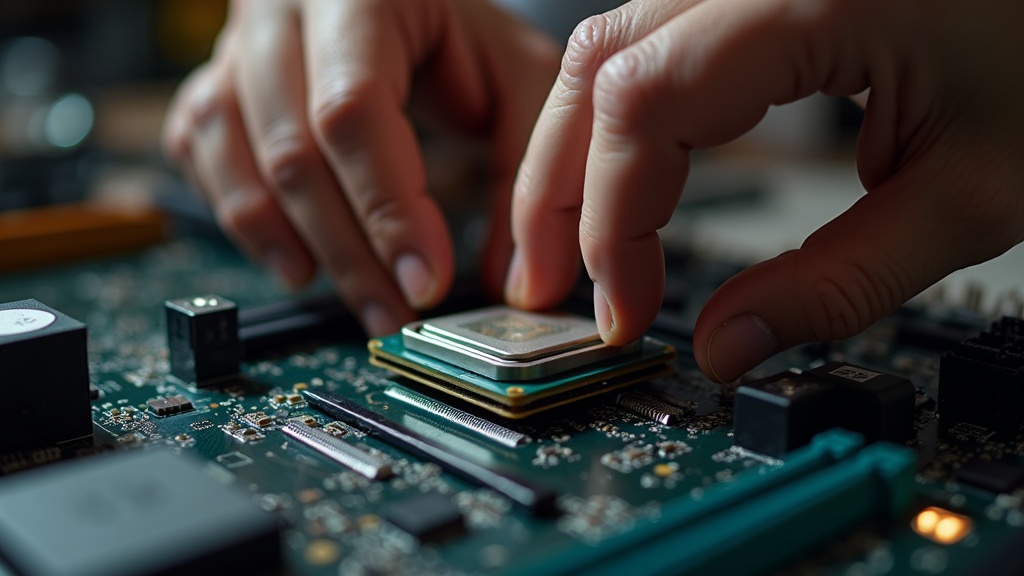
Building Your Own PC: Assembly and Workflow Optimization
Once you’ve finalized your parts list, it’s time to start building. That said, don’t rush straight into assembly the moment everything arrives. Skipping proper prep can lead to serious problems — from static discharge damaging components to wiring mistakes you won’t discover until after everything is closed up.
Pre-Build Preparation | Static Protection, Parts Checklist, and Tools You’ll Need
Static electricity is one of the biggest risks in any PC build. The static charge on your body can instantly damage a motherboard or CPU on contact — even a discharge you can’t see or feel. The fix is simple: touch a metal surface like a doorknob or metal desk frame before you start, or use an anti-static wrist strap. Either option dramatically reduces your risk.
Pre-Build Checklist
- Static protection: Use an anti-static wrist strap, or discharge yourself by touching a metal surface before handling components
- Workspace: Clear a large, flat surface (a wooden desk is ideal) — avoid working on carpet
- Tools: A #2 Phillips screwdriver is essential. A magnetic tip helps prevent dropped screws
- Parts check: After unboxing, verify all included accessories are present (backplate, cables, manual)
- Manual: Keep your motherboard manual handy — memory slot order, M.2 slot locations, and other details vary by board
When installing the CPU, never force it. Take your time and confirm the orientation before seating it. Note the key structural difference: AM4 (used by CPUs like the Ryzen 5 5600) has pins on the CPU itself, while LGA1700 (used by CPUs like the Core i5-12400F) has pins in the socket.
Tip: When applying thermal paste with the included compound, a single rice-grain-sized dot in the center of the CPU is all you need. Don’t spread it — the pressure from mounting the cooler will distribute it evenly.
Check Amazon for the latest pricing on this one. It’s a rare option that delivers mid-to-high-end performance at this price point.
OS Setup and Optimization | Key Steps for Windows 11 and BIOS Configuration
With the hardware assembled, it’s time to set up your software environment. The first thing to do when you power on for the first time is enter the BIOS (UEFI) and verify a few critical settings.
Press DEL or F2 immediately after powering on to enter UEFI. Enable XMP (Intel) or EXPO (AMD) to run your memory at its rated speed — by default, it may run at a slower JEDEC baseline speed. Also set the boot priority to your target SSD.
Use Microsoft’s official Media Creation Tool to create a bootable USB drive (16GB or larger), then boot from it to begin installation. Windows 11 requires TPM 2.0, so confirm it’s enabled in UEFI before you start.
Run Windows Update first, right after installation. Then download the latest chipset drivers from your motherboard manufacturer’s official site. Get GPU drivers directly from NVIDIA or AMD’s official website.
Open Task Manager to confirm your CPU and RAM are recognized correctly. Switch to the “High performance” power plan, disable unnecessary startup apps, and — if you’re building a gaming PC — enable Game Mode.
If you skip enabling XMP (on Intel) or EXPO (on AMD) in the BIOS, your DDR4-3200 memory might end up running at DDR4-2133 — a significant downgrade. Memory bandwidth affects overall system performance, and on AMD Ryzen platforms in particular, the difference is noticeable in real-world use.
Workflow perspective: Building your own PC means you control the OS environment from scratch — ideal for creative work and development setups. Starting clean makes it easy to configure WSL2 (Windows Subsystem for Linux) or set up Python and other dev tools without the dependency conflicts that plague pre-built systems.
If you’re looking for a high-value NVMe SSD, check out the latest pricing on the WD Blue SN580 1TB. With sequential read speeds up to 4,150 MB/s at an accessible price point, it pairs especially well with builds in the $700–$800 range.
If you want a cooler that balances quiet operation with solid value, check out the latest pricing and specs for the be quiet! Pure Rock 2.
The Fractal Design Pop Air has earned a lasting reputation as a go-to mid-tower case for its excellent balance of airflow and noise levels. Check the latest pricing and availability below.
Check the latest pricing and availability for the Seasonic Focus GX-650 — a solid PSU choice for quiet, stable power delivery.
If you’re weighing features against price, it’s worth checking the current sale price and full specs. This board typically comes in well under $130 while including Wi-Fi 6E and Bluetooth 5.2 — a compelling option for budget-conscious builds.
GeForce RTX 4060 pricing tends to fluctuate, so check current availability before you buy.
If you want quiet, reliable power delivery, check the latest pricing and stock on the Corsair RM750e.
The NZXT H5 Flow is a consistently popular mid-tower known for its balance of airflow and quiet operation. Check current pricing and availability below.
Check the latest pricing and full specs for the DeepCool AK620 — a dual-tower cooler that delivers impressive thermal performance while keeping noise levels in check.
Check the latest pricing and availability for the GIGABYTE B650 AORUS ELITE AX below. With Wi-Fi 6E and Bluetooth 5.3 built in at a price that typically lands around $200, it’s one of the most well-rounded options for a mid-to-high-end AMD build.
If you’re prioritizing value, take a look at the latest pricing and specs for the ASRock B650M Pro RS.
Check the product page for the latest pricing and full specs on the G.Skill Trident Z5 DDR5-6000 32GB. As the memory cornerstone of a higher-end build, it’s worth confirming stock availability before purchasing.
GeForce RTX 4070 Super pricing can vary significantly by timing, so check current availability across all retailers before you commit to a purchase.
Check the product listing for the latest pricing and availability on the GeForce RTX 5070.
Check the current price and availability before buying — this is one of the top GPU picks for higher-end builds, and stock can move quickly.
For quiet, efficient power delivery, check the latest pricing and full specs on the Seasonic Focus GX-850.
If you’re interested in the Lian Li LANCOOL 216, check the latest pricing and availability below. It’s a mid-tower that consistently earns praise for its airflow-to-noise ratio and strong value for the money.
If quiet operation and reliable cooling are your priorities, check current pricing and availability for the Noctua NH-U12S. It pairs well with mid-range builds and has a long-standing reputation for durability and low noise.
Check the latest pricing and full specs for the be quiet! Dark Rock 4 — a strong pick if low noise and solid thermal performance are both on your checklist.
Check current pricing and availability for the Ryzen 5 7600 — demand stays steady thanks to its strong value, and prices can shift depending on timing.
Final Verdict | Best Builds by Budget
We’ve taken a detailed look at builds across the $500, $1,000, and $2,000 price ranges. Let’s wrap up with a clear framework for choosing the right budget tier and some concrete guidance to help you make your purchase.
How to Choose Your Budget Tier: 3 Key Criteria
- If your primary use is web browsing, video streaming, or document work, the $500 range is more than enough
- If you’re into gaming, video editing, or heavy multitasking, the $1,000 range is a realistic minimum
- If you need 4K editing, 3D rendering, or live streaming, budget $2,000 or more
The real advantage of building your own PC is the ability to control exactly where your money goes. Pre-built and BTO systems are designed for general balance, but with a custom build you can optimize for your specific needs — like going heavier on the GPU than the CPU, or trading storage capacity for more RAM.
| Budget Range | Primary Use Cases | Build Philosophy | Future Upgradability |
|---|---|---|---|
| ~$500 | Office work, web browsing, learning | Integrated graphics, power efficiency first | Limited (socket may be outdated before upgrade) |
| ~$1,000 | Gaming, video editing | Dedicated GPU, balanced CPU and RAM | Moderate (GPU swap can extend lifespan) |
| ~$2,000 | Creative work, demanding workloads | High-end CPU, GPU, and RAM across the board | High (stays relevant for several years) |
The $1,000 range deserves special attention. CPUs like the AMD Ryzen 5 5600 (6 cores / 12 threads, up to 4.4GHz boost, street price ~¥17,980) and Intel Core i5-12400F (comparable specs, ~¥17,580) deliver exceptional performance for their price point and remain strong value picks today. One of the biggest advantages of building around these chips is that a GPU upgrade alone can dramatically improve overall system performance — making them a smart foundation for long-term use.
On the platform side, AMD’s Ryzen builds on AM4 or AM5 are especially recommended for first-time builders. There’s a wealth of compatibility information available, and motherboard/CPU pairing issues are rare. Intel’s LGA1700 platform, on the other hand, offers early support for cutting-edge standards like PCIe 5.0 and is worth considering if future expandability is a priority. Both have their trade-offs, so weigh your use case and budget before deciding.
Before You Buy: Must-Check Items
- Verify the exact motherboard SKU at purchase — many boards come in multiple variants (e.g., the MSI PRO B760M-A has WIFI and Gen II versions)
- DDR4 vs. DDR5 support depends on the CPU and motherboard combination — always confirm both together
- Check the latest prices and stock availability on official product pages or price comparison sites before ordering
A custom PC build isn’t finished when the last screw is in. It’s truly ready for your workflow only after OS setup, driver updates, and benchmark testing to confirm everything is performing as expected. Refer back to the initial setup steps covered in the previous section to get the most out of your new parts.
Part prices and availability shift with market conditions, so we recommend verifying current information on official sites or price comparison tools at the time of purchase.
Prices and stock can change at any time — always check the latest listings before pulling the trigger.

Comments