
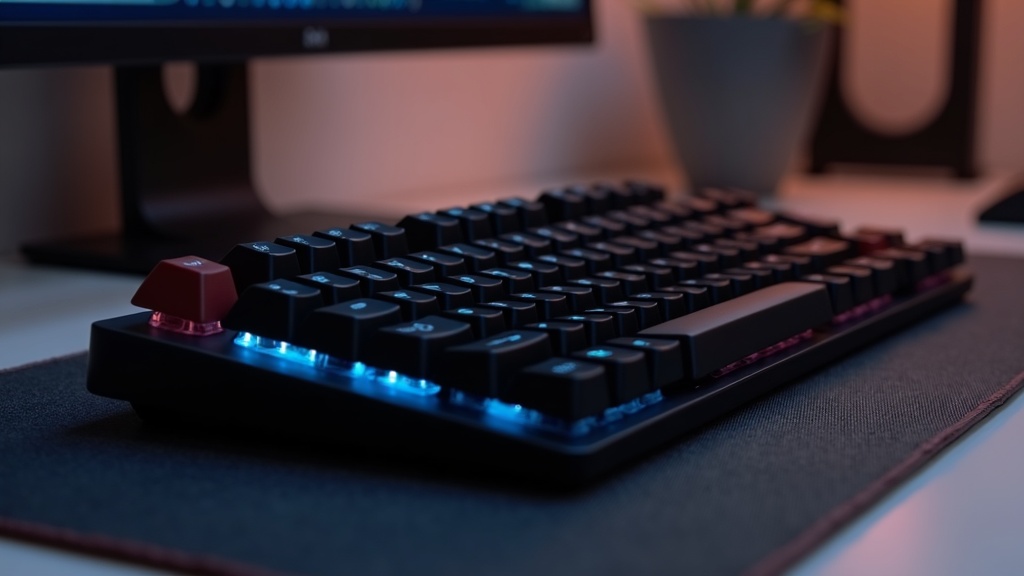
Why Mechanical Keyboards Are Worth It
Have you ever wondered whether it’s really worth caring about your keyboard? Your keyboard is a tool you use thousands of times every day — and it has a direct impact on your productivity. Mechanical keyboards have maintained their loyal following for years, and there are concrete, structural reasons why.
How Mechanical Keyboards Differ from Membrane and Scissor-Switch Designs
Most standard office keyboards use a “membrane” design. Membrane keyboards work by pressing a rubber dome sheet against a conductive film beneath each key, which registers the input. While this makes them inexpensive to manufacture, the feel of each keypress tends to be mushy and inconsistent, and you rarely get clear feedback about how far down the key has traveled.
The “scissor-switch” design common in laptops takes a different approach — it minimizes key travel to create an ultra-thin profile, which is great for portability. However, the shallow key depression can add up over hours of typing, gradually straining your fingers during long writing sessions.
Comparing the Three Keyboard Technologies
| Type | Input Detection Method | Primary Use Case |
|---|---|---|
| Membrane | Rubber dome contacts a conductive film | General office use |
| Scissor-switch | X-shaped scissor mechanism + membrane | Laptops and slim keyboards |
| Mechanical | Individual metal contacts inside each switch | Professional and gaming use |
The Typing Feel and Durability Advantages of Switch Mechanisms
The defining feature of a mechanical keyboard is that every single key has its own dedicated switch. Each switch contains metal contacts and a spring, creating a physical click and rebound with every keypress. This is the fundamental reason mechanical keyboards deliver that distinctive, satisfying feedback.
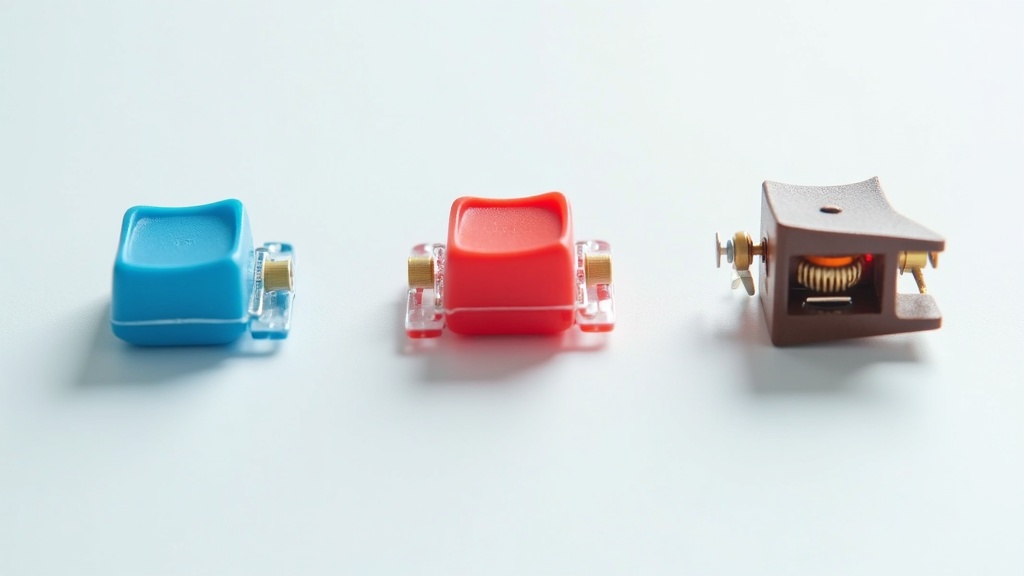
Mechanical switches fall into three main categories. “Clicky switches (Blue)” produce an audible click and a tactile bump when actuated. “Linear switches (Red)” offer a smooth, quiet keystroke from top to bottom. “Tactile switches (Brown)” fall in between — you get a subtle bump without the loud click.
Key Characteristics of Each Switch Type
- Blue (Clicky): Distinct click sound with a tactile bump. Great for long-form typing where keystroke confirmation matters. Not ideal for open offices or late-night sessions due to the noise level.
- Red (Linear): Quiet and smooth from start to finish. Well-suited for gaming and fast typing where rapid key presses are essential.
- Brown (Tactile): A tactile bump without the loud click, making it a solid middle ground for people who split time between typing and gaming.
In terms of durability, most mechanical switches are rated for 50 million keystrokes or more. At a typical 8-hour workday, you can reasonably expect 5 to 10 years of use — though actual lifespan depends on your typing speed (refer to each switch manufacturer’s official specs for precise figures). That’s significantly longer than membrane alternatives, making mechanical keyboards a strong long-term value proposition for professional users.
The Impact on Productivity and Typing Accuracy
The clear feedback from a mechanical switch isn’t just about feel — it has real, practical benefits for typing accuracy.
Mechanical switches have a well-defined “actuation point” — the exact position at which a keypress is registered, before the key bottoms out. Because typists can sense this point through sound and physical resistance, they tend to make fewer errors and develop a more consistent typing rhythm.
Switch Recommendations by Workflow
- Long-form writing and coding: Tactile or clicky switches (Brown or Blue). The confirmation feedback helps you stay accurate over extended sessions.
- Quiet environments and meeting notes: Silent linear or silent tactile switches (e.g., Silent Red).
- Gaming and desk work combined: Red or Brown switches offer the best versatility for mixed use.
In short, investing in a mechanical keyboard isn’t about gear obsession — it’s about upgrading the infrastructure you rely on every single day. In the next section, we’ll take a closer look at the switch types themselves, breaking down what makes each one tick.
Switch Types Explained: Blue, Red, and Brown — A Deep Dive
When you’re shopping for a mechanical keyboard, the first hurdle most people hit is figuring out which switch type to choose. Specs pages list Blue, Red, and Brown switches, but if you’ve never typed on them, the differences are hard to imagine. This section breaks down the physical mechanics of each switch type and helps you figure out which one fits your use case.
The differences between switch types come down to the design of the actuation mechanism inside each switch. When you press a key, the switch determines: what kind of resistance you feel, what sound it makes, and how much force is required. These three factors define the three main categories: Clicky, Linear, and Tactile.
Clicky Switches (Blue, Green): Characteristics and Who They’re For
The defining feature of clicky switches is the sharp, audible click and tactile snap you feel the moment a keypress registers. A mechanism called a click jacket inside the switch provides physical feedback right at the actuation point — the exact moment your input is recognized. That “I know I pressed it” confidence can meaningfully reduce typos during long typing sessions.
Clicky Switch Summary
- Sound: Loud, distinct click (use with caution in quiet environments)
- Feedback: Strong tactile bump with audible confirmation
- Best for: Long-form writing, programming, and text-heavy work
- Watch out for: The noise can carry in offices or shared living spaces
Many writers and coders find that the clear “registered” feel of a clicky switch helps them stay focused during long sessions. That said, they’re a poor fit for late-night work or shared workspaces. Green switches have a heavier actuation force than Blue, making them a good option for anyone who wants even more resistance against accidental keypresses.
Linear Switches (Red, Black, Silver): Characteristics and Who They’re For
Linear switches are designed for smooth, consistent resistance throughout the entire key travel. With no click mechanism, they’re quieter and simpler — the key just glides straight down. That effortless “sink” feeling is what makes linear switches the go-to choice for gaming, particularly in fast-paced genres like FPS and fighting games where rapid inputs are everything.
Linear Switch Summary
- Sound: Relatively quiet (some bottom-out noise remains)
- Feedback: None — uniform resistance from top to bottom
- Best for: Gaming, fast typing, and noise-sensitive environments
- Watch out for: No feedback means typos can be harder to catch
Red switches are the most widely adopted linear option and appear in the majority of gaming keyboards. Black switches have a heavier actuation force — some find this less fatiguing over time, but it won’t suit anyone who prefers a lighter touch. Silver switches have a shallower actuation point, designed specifically for the fastest possible input response.
Tactile Switches (Brown, Clear): Characteristics and Who They’re For
Tactile switches sit between clicky and linear, offering a noticeable bump at the actuation point without a loud click. You feel a subtle “bump” through your fingertip when the keypress registers, but the sound stays much closer to a linear switch. It’s designed for people who want keystroke confirmation without disturbing everyone around them.
Tactile Switch Summary
- Sound: Moderate (quieter than Blue, slightly more than Red)
- Feedback: Tactile bump felt through fingers, not heard
- Best for: Office and remote work, mixed typing and gaming use
- Watch out for: Bump strength varies significantly between brands — try before you buy when possible
Brown switches are one of the most commonly recommended entry points for first-time mechanical keyboard buyers. They’re versatile enough to handle office work during the day and gaming in the evening on the same board. Clear switches have a more pronounced bump than Browns, making them a solid pick for anyone who wants stronger feedback.
Quick-Reference Switch Selection Chart
Now that we’ve covered all three categories, here’s a quick guide to match your priorities to the right switch type. As always, if you have a chance to try switches in person before buying — at a retail store or a keyboard meetup — take it. No spec sheet replaces hands-on feel.
| Your Priority | Recommended Switch Type | Common Options |
|---|---|---|
| Confident keystroke feel / writing-focused | Clicky | Blue, Green |
| Gaming / fast input / quiet operation | Linear | Red, Silver, Black |
| Mixed work and gaming / office use | Tactile | Brown, Clear |
| Electrostatic capacitive feel (unique feedback) | Electrostatic capacitive | Topre (HHKB, etc.) |
The Switch Detail Most Buyers Overlook
Even switches with the same name can feel noticeably different depending on who made them. Cherry MX, Gateron, and Kailh all produce switches with identical names, but the actuation force, bump strength, and sound profile can vary. The most reliable way to find your preference is to try them at a demo event or a store with display units.
How to Choose a Mechanical Keyboard: 5 Key Factors
Once you’ve settled on a switch type, the next step is deciding which keyboard to actually buy. Browsing spec sheets can quickly get overwhelming — size, connectivity, hot-swap support, and more all compete for your attention.
This section covers the five factors that actually matter when making your decision. If you’ve already chosen a switch but aren’t sure what else to look for, this is for you.
Choosing the Right Size: Full-Size, TKL, 65%, or 60%
Keyboard size comes down to how much desk space you have and what you use it for. Larger boards give you more keys, but they push your mouse further away, which can add strain to your shoulder and arm over time.
| Size | Key Count | What’s Included | Best For |
|---|---|---|---|
| Full-size (100%) | 104–108 keys | Numpad, function row, all navigation keys | Data entry, accounting, CAD |
| TKL (80%) | 87–88 keys | Everything except the numpad | Document work, general office use |
| 65% | 66–68 keys | Compact layout with dedicated arrow keys | Coding, text editing |
| 60% | 60–61 keys | Arrow keys accessed via Fn layer | Minimal typing setup, portability |
The reason coders and writers often gravitate toward 65% boards is simple: you keep physical arrow keys while reclaiming desk space for your mouse. The 60% layout takes minimalism further, but expect a learning curve while you internalize the Fn-layer key combinations.
Wired vs. Wireless: Bluetooth vs. 2.4GHz
The idea that wireless means laggy is essentially outdated when it comes to modern 2.4GHz dongles. Gaming-grade 2.4GHz wireless now delivers response times close to wired, and it’s not uncommon to see professional esports players competing on wireless setups.
Bluetooth, on the other hand, shines for multi-device workflows — switching seamlessly between your PC and tablet with one keyboard. The trade-off is that Bluetooth is slightly less stable than 2.4GHz, and 2.4GHz requires one USB port for its dongle.
- Gaming or low-latency needs → 2.4GHz wireless or wired
- Switching between multiple devices → Bluetooth (look for multi-pairing support)
- Simple and reliable setup → USB wired (detachable cable is a nice bonus)
Hot-Swap Support and What It Means for Flexibility
Hot-swap means you can pull out and replace switches while the keyboard is powered on — no soldering required. Think of it like hot-plugging a PCIe device: swap the switch, and you’re done in seconds.
Without hot-swap support, changing switches requires desoldering — a process that demands tools and some skill. With hot-swap, going from Red to Silent Red, or Blue to Brown, takes just a few minutes. This ability to iterate — start with one switch, then swap when your preferences evolve — pays real dividends over time.
When Hot-Swap Support Is Especially Worth It
- If you’re buying your first mechanical keyboard and want to experiment with different switches
- If you want to use different switches for different tasks (e.g., Red for coding, Brown for writing)
- If you’d rather replace worn-out switches yourself instead of retiring the whole board
TKL vs. Compact: How to Decide
The choice between TKL and compact (65%/60%) really comes down to one question: how often do you use the arrow keys as physical keys? If you rely heavily on Excel or other tools that use arrow keys constantly, Fn-layer navigation will likely frustrate you. On the other hand, engineers comfortable with Vim or custom editor keybindings often find that 60% layouts don’t hold them back at all.
For portability, anything 65% or smaller is a realistic option — compact enough for a bag without giving up too much functionality. For a permanent desk setup at home or the office, TKL tends to be the most balanced choice.
Top 15 Mechanical Keyboards | Comparison Chart
Based on the five key selection criteria covered in the previous section — size, connectivity, key layout, hot-swap support, and OS compatibility — we’ve put together a side-by-side comparison of all 15 keyboards. Lining up products with different switches and use cases makes it easy to understand why certain keyboards are priced the way they are.
Note that keyboard prices fluctuate significantly due to exchange rates and stock availability, so we’ve intentionally left out the price column. Always check the manufacturer’s official website or an authorized retailer for the latest pricing before you buy.
Full Specs Comparison: All 15 Keyboards
Switch type determines a keyboard’s personality. Clicky switches (blue) produce an audible click and tactile feedback with every keystroke, making them well-suited for long typing sessions. Linear switches (red), on the other hand, have a quieter, smooth actuation all the way to bottom-out, which makes them ideal for fast gaming inputs. This difference in switch type is the single biggest factor that separates “mechanical keyboard” experiences — even within the same category.
| Model | Switch Type | Layout | Connectivity | Hot-Swap | OS Support | Price |
|---|---|---|---|---|---|---|
| Keychron K2 Pro | Swappable (Red / Blue / Brown, etc.) | 65% | USB-C / Bluetooth | Yes | Mac / Windows | See official site |
| Keychron K3 Pro | Swappable (Red / Blue / Brown, etc.) | 75% | USB-C / Bluetooth | Yes | Mac / Windows | See official site |
| Keychron K8 Pro | Swappable (Red / Blue / Brown, etc.) | TKL (80%) | USB-C / Bluetooth | Yes | Mac / Windows | See official site |
| HHKB Professional Hybrid Type-S | Topre Electrostatic Capacitive | 60% (custom layout) | USB-C / Bluetooth | No | Mac / Windows | See official site |
| RealForce R3 | Topre Electrostatic Capacitive | Full-size / TKL | USB-C / Bluetooth | No | Mac / Windows | See official site |
| Filco Majestouch 3 | Cherry MX (Red / Blue / Brown / Black) | Full-size / TKL | USB | No | Primarily Windows | See official site |
| LEOPOLD FC750R | Cherry MX (Red / Blue / Brown / Black) | TKL (80%) | USB | No | Primarily Windows | See official site |
| Ducky One 3 | Cherry MX (multiple switches) | Full-size / TKL / 65% | USB-C | No | Windows / Mac | See official site |
| Anne Pro 2 | Gateron / Kailh (multiple switches) | 60% | USB-C / Bluetooth | No | Windows / Mac | See official site |
| NuPhy Air75 V2 | NuPhy proprietary (multiple switches) | 75% | USB-C / Bluetooth / 2.4GHz | Yes | Mac / Windows | See official site |
| Logitech G913 TKL | GL (Red / Blue / Brown) | TKL (80%) | USB / LIGHTSPEED 2.4GHz | No | Windows / Mac | See official site |
| CORSAIR K70 RGB PRO | Cherry MX (multiple switches) | Full-size | USB | No | Primarily Windows | See official site |
| Razer BlackWidow V4 Pro | Razer Green / Yellow | Full-size | USB / 2.4GHz / Bluetooth | No | Primarily Windows | See official site |
| SteelSeries Apex Pro | OmniPoint (adjustable actuation) | Full-size / TKL | USB | No | Primarily Windows | See official site |
| Mistel MD770 | Cherry MX (multiple switches) | Split TKL | USB | No | Windows / Mac | See official site |
How to Read the Chart: Focus on Switch Type
Hot-swap compatible models (Keychron K2/K3/K8 Pro, NuPhy Air75 V2, etc.) let you swap out switches whenever you want. If you’re starting with reds but want to try blues down the road, prioritizing hot-swap support is the smarter long-term investment. Electrostatic capacitive keyboards (HHKB, RealForce), on the other hand, are designed around the idea that you won’t need to swap — they compete on switch longevity and the refined feel of their typing experience right out of the box.
You can check the latest pricing and availability for the Logitech MX Mechanical Mini below. If you’re after a compact keyboard that still delivers a serious typing experience, it’s worth a look.
Recommended by Price Range: Entry, Mid-Range, and High-End
The mechanical keyboard market breaks down into three clear price tiers, each representing a different kind of investment. Knowing which tier you’re targeting before you start comparing will dramatically narrow down your options.
Entry-Level
This tier includes keyboards like the Anne Pro 2 and Keychron’s introductory models. They use Cherry MX-compatible switches to keep costs down while still delivering a genuine mechanical feel. These are solid everyday-use picks if gaming features aren’t a priority. Check the official sites for current pricing.
Mid-Range
This is where you’ll find the Keychron K2/K3/K8 Pro, NuPhy Air75 V2, and Logitech G913 TKL, among others. You get hot-swap support, wireless connectivity, and RGB backlighting — making this the sweet spot for value. It’s the ideal tier for users who want one keyboard that works equally well for remote work and gaming.
High-End
This tier is home to the HHKB Professional Hybrid Type-S, RealForce R3, and SteelSeries Apex Pro. You’re paying for either the premium feel of electrostatic capacitive switches or advanced customization capabilities. The difference really shows up during long coding or writing sessions.
Looking at the relationship between price and use case: wireless low-latency models for gaming are concentrated in the mid-to-high-end range, while electrostatic capacitive keyboards dominate the high-end for writing and coding. This reflects the core priorities of each use case — gaming demands response speed, while typing-heavy work demands switch quality — and those priorities are directly embedded in each manufacturer’s design philosophy.
Thinking About Long-Term Cost
High-end keyboards carry a higher upfront cost, but electrostatic capacitive switches are generally considered more durable than standard mechanical switches — which can make the total cost of ownership lower over time. If you’re spending several hours a day at a keyboard, the investment in a high-end model can realistically pay for itself. Always check the latest pricing at the official site or an authorized retailer before purchasing.

You can check the full specs and latest pricing for the Logitech G913 TKL on the official site or major retailers. If you’re curious about how low-profile switches actually feel, it’s worth checking out in person.
Top 5 Picks for Remote Work
If you’ve been thinking about adding a mechanical keyboard to your home office or shared workspace setup, you’ve probably run into two common frustrations: the noise and the hassle of switching between multiple devices. For remote work, the three pillars of keyboard selection come down to noise level, portability, and multi-device support.
How to Choose a Silent Red or Silent Tactile Switch Model
Standard red switches are linear (no bump or tactile feedback inside the switch — resistance is smooth and consistent all the way down), which already makes them quieter than clicky blue switches. Models marketed as “silent” take it a step further by adding a dampening material inside the switch to absorb the sound of bottoming out and the upstroke return.
What to Check When Choosing a Silent Switch
- Whether the switch’s rated actuation force is around 45g
- Whether a dampening mechanism is built in to reduce bottom-out noise
- The keyboard chassis material (aluminum cases tend to resonate unless paired with a gasket mount)
- Whether pairing with a desk mat or wrist rest can provide additional vibration dampening
Silent tactile switches add dampening treatment to a tactile switch (one that produces a subtle bump midway through the keystroke). Because you get more feedback per keypress than with red switches, some users find they make fewer typos during long document sessions. That said, silencing the switch alone won’t completely eliminate bottom-out noise, so you may want to consider adding O-rings or other spacers as well.
Featured Model: Keychron K2 Pro
This keyboard uses a 65% compact layout, which saves even more desk space than a tenkeyless design. It supports hot-swap switches, so you can swap in silent red or silent tactile switches yourself after purchase — a great fit for remote workers who want to dial in their sound environment over time. It supports both Bluetooth and USB-C, and comes with RGB backlighting. For pricing and the latest specs, check the Keychron official website.
Downside: With a 65% layout, function keys require an Fn key combination, so there’s a learning curve if your work involves heavy use of Excel or an IDE.
When Multi-Device Support Actually Makes a Difference
Remote workers switch between devices more often than you might think. Being able to hop between a work laptop, a personal MacBook, and a tablet without unplugging and replugging cables can meaningfully reduce the mental friction of context-switching throughout the day.
Real-World Scenarios Where Multi-Device Pairing Pays Off
- Quickly switching to your phone with a single key to fire off a message, then switching back to your work PC
- Developers working across both Mac and Windows who save separate keymaps per OS and switch instantly
- Taking notes on a tablet during a video call while keeping a separate window open on your PC
- Pairing a lightweight keyboard with a tablet stand for comfortable typing on the go
Featured Model: HHKB Professional Hybrid Type-S
This model uses Topre electrostatic capacitive switches, which have no metal contacts inside — meaning the keystroke feel stays consistent over time and doesn’t degrade. The 60-key compact layout supports both Bluetooth and wired connections, and is compatible with both Mac and Windows. Programmable keys let you set up separate keymaps optimized for each OS.
Downside: The 60-key layout has no dedicated arrow keys or function row, which means a steeper adjustment period for tasks like spreadsheet work or video editing. It also sits at a higher price point — see the PFU official website for current pricing.
When comparing multi-device keyboards, pay attention to how many devices can be paired (3 or 4) and how long the switching latency actually is. If you’re always at a fixed home office setup, wired is perfectly fine — but if you’re working from coworking spaces or traveling regularly, prioritizing wireless stability is the practical call. Always check the official website or an authorized retailer for the latest specs and pricing before purchasing.
Top 5 Picks for Gaming
Unlike the remote work picks where noise reduction and portability were top priorities, gaming keyboards are all about response speed, shallow actuation points, and durability under rapid repeated keypresses. In competitive play where a single frame (~16 milliseconds) can matter, the physical characteristics of your switch translate directly into performance — so understanding how switches work before you buy is worth the effort.
How Low-Actuation, High-Speed Switches Actually Work
Most standard mechanical switches actuate (register a keypress) at around 2.0mm of travel. Gaming-focused switches are designed to actuate at a much shallower 1.2–1.5mm, which means less travel before the input registers and faster response times overall.
In terms of switch type, linear switches (red switch variants) are by far the most popular choice for gaming. While clicky switches (blue) produce a tactile bump and audible click partway through the keystroke, linear switches travel straight down without any bump. The result:
- Minimal lag between when you press a key and when the input registers
- No catching or resistance during rapid repeated keypresses
- Less finger fatigue during extended play sessions
The trade-off is that without tactile feedback, it’s harder to tell how far you’ve pressed a key — which can lead to more typos when typing text. If you need one keyboard that handles both gaming and writing, keep this in mind when making your decision.
3 Key Specs to Evaluate in a Gaming Keyboard
- Actuation Point: Shallower means faster response (aim for 1.2–1.5mm)
- Polling Rate: 1000Hz or higher means the keyboard reports inputs to your PC more frequently
- N-Key Rollover: Whether every key pressed simultaneously is accurately registered
The Latest on Adjustable Mechanical Switches
One of the most talked-about developments in the gaming keyboard market recently is adjustable switches (variable actuation point). Originally developed for competitive players, this technology lets you tune your actuation point in 0.1mm increments through dedicated software — and since 2024, it’s been making its way into mid-range products as well.
The technology works by using Hall effect sensors (magnetic sensors) that detect keystrokes through changes in a magnetic field rather than through physical metal contacts. Because there’s no metal-on-metal contact, wear-related degradation is much less of a concern, making these switches more durable over the long term.
Where Adjustable Switches Shine
- FPS: Set a shallow actuation for faster reloads and weapon swaps
- MOBA/RTS: Use dual-actuation to assign two different actions to a single key
- Mixed-use setups: Switch profiles between a shallow setting for gaming and a deeper setting for typing
Keep in mind that getting the most out of adjustable switches requires installing dedicated software, so you won’t benefit from the feature on a shared or work-managed PC where driver installs aren’t allowed. Software versions and supported features can also change over time, so check the manufacturer’s official website for the latest information before purchasing.
| Switch Type | Actuation Point | Gaming | Typing |
|---|---|---|---|
| Linear (Red variants) | Standard (~2.0mm) | ★★★★☆ | ★★★☆☆ |
| Gaming Linear (Speed variants) | Shallow (1.2–1.5mm) | ★★★★★ | ★★☆☆☆ |
| Adjustable (Magnetic/Hall Effect) | Variable (0.1mm increments) | ★★★★★ | ★★★★☆ |
| Tactile (Brown variants) | Standard (~2.0mm) | ★★★☆☆ | ★★★★☆ |
Top 5 Picks for Programmers & Creatives
While gaming keyboards prioritize response speed above all else, the top priorities for programming and creative work are durability for long sessions, customization flexibility, and quiet operation. When you’re spending 8+ hours a day at your keyboard, even small differences in key feel can directly impact your risk of repetitive strain injuries and your ability to maintain focus.
Layout & Shortcut Accessibility for Programmers
Many engineers deliberately skip full-size keyboards for programming work. The key concept behind this choice is travel distance from the home row. With a numpad, every time your right hand reaches for the mouse or trackpad, that distance adds up — and over a long workday, it really accumulates.
Layout Selection Guide
- Full-size (100%): Best for number-heavy work like accounting or data entry that relies on the numpad
- TKL (80%): Drops the numpad but keeps function keys and arrow keys for those who need them
- 65%: A compact option that retains arrow keys — ideal for programmers who want a smaller footprint
- 60%: For power users comfortable with Vim keybindings or custom shortcuts who want maximum compactness
The reason Vim and Emacs users gravitate toward 60% layouts is that remapping cursor navigation minimizes hand movement entirely. On the other hand, if you primarily use Visual Studio Code or a JetBrains IDE, you’ll frequently need function keys and arrow keys, making TKL to 65% the more practical range.
QMK & VIA Support: Unlocking Full Keymap Customization
QMK (Quantum Mechanical Keyboard Firmware) is an open-source firmware platform that lets you remap any key at the firmware level. For example, you can reassign Caps Lock to Ctrl, or configure a single key to act as a normal keystroke when tapped and a shortcut modifier when held.
VIA is a GUI tool that lets you configure QMK settings intuitively — changing your keymap in real time without reflashing the firmware. The appeal for engineers is clear: it enables layer switching based on your current development environment.
① HHKB Professional Hybrid Type-S
This is the flagship model of the HHKB (Happy Hacking Keyboard) line, which has earned a loyal following in the programming community for years. It uses Topre electrostatic capacitive switches, which detect keystrokes through changes in electrical charge rather than physical metal contacts. This means there are no contacts to wear out, giving the switches exceptionally high theoretical longevity.
| Spec | Details |
|---|---|
| Switch | Topre Electrostatic Capacitive (45g actuation) |
| Layout | 60-key (proprietary layout) |
| Connectivity | Bluetooth 4.2 / USB-C wired |
| OS Support | Mac / Windows switchable |
| Price | Check official site |
Pros: The Type-S is a silent variant with remarkably subdued key noise, making it well-suited for office environments and cafes. The short key travel also reduces fatigue, which is a real advantage during extended work sessions.
Cons: The proprietary 60% layout places the Delete key and arrow keys in non-standard positions, so expect a learning curve if you’re switching from a conventional keyboard. It doesn’t support QMK, so firmware-level customization requires PFU’s dedicated software. The price point is also on the high end, making it a tough recommendation as a first mechanical keyboard.
If you want the best of both silence and typing feel, check out the full details on the HHKB Professional Hybrid Type-S. The unique typing experience from its electrostatic capacitive switches is something many users say they can never go back from once they’ve tried it.
静電容量無接点方式の打ち心地や無線・有線両対応の使い勝手が気になる方は、実際のスペックや最新価格をチェックしてみてください。コンパクトながら長時間の作業でも疲れにくい設計になっているので、毎日キーボードを使うような方には特に確認してほしい1台です。
② Keychron K2 Pro
This 65% layout keyboard strikes a strong balance between value and expandability. Its hot-swap support — which lets you swap out switches without opening the case — means you can change the feel of your typing experience after purchase, which is a major advantage for beginner to intermediate users. If you buy it with red switches and later decide you’d prefer browns, you just order new switches and swap them in.
| Spec | Details |
|---|---|
| Layout | 65% (with arrow keys) |
| Connectivity | Bluetooth / USB-C wired |
| Hot-swap | Supported |
| Backlight | RGB |
| QMK/VIA | Supported |
| Price | Check official site |
Pros: QMK/VIA support enables full keymap customization. Hot-swap capability makes it a safe choice for users who are still exploring their preferences. It supports both Mac and Windows with a physical toggle switch, making it easy to use across different work environments.
Cons: The plastic-body version can produce noticeable resonance when typing. If noise is a concern, consider choosing silent switches or adding foam dampening inside the case.
We recommend checking the typing feel in person at a retailer or on the official site before buying.
If you want to dig into the Keychron K2 Pro’s hot-swap compatibility, Mac/Windows support, and full switch lineup, head over to the official product page to see the current specs and pricing.
Keychron K2 Pro の価格や詳細スペックが気になる方は、公式サイトや販売ページでぜひ確認してみてください。カスタマイズ性と実用性のバランスを実際の仕様で見比べると、自分のスタイルに合うかどうかがより具体的にイメージできるでしょう。
How to Leverage Mechanical Keyboards for Remote Work and Business Workflows
Can simply upgrading your keyboard actually make you faster at work? The answer is yes — but not just because typing feels better. Your input device is the starting point of your entire workflow, and investing in the right one pays off in two distinct ways: automating repetitive actions and reducing the friction of switching between devices.
Boosting Productivity with Shortcuts and Macros
Productivity experts often point out that eliminating repetitive tasks entirely delivers far greater efficiency gains than simply typing faster. Most mechanical keyboards today use QMK/VIA-compatible hot-swap PCBs, which means you can fully customize your keymap and program macros entirely through software. This lets you assign physical keys to actions like expanding text snippets, switching between applications, or executing multi-step command sequences.
Before vs. After: Impact of Macro Integration
| Task | Before | After |
|---|---|---|
| Typing a standard email greeting | Typed manually every time (~15 seconds) | Expanded with one key (~1 second) |
| Switching between Zoom, Slack, and your editor | 3–5 seconds with mouse navigation | Instant with a single shortcut |
| Screenshot + paste | Two separate steps | Combined into one macro key |
The key takeaway here is that these efficiency gains aren’t determined by how expensive your keyboard is — they depend on whether it supports programmable functionality. QMK/VIA-compatible models like the Keychron K2 Pro let you visually edit your keymap through a GUI tool, so even non-engineers can set things up without a steep learning curve.
Roles and Tasks That Benefit Most from Macros
- Writers and editors: Expand heading tags and boilerplate phrases instantly
- Sales and customer success: Instantly recall email templates and meeting note formats
- Engineers: Shorten code snippets and command inputs
- Designers: One-key tool switching and layer operations
Building a Smooth Hybrid Work Setup with Multi-Device Switching
In today’s hybrid work environments — where remote and in-office days are mixed — there’s a growing need to use a single keyboard across a work PC, personal laptop, and tablet. Constantly re-pairing Bluetooth devices every time you switch is a subtle but real source of frustration.
The solution is multi-device Bluetooth connectivity. Higher-end models like the Keychron K2 Pro and the HHKB Professional Hybrid Type-S let you register multiple devices and switch between them instantly using a dedicated key on the keyboard itself — no re-pairing required.
Sample Multi-Device Setup for Hybrid Workers
- Ch.1: Company-issued Windows PC (wired or Bluetooth)
- Ch.2: Personal MacBook at home (Bluetooth)
- Ch.3: iPad or Android tablet (Bluetooth)
Pair your keyboard switch with a KVM switch for your monitor, and you can seamlessly transition your entire desk setup — keyboard, mouse, and display — all at once.
One important caveat: Bluetooth still has inherent limitations when it comes to connection stability. In crowded office environments with heavy 2.4GHz traffic, you may experience latency or dropped connections. For mission-critical tasks — like staying responsive during a long video call — a wired connection is the more reliable choice, with Bluetooth as a secondary option. Choosing a model that supports both USB-C wired and Bluetooth connections gives you the flexibility to adapt to any situation. For the latest compatibility details and real-world connection performance of specific models, check each manufacturer’s official product page.
Common Questions & Things to Know
After switching to a mechanical keyboard, have you ever thought “this is louder than I expected” or “I wish the typing feel was different”? Here we cover the most common post-purchase questions and how customization can help.
How to Quiet Down a Loud Switch
Clicky switches like the Blue switch are designed to produce that satisfying “click” sound through a dedicated click mechanism inside the switch. While that feedback is part of what makes typing feel great, it can be a real problem when working from home with family around or in an open office.
There are three main approaches to reducing switch noise.
Silicone O-rings that fit under your keycaps absorb the impact when a key bottoms out, reducing the clatter. They cost just a few dollars and are the easiest mod to try, though keep in mind they’ll slightly shorten your key travel.
Placing Poron or EVA foam inside the bottom of the keyboard case helps absorb sound resonance. On hot-swappable keyboards, you can remove the switches and insert foam in a “foam mod,” which is relatively straightforward to do.
On hot-swap QMK-compatible boards like the Keychron K2 Pro, you can pull out switches with a switch puller and replace them with silent linear switches (like a Red variant). If you’re already thinking about switch choice before buying, be sure to check whether the board supports hot-swap.
Note: With clicky switches (Blue switches, etc.), O-rings alone won’t fully silence them — that’s just how the mechanism works. For office use or shared living spaces, starting with Red switches, Brown switches, or a Topre electrostatic capacitive keyboard is the more practical choice.
Keycap Swapping & Lubing: The Basics
One of the most talked-about customizations in the mechanical keyboard community right now is lubing switches. Applying a specialized lubricant to the contact points inside the switch smooths out the sound and reduces any scratchy feeling when typing.
The type of lube you use makes a difference. Generally, thicker lubricants are recommended for linear switches, while thinner lubricants work better for tactile switches to preserve that tactile bump. That said, knowing the right amount and exactly where to apply it takes some practice — if you’re new to it, start with a small amount and work your way up.
Before swapping keycaps, check these points to avoid any surprises:
| What to Check | Details |
|---|---|
| Switch stem compatibility | Is it MX-compatible? HHKB uses a Topre proprietary stem, so standard aftermarket keycaps won’t fit |
| Layout and key count | Choose a keycap set that matches your layout — 65%, 75%, TKL, etc. |
| Keycap material | PBT is more durable and wear-resistant, making it better for long-term use. ABS tends to develop shine over time |
The beauty of keycap and switch customization is that you can dramatically change how your keyboard looks, sounds, and feels — all without buying a new board. From a workflow perspective, it can also reduce fatigue during long typing sessions, making it well worth considering after your initial purchase. Check the manufacturer’s official website for compatibility details on specific products.
If you value a balance of typing feel and durability, check out the latest pricing and availability for the Filco Majestouch 2 TKL. It’s compact yet delivers a genuinely premium typing experience worth looking into.
If you care about typing sound and feel, check out the full specs and current pricing for the Leopold FC750R PD.
Curious about the typing feel and durability of Topre electrostatic capacitive switches? Check out the current pricing and full specs below.
Want to see the latest pricing and full specs for the Ducky One 3? Check out the product page below. With a wide range of colorways and switch options, it’s easy to find the exact configuration you want.
If you’re drawn to a compact form factor with solid customization options, check the current price and stock for this one. It also supports Bluetooth, making it a great pick if you want a cleaner, cable-free desk setup.
Looking for a compact keyboard that doesn’t compromise on value? Check out the latest pricing and specs for the RK Royal Kludge RK68.
Want a compact keyboard that still delivers a premium typing feel? Check out the current pricing and full specs for the NuPhy Air75 V2. Once you experience the subtle flex of its gasket mount design, it’s hard to go back to anything else.
Check the official site or major retailers for the latest pricing and availability on the Razer BlackWidow V4 Pro. Be sure to look at colorway options as well.
Curious about the OmniPoint switch and its adjustable actuation point ranging from 0.1 to 4.0mm? Check the latest pricing and full specs for the SteelSeries Apex Pro TKL below.
Final Verdict: Best Picks by Use Case
We’ve covered switch types, layouts, connectivity options, and how to choose by use case. Now it’s time to cut to the chase — here’s the definitive recommendation for each type of user. Beyond just comparing specs, we’ve included the reasoning behind each pick so you can use this as your final gut-check before buying.
Quick Reference Table by Use Case (Remote Work, Gaming, Programming)
The “ideal switch,” must-have features, and non-negotiables vary dramatically depending on how you use your keyboard. The table below breaks down the three most common use cases and what to prioritize for each.
| Use Case | Recommended Switch Type | Key Features to Prioritize | Top Pick |
|---|---|---|---|
| Remote Work (quiet, focused) | Silent Red / Electrostatic Capacitive | Low noise, comfortable feel for extended sessions | HHKB Professional Hybrid Type-S |
| Gaming (speed first) | Red (Linear) | Shallow actuation point, high polling rate | Check the manufacturer’s site for the latest model |
| Programming (long coding sessions) | Brown / Electrostatic Capacitive | Hot-swap support, compact layout | Keychron K2 Pro |
Why These Picks?
The HHKB Professional Hybrid Type-S earns its spot for remote work because Topre’s electrostatic capacitive switches have no physical contact points — meaning the feel stays consistent over years of heavy use. For gaming, linear red switches win because the lack of tactile feedback means smoother up-and-down keystrokes with less wobble during rapid-fire inputs. Always check the official product pages for the latest pricing and specs before buying.
For the latest pricing and availability on the Keychron K8 Pro, head to the official site. You’ll also find full specs there, including hot-swap support details and compatible switch types.
Can’t Decide? Use This Decision Flow
Being stuck between two or three keyboards is incredibly common when shopping for a mechanical keyboard. Here’s a simple decision flow to give you that final push.
STEP 1: Consider where you’ll be using it
Think about your environment first — home office, corporate office, coffee shop. Do you need to keep noise down? If silence is non-negotiable, you’re looking at linear switches or electrostatic capacitive only. This step alone will cut your options in half.
STEP 2: Pick your primary use case
Even if you want a keyboard that handles both gaming and office work, ask yourself: “Which is 80% of my usage?” If you genuinely split your time, go with a hot-swap model like the Keychron K2 Pro — you can swap switches later to dial in the feel for whatever matters most.
STEP 3: Lock in your layout (key count)
No numpad needed and tight on desk space? Go TKL or 65%. Use function keys constantly? You’ll want at least a TKL. Layout is the hardest thing to adapt to after the fact, so don’t compromise here — it’s the choice most likely to cause regret.
STEP 4: Finalize based on budget
Prices fluctuate, so always verify current pricing on official brand sites or authorized retailers. There are well-regarded options at every price tier — entry-level, mid-range, and high-end — so you’ll find a solid choice no matter your budget.
Pre-Purchase Checklist
- Does the switch type match your actual use case?
- Does the connectivity (wired / Bluetooth / 2.4GHz wireless) work for your setup?
- Is the layout (US ANSI / JP JIS) what you’re used to typing on?
- Is it hot-swap compatible (if you think you might want to change switches later)?
- Have you verified the latest price and stock at an official or authorized retailer?
A mechanical keyboard is something you’ll live with for years. Picking one based purely on price often leads to buyer’s remorse — if the switch feel is off, you’ll end up buying a replacement anyway. Work through Steps 1–4 to get clear on your priorities, and you’ll land on a keyboard you’ll genuinely enjoy using for the long haul. Be sure to check the official site for the latest info on any models you’re considering.
If you want to check out the latest pricing and full specs for the Keychron K3 Pro, head over to the official page or a retail listing. It’s a compact board that doesn’t skimp on features, so it’s worth checking availability too.


Comments