
Why Windows 11 Users Need a Budget SIM
Have you ever been at a café or library, laptop open and ready to work, only to have an unstable Wi-Fi connection bring everything to a halt? With remote and hybrid work now firmly established as the norm, getting things done on a PC outside the office is no longer just for a handful of business travelers. That’s why smartphone tethering is getting a second look as a reliable solution.
How the Shift to Flexible Work Is Driving Tethering Demand
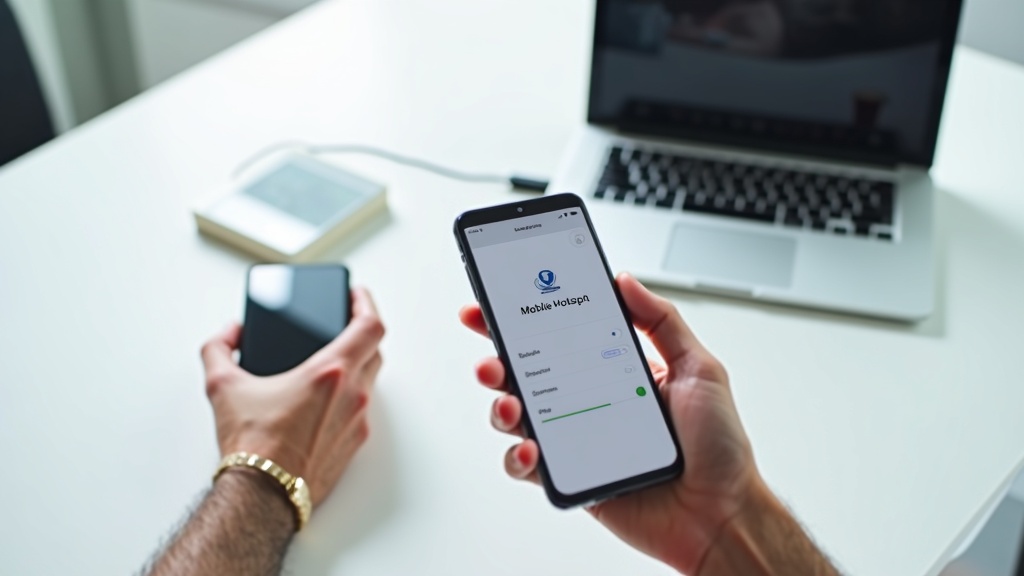
Tethering lets you use your smartphone as a mobile router, connecting your PC or tablet to the internet through your cellular data. Windows 11 comes with a built-in Mobile Hotspot connection feature, so all you need to do is enable tethering on your phone — no extra apps required.
Since the pandemic, remote work adoption has remained consistently high according to government surveys. When your workday moves between the office, home, and various locations on the go, having a reliable internet connection for your PC wherever you are has become a basic requirement for staying productive. Public Wi-Fi is frequently cited as a security risk, and using a VPN alongside it is often recommended.
Situations Where Tethering Really Shines
- Working on documents or joining video calls at cafés or co-working spaces
- Staying productive on the Shinkansen or in airport lounges
- Locations where public Wi-Fi is unreliable or unavailable
- Backup internet when your home connection goes down or is being installed
Budget SIM tethering works through the same standard smartphone settings as major carriers — no special apps needed. Switching to a budget SIM won’t change how you use tethering at all.
Why Switching from a Major Carrier to a Budget SIM Can Cut Your Annual Bill Significantly
A typical voice plan with a major carrier offering around 20GB runs about ¥6,000–¥8,000 per month. Budget SIMs can offer a comparable data allowance for around ¥1,500–¥3,000. That’s a monthly difference of ¥3,000–¥5,000 — or ¥36,000–¥60,000 over the course of a year.
So what explains the gap? Budget SIMs (MVNOs and sub-brands) lease network infrastructure from major carriers like NTT Docomo or au to provide their service. Because they don’t need to build or maintain their own cell towers, they can pass those savings on to customers. Since they use the same physical network, coverage is essentially the same as the underlying carrier.
| Plan | Data Allowance | Monthly Cost | Tethering |
|---|---|---|---|
| Major carrier (reference) | ~20GB | ¥6,000–¥8,000+ | Free to paid (varies by plan) |
| IIJmio Giga Plan | 15GB | ¥1,600 (from March 2026) | Free |
| Rakuten Mobile Saikyou Plan | Unlimited (on Rakuten network) | ¥1,078–¥3,278 | Free |
| mineo My Pita | 15GB | ¥1,958 | Free |
| LINEMO Best Plan | 3GB–10GB (tiered) | ¥990–¥2,090 | Free |
| ahamo | 30GB | ¥2,970 | Free |
Worth noting: every budget SIM and sub-brand listed above includes tethering at no extra charge. Major carriers used to charge add-on fees for tethering, but with budget SIMs it’s generally included as long as you stay within your data allowance. That means switching can give you both lower costs and the convenience of connecting your PC wherever you are.
Things to Check Before Switching
While budget SIMs offer great value, they tend to experience slower speeds during peak hours — especially around noon. If you regularly use tethering for video calls, it’s worth checking user reviews and speed reports for the network you’re considering before committing.
5 Key Factors for Choosing the Right Budget SIM
Thinking about switching to a budget SIM but not sure where to start? It’s easy to focus solely on price, but if you’re planning to use tethering with Windows 11, there are a few things you shouldn’t overlook. Here are the five key factors that will make or break your PC productivity on the go.
How to Check Network Quality and Coverage
Every budget SIM operates by leasing capacity from one of the three major carriers — NTT Docomo, au, or SoftBank. These providers are called MVNOs (Mobile Virtual Network Operators). Because they use the same physical towers, their coverage footprint closely matches that of their host carrier.
The catch is speed slowdowns during congested hours. MVNOs lease a fixed amount of bandwidth from the host carrier. Around noon and again in the early evening, network congestion can cause noticeably slower speeds — enough to make PC tasks over tethering feel sluggish.
How to Check Coverage
- Find out which network your MVNO runs on (Docomo, au, or SoftBank)
- Check that carrier’s official coverage map for your area
- Pay special attention to the places where you actually use your laptop — your office, home, favorite cafés, etc.
If you travel frequently to rural or suburban areas, an MVNO on the Docomo network (such as IIJmio Type D) is generally considered to offer the widest coverage. That said, real-world speeds vary by location, so short-term trials and user reviews can help round out your research.
What to Check About Tethering and Data Restrictions
There’s a persistent myth that budget SIMs don’t support tethering — but all major providers support it as a standard feature. Just open your phone’s settings, enable “Mobile Hotspot” or “Internet Sharing,” and your Windows 11 PC can connect. No app required.
That said, keep in mind that tethering uses data faster than regular phone use. Browsing and reading documents on a PC consumes more data than on a phone, and video conferencing tools like Zoom or Teams can use anywhere from several hundred MB to nearly 1GB per hour.
Tethering Checklist
- Does tethering come at no extra cost? (Rakuten Mobile includes it free)
- Is there a separate data cap specifically for tethering use?
- What’s the minimum speed after hitting your data limit — is it still usable?
- Can you purchase additional data mid-month, and how much does it cost?
If video calls are a regular part of your workflow, post-cap speeds can make or break your workday. Options like mineo’s “Packet Hōdai 1Mbps” — which guarantees a minimum speed even after you’ve used up your allowance — are worth factoring into your decision.
Choosing the Right Data Plan: A Practical Approach
Picking the right data allowance requires a bit more thought when tethering is part of the equation. The basic approach is to estimate how much data you use on your phone alone, then add on what you expect to use for PC work.
| PC Usage Pattern | Estimated Monthly Data (PC) | Recommended Plan Size |
|---|---|---|
| Mainly email and document browsing | ~3–5GB/month | ~15GB combined with phone usage |
| Video calls a few times a week | ~5–15GB/month | Consider a 20–30GB plan |
| Cloud sync or large file transfers | Highly variable | Consider unlimited or a large add-on option |
Speed throttling typically brings speeds down to 200 kbps–1 Mbps. At 200 kbps, you can read basic text emails and lightweight web pages, but sending attachments or uploading to the cloud is impractical. At 1 Mbps, audio-only calls and text-heavy video meetings are generally manageable.
Practical Advice for Choosing Your Data Plan
For the first month or two, make it a habit to check your actual usage in your phone’s settings under “Mobile Data.” Once you know your real consumption patterns, adjusting your plan is straightforward. Most carriers allow plan changes starting the following month — check your carrier’s site for the specifics.
How Tethering Works and How to Set It Up on Windows 11
Now that you know how to choose a budget SIM, let’s talk about actually using your smartphone as a mobile router. Understanding the different tethering methods will help you pick the right one for each situation.
Wi-Fi, USB, and Bluetooth Tethering: What’s the Difference?
There are three main ways to tether. Each differs in terms of wireless technology, battery impact, and data speed — so knowing when to use each one matters.
Comparison of the Three Tethering Methods
| Method | Speed | Battery Drain | Multiple Devices | Best For |
|---|---|---|---|---|
| Wi-Fi Tethering | Fast (especially with 5GHz support) | High | Yes | Everyday work at cafés and on the go |
| USB Tethering | Stable and fast | Charges while in use | One device only | Long sessions, video calls |
| Bluetooth Tethering | Slow | Low | Yes | Email, light browsing |
Wi-Fi tethering is the most versatile option and works seamlessly with Windows 11. The downside is that keeping your phone running as a hotspot drains the battery quickly. USB tethering is ideal for longer work sessions since your PC charges your phone while you’re connected. Bluetooth tethering is easy on battery life, but the slower speeds make it unsuitable for file uploads or video calls.
Budget SIM tethering works through your phone’s built-in settings — no special apps needed, and no extra fees in most cases.
Step-by-Step: Connecting to Tethering on Windows 11
Here’s how to set up each tethering method on Windows 11.
Enable Tethering on Your Smartphone
Android: Settings → Network & Internet → Hotspot & Tethering → Wi-Fi Hotspot → turn on
iPhone: Settings → Personal Hotspot → Allow Others to Join → turn on
Connect Windows 11 via Wi-Fi (for Wi-Fi tethering)
Click the network icon in the bottom-right taskbar → Wi-Fi → select your phone’s network name (SSID) → enter the password and connect
Additional Steps for USB Tethering
Connect your phone to the PC with a USB cable → enable “USB Tethering” on your phone → Windows 11 will automatically recognize the driver and show it as an Ethernet connection
Confirm the Connection
Go to Settings → Network & Internet → Ethernet or Wi-Fi and check the connection status. If it shows “Internet access,” you’re all set.
On first connection, Windows 11 may classify the network as “Public.” If you need access to shared drives or network printers, remember to switch it to “Private network” in your network settings.
Optimizing Windows 11 Settings for Maximum Tethering Speed
Not getting the speeds you expected over tethering? Windows 11 itself might be the culprit. A few settings adjustments can make a noticeable difference.
Windows 11 Settings That Can Improve Tethering Speed
- Check the Metered Connection setting: Settings → Network & Internet → select your active connection → turn off “Set as metered connection.” This lifts data-saving restrictions on Windows Update and other background services. (Note: this will increase data usage, so keep an eye on your remaining allowance.)
- Limit background app activity: Settings → Apps → Installed apps → disable background activity for apps you don’t need running, freeing up bandwidth.
- Disable power saving mode: While tethering, set your power plan to Balanced or High Performance. This keeps the network adapter running at full capacity for a more stable connection.
- Change your DNS server: In your connection’s properties, go to Internet Protocol Version 4 (TCP/IPv4) → Use the following DNS server addresses, then enter a public DNS (e.g., Google’s 8.8.8.8). This can speed up domain name resolution.
The Metered Connection setting is one of the most commonly overlooked culprits. When it’s enabled, Windows 11 operates in a data-saving mode that can quietly throttle speeds and limit functionality. Always check this setting after connecting via tethering.
If your smartphone supports 5GHz Wi-Fi hotspot mode, use it. The 2.4GHz band is prone to interference from microwaves and other wireless devices, which can drag down real-world speeds. The 5GHz band handles interference better and delivers more stable performance at close range.
Best Budget SIM Plans Ranked for 2026
When tethering your Windows 11 PC to a mobile connection, choosing a budget SIM requires a slightly different approach than just picking the cheapest plan. Going with “cheap” alone can leave you frustrated when speeds drop in the middle of important work. Here, we compare the top 9 carriers across three key dimensions: tethering usability, value for money, and connection speed.
Key Takeaways
- Tethering fees vary significantly between carriers — some charge extra, others don’t
- The best plan depends on whether you primarily work from home or on the go
- Network type (Docomo, au, SoftBank, or Rakuten) is a critical factor in your decision
Comparison Table: Top Budget SIM Plans, Tethering Support & Speeds
Let’s start with a full overview of the top 9 carriers — their pricing and tethering availability at a glance. The vast majority of budget SIMs support standard smartphone tethering right out of the box, with no special app required. This is because most MVNOs (Mobile Virtual Network Operators) lease network access without applying tethering restrictions.
| Carrier | Featured Plan | Monthly Price | Tethering | Network | Highlights |
|---|---|---|---|---|---|
| IIJmio | Giga Plan 15GB | From ¥1,600 | Free | Docomo / au | Top-tier value |
| Rakuten Mobile | Strongest Plan | ¥1,078–¥3,278 | Free | Rakuten / Partner | Unlimited, tiered pricing |
| mineo | My Pita | ¥1,298–¥2,178 | Free | Docomo / au / SB | Choose from 3 networks |
| LINEMO | Best Plan | ¥990–¥2,090 | Free | SoftBank | LINE data-free browsing |
| ahamo | 30GB Plan | ¥2,970 | Free | NTT Docomo | Stable speeds + 5-min free calls |
| povo | Topping-based | From ¥0 | Free | au | Pay-as-you-go model |
| UQ Mobile | Tokutoku Plan & others | See official site | Free | au | au-quality network + saver mode |
| Y!mobile | Simple 2 series | See official site | Free | SoftBank | Strong in-store support |
| NURO Mobile | Various plans | See official site | Free | Docomo / au / SB | Value Plus plan is a fan favorite |
※ Pricing is based on information available as of March 2026. Plans may change — always check the carrier’s official website for the latest details before signing up.
#1 Pick: IIJmio Giga Plan
For tethering a Windows 11 PC, IIJmio’s Giga Plan currently offers the best overall balance of price and performance. As of March 1, 2026, the 15GB plan was repriced to ¥1,600/month, making it highly competitive against other carriers in the same data tier.
Another major advantage is the ability to choose between NTT Docomo and au networks. If you mainly work from home and Docomo has strong coverage in your area, go with Docomo. If you’re frequently on the move — commuting, working from cafes, or heading into less-covered areas — au may give you better stability. That kind of flexibility isn’t available with single-network carriers, and it lets you tailor your plan to your actual routine.
Best For
- Users who need around 15–20GB/month for tethering to a Windows PC
- Anyone managing multiple SIMs (voice, eSIM, and data SIMs on one account)
- Those looking to reduce eSIM activation costs (50% off campaign running through October 31, 2026)
Downsides & Watch-Outs
- Speeds tend to slow down during peak lunch hours (12–1 PM)
- No physical stores — all setup and account management is handled online
- Unlimited calling requires a paid add-on
If you’re tethering for regular work tasks, 15GB is generally enough to handle several video calls per week. And if you start running low, IIJmio lets you flexibly adjust your data cap anywhere from 2GB to 55GB — a handy safety net.
IIJmioのギガプランが気になる方は、公式サイトで最新の料金プランや対応端末を確認してみてください。データ容量や通話オプションを自分の使い方に合わせて選べる柔軟な設計が、コスト重視のユーザーに支持されている理由といえます。
#2 Pick: Rakuten Mobile Strongest Plan
If your data usage is unpredictable — or if you have months where you use a lot and months where you barely use any — Rakuten Mobile’s Strongest Plan is a smart choice. The tiered pricing model charges ¥1,078 for under 3GB and caps out at ¥3,278 for 20GB or more, so you only pay for what you actually use.
Within Rakuten’s own network coverage area, data is essentially unlimited with free tethering included. For Windows 11 users who want to work without constantly watching their data meter, that ¥3,278 ceiling offers real peace of mind.
Best For
- Users with inconsistent monthly usage who want a built-in spending cap
- Anyone frequently doing video calls or transferring large files while away from home
- Those who want free domestic calls via the Rakuten Link app
Downsides & Watch-Outs
- Outside Rakuten’s own coverage, you’ll fall back to the partner network (au), which may have speed and data caps
- Coverage is still thin in some rural areas, mountainous regions, and underground locations
- Free calls require using the Rakuten Link app — standard dialer calls are not free
If you’re mostly based in urban areas, you’ll get the full benefit of Rakuten’s network. But if you travel to rural areas often, it’s worth checking the coverage map before committing.
月3GBまで月額1,078円、使い放題でも月額3,278円と国内最安水準の楽天モバイル 最強プランが気になる方は、公式サイトで最新のキャンペーン情報を確認してみてください。Windows 11端末とのセット利用でさらにお得になるケースもあるため、プラン詳細もあわせてチェックしてみる価値があるでしょう。
#3–#9: mineo, LINEMO, ahamo, povo, UQ Mobile, Y!mobile & NURO Mobile
Each of the remaining carriers has distinct strengths depending on how you plan to use your connection. Here’s a quick breakdown of each.
[#3] mineo My Pita — Flexibility to Choose From All Three Major Networks
A winter 2025 pricing update significantly boosted data allowances across the board. mineo now offers four tiers: 3GB, 7GB, 15GB, and 30GB. Users on the 3GB and 7GB plans get “Packet Unlimited at 1Mbps” included at no extra charge. While 1Mbps isn’t fast enough for smooth video streaming, it handles email, web browsing, and light file transfers just fine. The ability to choose from Docomo, au, or SoftBank networks is a big plus for households looking to consolidate on one network, or for anyone who moves frequently.
[#4] LINEMO Best Plan — LINE Data-Free + SoftBank Network Quality
The older Mini Plan and Smartphone Plan are no longer available for new subscribers. Currently, LINEMO offers the Best Plan (¥990–¥2,090 for 3GB–10GB) and Best Plan V (¥2,970–¥3,960 for 20GB–30GB), with the latter including free domestic calls under 5 minutes. The standout feature is “LINE Giga Free” — LINE messages and calls don’t count against your data allowance. This works well for a split strategy: use LINE for everyday communication on your phone while keeping all your mobile data reserved for PC work over tethering.
[#5] ahamo — For When You Refuse to Compromise on Speed
ahamo runs on NTT Docomo’s full network, and users consistently report speeds above 100Mbps even during peak hours like lunch breaks. The plan structure is refreshingly simple: one 30GB plan, no decision fatigue. At ¥2,970/month it sits on the higher end of the budget SIM range, but for remote workers who need rock-solid speeds, the value is hard to beat. Need more data? The “Big Boost” add-on (+¥1,980) bumps you up to 110GB. Five-minute free domestic calls are included, making it practical for business use as well.
[#6] povo — Buy Data Only When You Need It, on au’s Network
povo starts at ¥0/month and lets you purchase data “toppings” on demand as needed. If you mostly use Wi-Fi and only need heavy tethering during business trips or travel, this eliminates wasted spending entirely. That said, the pay-as-you-go model adds friction for anyone who uses data regularly, so it’s a clear fit for some and a poor fit for others. Check the official site for current topping prices and options.
[#7] UQ Mobile — Reliable au-Quality Network With a Smart Saver Mode
As an au sub-brand, UQ Mobile delivers above-average network stability in the budget SIM category. The “Saver Mode” lets you toggle between high-speed and low-speed data, so when you’re running low you can switch to conserve your allowance and keep working. In-store support is widely available, making it a comfortable choice for anyone switching from a major carrier for the first time. See the official site for current plan pricing.
[#8] Y!mobile — Best for Users Who Want In-Person Support
Y!mobile stands out among SoftBank sub-brands for its extensive physical store network — ideal for anyone who prefers face-to-face help with setup or account changes. Network quality is solid, running directly on SoftBank infrastructure, so users coming from a major carrier won’t notice a quality drop. Family discount plans are also available for multi-line households. See the official site for current pricing.
[#9] NURO Mobile — The “Value Plus” Plan Has a Loyal Following
NURO Mobile supports all three major networks (Docomo, au, SoftBank) and is best known for its proprietary “Value Plus” plans, which have built a dedicated fanbase for their strong data-to-price ratio. If you want fine-grained control over your monthly costs, NURO Mobile is worth a look. Check the official site for the latest plan lineup and pricing.
Across the board, every carrier on this list supports tethering as a standard feature — no workarounds needed. From here, narrowing down your choice comes down to three questions: How many GBs do you need for tethering each month? Do you prioritize speed or price? And do you need in-person support? Answer those three, and the right plan will become clear.
データ通信のみで十分という方には、mineo マイピタ データSIMのプラン内容と最新料金を一度確認してみてください。音声通話なしでコストを抑えたい場合に、選択肢のひとつとして参考になるでしょう。
Best Smartphone Sets for Windows 11 Tethering
To get the most out of the budget SIM plans covered in the previous section, your smartphone’s performance matters just as much as the plan itself. Tethering isn’t simply “sharing your internet connection” — your phone is essentially acting as a mobile router. Even with a fast SIM plan, a device with limited processing power can bottleneck your real-world speeds.
Tethering-Related Specs to Check When Choosing a Smartphone
Building a smooth Windows 11 tethering setup starts with picking the right phone. It’s easy to focus only on data speeds, but the specs that actually determine your day-to-day experience are on the device side.
Resources consumed during tethering
While tethering, your phone is constantly processing: receiving data → converting it → retransmitting over Wi-Fi or USB. A weaker SoC can introduce lag during demanding tasks like working across multiple browser tabs or joining video calls.
- Supported frequency bands: Always verify that the phone supports the bands used by your chosen MVNO’s network (Docomo, au, or SoftBank). Even an unlocked phone won’t perform well if it’s missing key band support.
- Wi-Fi tethering standard: Wi-Fi 5 (802.11ac) or better is ideal. Wi-Fi 6 support gives you extra headroom for the connection between your phone and PC.
- USB tethering support: USB tethering offers a more stable connection with lower battery drain — worth confirming before you buy.
- Battery capacity: Tethering can consume battery at 2–3x the normal rate. Aim for 4,000mAh or more for practical all-day use.
- Thermal management: Extended tethering pushes the SoC hard, and thermal throttling (automatic speed reduction due to heat) is a real concern. Mid-range or higher SoCs tend to handle sustained loads more reliably.
- SIM tray configuration: A phone that supports both nano-SIM and eSIM pairs well with eSIM plans from carriers like IIJmio or LINEMO, giving you more flexibility if you switch later.
Best Value Smartphones in the $200–$300 Range
If you’re buying a dedicated tethering device, the mid-entry price range (roughly ¥20,000–¥30,000) offers excellent value for money. At this price point, SoC performance, battery life, and band compatibility start coming together — making practical mobile work possible when paired with a budget SIM plan.
That said, there are real trade-offs in this range. Camera quality and display brightness won’t match flagship devices, and some models can run warm during sustained high-load tethering. Going in with the mindset of a “dedicated secondary tethering device” will set realistic expectations.
A useful benchmark for choosing a device
Phones sold through official Japanese carriers generally support the major bands for Docomo, au, and SoftBank networks. Parallel imports and gray-market devices, however, may have incomplete band support for Japan — which can be a real problem when pairing with a budget SIM. Before buying, cross-check against your carrier’s official “compatible device list.” It takes two minutes and can save you a lot of headaches.
Every major MVNO publishes a list of tested compatible devices on their website. IIJmio has their “IIJmio Compatible Device List,” and mineo maintains a “Verified Compatible Devices” page. Making a habit of checking this before purchasing a SIM will help you avoid the frustrating situation of a SIM that simply won’t work with your phone.
Xiaomi Redmi Note 13 5Gの最新価格やセット購入のお得な条件は、公式・各キャリアのページで随時変わるため、気になる方はまず最安値を確認してみてください。5G対応でこの価格帯は選択肢として十分検討に値します。
5G Mid-Range Smartphones for Fast, Reliable Tethering
If you’re using tethering as a backup home connection or for video calls on the go, investing in a 5G-capable smartphone is a logical choice. Theoretical peak download speeds are several times faster than 4G, and 5G handles congested periods better by providing more available bandwidth.
That said, 5G only delivers on its promise when you’re actually in a coverage area. As of 2026, Japan’s 5G network has expanded significantly in major urban areas, but 4G remains the primary network in suburban and rural regions. Before committing to a 5G phone, check your carrier’s coverage map for the areas where you’ll actually be using it — that step is essential to making the investment worthwhile.
| Use Case | Recommended Specs | Suggested SIM Pairing |
|---|---|---|
| Light tasks / web browsing | 4G capable, 4,000mAh+, nano-SIM/eSIM support | IIJmio Giga Plan 15GB (¥1,600/mo) |
| Video calls / large file transfers | 5G capable, large battery, Wi-Fi 5 or better | ahamo 30GB (¥2,970/mo) |
| Daily driver + tethering combined | 5G capable, strong SoC, good thermal design | Rakuten Mobile Strongest Plan (up to ¥3,278/mo, unlimited) |
Specific smartphone model recommendations change quickly as new devices launch and prices shift. For the most current options, check each carrier’s device bundle pages or price comparison sites at the time of purchase. Buying a phone bundled with a SIM plan sometimes unlocks device discounts, so it’s worth comparing against buying the phone outright.
コスパと5G対応を両立したい場合、motorola edge 40 neo 5Gの最新価格と対応SIMの組み合わせをぜひ確認してみてください。スリムなボディと大容量バッテリーを求める方にとって、選択肢のひとつとして十分検討に値する一台といえます。
Monthly Cost Breakdown: Budget SIMs vs. Major Carriers
“I know my phone bill is too high — but I’m not sure exactly how much I’d actually save.” If that sounds familiar and it’s been keeping you from switching, let’s put some real numbers on it. Switching to a budget SIM can mean a difference of tens of thousands of yen per year, depending on the plan you choose.
The cost gap exists for structural reasons. Japan’s three major carriers (Docomo, au, SoftBank) own and maintain their own network infrastructure, which comes with enormous fixed costs. Budget SIM providers operate as MVNOs (Mobile Virtual Network Operators) — they lease that infrastructure instead of building it, which lets them pass the savings on to customers through significantly lower prices.
Monthly Cost Comparison by Data Tier (3GB / 20GB / Unlimited)
The table below reflects monthly pricing for major plans as of March 2026. Major carrier main-brand prices are posted on their official sites before discounts or family bundles, and they fluctuate frequently — so this comparison focuses on budget SIM and sub-brand plans for a more stable reference.
| Service | ~3GB | ~20–30GB | Unlimited |
|---|---|---|---|
| Rakuten Mobile Strongest Plan | ¥1,078 (under 3GB) | ¥3,278 (over 20GB) | ¥3,278 (Rakuten coverage area) |
| LINEMO Best Plan | ¥990 (3GB) | ¥2,090 (10GB) | — |
| LINEMO Best Plan V | — | ¥2,970 (20GB) | ¥3,960 (30GB) |
| mineo My Pita | ¥1,298 (3GB) | ¥1,958 (15GB) | — |
| IIJmio Giga Plan | — | ¥1,600 (15GB) | — |
| ahamo | — | ¥2,970 (30GB) | — |
※All prices include tax. Information current as of March 2026. Promotional pricing and discounts not included. Check each carrier’s official website for the latest rates.
Worth highlighting: IIJmio’s Giga Plan 15GB was repriced to ¥1,600/month effective March 1, 2026. This price reduction makes it an exceptionally cost-effective option for PC users who rely primarily on tethering and want to keep their data costs low.
Rakuten Mobile’s Strongest Plan uses automatic tiered pricing based on usage: under 3GB costs ¥1,078, 3–20GB is ¥2,178, and over 20GB is ¥3,278 — all applied automatically. If you’re tethering heavily, it’s important to understand upfront that your bill will be higher in data-heavy months.
Annual Savings Simulation: Including Tethering Costs
If you’re planning to use your Windows PC with tethering regularly, how much could you actually save over a year? Budget SIM carriers support tethering through your phone’s built-in settings — no extra app or add-on fee is required. This means you can build a capable mobile work setup using just your phone and laptop, at a fraction of the cost of a major carrier plan.
[Simulation Assumptions]
Scenario assumes switching from a major carrier main-brand 20GB plan. Comparison uses the single-line monthly rates listed on official carrier sites (no discounts or family bundles applied). Exact major carrier pricing changes frequently — check official sites for current figures.
For example, using ahamo (30GB at ¥2,970/month) as a baseline: switching to IIJmio’s 15GB plan (¥1,600/month) saves ¥1,370 per month — adding up to ¥16,440 in annual savings. If the 15GB cap feels tight, IIJmio’s optional data top-ups or mineo’s “Packet Unlimited 1Mbps” add-on are practical ways to extend your allowance.
For light users on 3GB or less, LINEMO’s Best Plan at ¥990/month is among the lowest prices available. Depending on your current plan, switching from a major carrier could easily mean a difference of several thousand yen per month — translating to potential annual savings of ¥30,000–¥50,000 (results vary based on your current plan).
Things to keep in mind when tethering
- Rakuten Mobile includes tethering at no extra charge. However, speeds are throttled outside the Rakuten network coverage area (partner network)
- mineo’s “Packet Unlimited 1Mbps” is included free with 3GB and 7GB plans — keep the speed cap in mind when tethering
- IIJmio lets you choose between Docomo and au networks, which is a genuine advantage if coverage is a concern in your area
- All carriers tend to experience slower speeds during peak congestion hours (around noon and 8–10 PM)
To maximize your savings, start by understanding your actual monthly data usage. Check your phone’s settings or your carrier’s app to find your average usage over the past three months, then choose a plan that matches it. That one step is the foundation of a smart plan decision.
Budget SIM + Windows 11 Workflow Tips
Once you’ve successfully cut your monthly phone bill, the next challenge is making the most of your setup. With the right configuration, tethering from a budget SIM to your Windows 11 PC can deliver a workflow that rivals a traditional office environment. Here’s a practical guide to staying productive on the go — safely and efficiently.
Staying Secure at Cafés and Coworking Spaces
Did you know that using free Wi-Fi at a café or coworking space puts your data at risk? With packet capture tools, anyone on the same network can potentially intercept your traffic. If you’re handling sensitive business data, connecting through your smartphone’s mobile hotspot is a much safer option.
Most budget SIM carriers include tethering at no extra charge. Rakuten Mobile’s Strongest Plan has no tethering fee, and data is unlimited within the Rakuten network coverage area. IIJmio’s Giga Plan also supports standard tethering out of the box — no additional app required.
Why Tethering Is More Secure Than Public Wi-Fi
- Traffic flows through your carrier’s mobile network, making third-party interception much harder
- You’re in full control of who can connect to your network
- You avoid “Evil Twin” attacks — rogue access points that mimic legitimate public Wi-Fi
That said, tethering has its trade-offs. Your smartphone’s battery drains faster, so carrying a charger is a must for long work sessions. You’re also sharing your plan’s data allowance, so back-to-back video calls or large file downloads can eat through your monthly quota quickly — keep that in mind.
Windows 11 Settings to Minimize Data Usage While Tethering
Using Windows 11 with default settings over a tethered connection can burn through your data fast. Background processes like Windows Update, OneDrive sync, and app auto-updates are common culprits. The solution is Windows 11’s “Metered Connection” feature, which tells the OS to treat your connection like a limited mobile data plan.
Enable Metered Connection
Go to Settings → Network & Internet → Wi-Fi → click your connected network name → toggle on “Set as metered connection”
Restrict Windows Update Delivery Optimization
Go to Settings → Windows Update → Advanced Options → Delivery Optimization → turn off “Allow downloads from other PCs”
Pause OneDrive Sync
Right-click the OneDrive icon in the system tray → “Pause syncing” → select 2–24 hours depending on your work session length
Limit Background App Data Usage
Go to Settings → Apps → Installed Apps → select each app → change background activity permission to “Power optimized” or “Never”
Once Metered Connection is enabled, Windows 11 automatically suppresses large background downloads. This works because Windows recognizes the connection as a limited mobile data link and throttles non-essential traffic accordingly. After setting this up, check Task Manager’s Network column periodically to make sure nothing unexpected is running in the background.
How to Set Up Auto-Connect for Your Tethering Hotspot
Tired of manually reconnecting to your hotspot every time you open your laptop? Windows 11 lets you save a Wi-Fi profile with auto-connect enabled, so your PC connects automatically as soon as you turn on your smartphone’s hotspot.
Set a fixed SSID and password on your smartphone
On both Android and iPhone, go to your mobile hotspot settings and change the network name (SSID) and password to something you choose. If you leave the default random name, you’ll need to reconnect whenever you switch devices.
Enable auto-connect in Windows 11
When connecting for the first time, select the SSID and check “Connect automatically” before clicking Connect. After that, your PC will join the hotspot automatically whenever it’s available after startup or waking from sleep.
Set connection priority (optional)
Open Command Prompt as Administrator and run: netsh wlan set profileorder name="YourHotspotSSID" interface="Wi-Fi" priority=1. This makes Windows prefer your hotspot over other saved Wi-Fi networks.
Tethering Tips by Plan
- Rakuten Mobile Strongest Plan: Unlimited data within the Rakuten network means you can tether freely without worrying about caps. Note that the partner network (au) has a 5GB monthly limit, so watch your usage in low-coverage areas.
- IIJmio Giga Plan (15GB): At ¥1,600/month, you’re sharing 15GB between your phone and PC. Video calls typically use 500MB–1GB per hour, so limiting them to a few sessions per month keeps you comfortably within your allowance.
- mineo My Pita (3GB / 7GB): Includes a free 1Mbps unlimited-speed option (Packet Houdai). Even after hitting your data cap, you can still handle email, chat, and text-based tasks at a usable speed.
The key to a comfortable budget SIM tethering setup is balancing data management with automation. Use Windows 11’s Metered Connection to keep background traffic in check, and configure your Wi-Fi profile to auto-connect — that way, getting to work at a café or coworking space takes seconds instead of minutes. Always check each carrier’s official site for the latest plan specs and promotions.

Common Pitfalls When Switching to a Budget SIM
You’ve set up a solid remote work environment with tethering — but then you find out a procedural mistake before switching cost you extra money you didn’t plan for. That’s a frustrating situation to be in. Moving to a budget SIM can go sideways if you skip the right steps, leading to cancellation fees, throttled speeds, and configuration headaches that hurt your productivity. Here’s a breakdown of the most common mistakes and how to avoid them.
Cancellation Fees and Timing When Porting Your Number (MNP)
When you port your number via MNP (Mobile Number Portability), your current contract may trigger transfer fees or early termination penalties. Many major carriers eliminated or significantly reduced these fees after 2021, but older plans or contracts with active discounts may still carry a cost. Always check your current contract documents or account portal before initiating the transfer.
Pre-MNP Checklist: What to Verify Before You Port Out
- Your current minimum contract period and how much of it remains
- Cancellation conditions for any bundled discounts (family plans, device installment payments)
- MNP reservation number validity (expires 15 days after issuance)
- Your old SIM stops working once the new carrier completes activation — plan accordingly
Timing matters more than most people realize. You need to complete the transfer to your new carrier before your MNP reservation number expires (15 days). If it expires, you’ll need to request a new one and start over. Also, porting out near the end of the month can affect how your final bill is calculated, since carriers handle daily proration differently — check your billing cycle before scheduling the switch.
Missing Tethering Restrictions or Speed Throttle Conditions
If you’re planning to use tethering for remote work on Windows 11, watch out for plan conditions that apply speed limits specifically to tethered traffic, or require an add-on to enable it at all. Based on our research, Rakuten Mobile’s Strongest Plan allows tethering at no extra charge — but plan terms can change, so always verify on the official site before signing up.
Understanding the Two Types of Speed Throttling
Budget SIM plans can throttle your speed in two different ways. The first kicks in when you’ve used up your monthly data allowance — most carriers drop you to around 200 kbps at that point. The second is temporary slowdowns during peak hours (typically noon and 6–7 PM) due to network congestion. When using cloud services or video conferencing over tethering on Windows 11, the peak-hour slowdowns are the bigger concern for day-to-day work. Check independent speed test reports for your carrier before committing.
mineo’s My Pita plan includes a free 1Mbps speed option on its 3GB and 7GB tiers, so even after you’ve used your monthly data, you maintain a baseline 1Mbps connection. That’s workable for light web browsing and email, but not for large file transfers or video calls. Matching your plan to your actual usage patterns is essential.
Fixing APN Settings and Windows 11 Compatibility Issues
If your smartphone’s APN (Access Point Name) isn’t configured correctly, you’ll end up in a frustrating situation where tethering appears to connect but there’s no actual internet access. APN settings are carrier-specific and usually don’t transfer automatically when you switch to a budget SIM — manual setup is almost always required right after activation.
Confirm Your SIM or eSIM Is Activated
Before anything else, verify that your new SIM works for voice calls and mobile data on its own, using just your smartphone — no tethering yet.
Enter Your APN Settings
Find the APN name, username, password, and authentication type in your carrier’s official support documentation. Enter these manually in your phone’s settings — typing them directly is more reliable than copy-pasting.
Enable Tethering and Verify on Windows 11
Turn on your smartphone’s hotspot, then connect from Windows 11 via Wi-Fi or the “Mobile Hotspot” option in network settings. Once connected, open a browser to confirm that internet access is actually working.
Troubleshooting If It Doesn’t Connect
Try toggling airplane mode on and off on your smartphone to force a reconnection. If that doesn’t work, delete the APN profile and re-enter it from scratch, or restart your device.
On the Windows 11 side, enabling “Metered Connection” when tethering is highly recommended. It suppresses large background data usage from Windows Update and automatic sync, helping you stay within your monthly data limit. You can find this setting under Settings → Network & Internet → Wi-Fi → your connected network name. If mobile data is your primary connection for work, this setting is a must.
Budget SIM plan terms and promotional offers change regularly. Always check the official carrier website for the latest details before signing up.
Summary | Final Recommended Budget SIMs by Use Case & Budget
In the previous sections, we covered the common pitfalls and key things to watch out for when switching carriers. Here, we’ll cut to the chase: which plan should you actually choose? The most common mistake people make when picking a budget SIM is focusing purely on spec comparisons while overlooking how well a plan actually fits their usage habits. Beyond just the monthly price, your decision should hinge on how often you tether, how much data you use, and how you make calls — these factors will determine your real long-term value.
Final Budget SIM Recommendations by Use Case
The following recommendations are based on verified pricing information and are organized by use case. All plans assume tethering to a Windows PC and support tethering at no additional charge.
【Cost-First Priority — Light Data Users】
→ LINEMO Best Plan (from ¥990/month)
A tiered plan ranging from 3GB to 10GB that automatically adjusts based on your usage. Running on the SoftBank network, it offers strong stability in urban areas, and tethering is free. Best suited for users whose primary needs are light web browsing and email, and who can rely on Wi-Fi for video streaming.
【Best Value — Moderate Data Users (10–20GB)】
→ IIJmio Giga Plan 15GB (¥1,600/month)
Repriced on March 1, 2026, this plan now offers top-tier price competitiveness in the 15GB tier. You can choose between the Docomo or au network, allowing you to optimize for your home area or workplace. eSIM support also makes it easy to set up a dual-SIM configuration and split usage between plans.
【Heavy Data Users — Frequent Tethering】
→ Rakuten Mobile Saikyou Plan (¥1,078–¥3,278/month)
Unlimited data within the Rakuten network coverage area, with tethering included at no extra cost. This is the best fit for users who want a single SIM to cover both remote work and mobile use, or who frequently stream video or join online meetings on their PC. Note that outside Rakuten’s coverage area, you’ll be on the partner network (au), which comes with speed and data limitations — check your area before committing.
【Reliability Above All Else】
→ ahamo (¥2,970/month · 30GB)
Since ahamo runs directly on the NTT Docomo network, it’s less susceptible to congestion compared to MVNO plans. You can expect stable speeds even during peak hours like lunch and early evening — making it a solid choice for anyone who regularly handles video calls or large file transfers. The included 5-minute free domestic calling is also a nice perk for business use.
【Balancing Data Efficiency with Flexibility】
→ mineo My Pita (3GB–30GB)
Data allowances were increased in the winter 2025 revision. The 3GB and 7GB plans now include “Packet Unlimited at 1Mbps” at no extra charge, ensuring a steady — if slower — connection even after your high-speed data runs out. For users who watch their data usage but just need to stay connected, this plan strikes a solid balance between cost and practicality.
How to Switch — Steps You Can Take Right Now
Once you’ve decided on a plan, it’s just a matter of following the steps. If done in the right order, the entire switch takes one to three days. And if you understand how MNP (Mobile Number Portability) works, you can keep your current number throughout.
Check your current carrier’s contract end date, any early termination fees, and MNP transfer fees. Most carriers have eliminated MNP transfer fees, but it’s worth logging into your account portal to confirm.
You can obtain this online through your current carrier’s app or website. The reservation number is valid for 15 days from issuance, so move quickly once you have it.
Have your ID (driver’s license or My Number Card) and MNP reservation number ready, then apply online through the new carrier’s official website. If you’re going with an eSIM, same-day activation is possible.
For physical SIMs, you’ll need to configure the APN settings after the SIM arrives. Step-by-step setup guides for various devices are available on each carrier’s official website. Once setup is complete, it’s a good idea to test your PC’s tethering connection as well.
Take Action Now
Every month you spend undecided is another month of overpaying. Start by checking your current monthly bill and data usage, then compare it against the use-case recommendations above. Campaigns and pricing can change, so be sure to verify the latest details on each carrier’s official website.
OPPO Reno11 A 5G の最新価格や在庫状況は公式サイトや各ECサイトで確認できますので、気になる方はぜひチェックしてみてください。
NURO Mobile SIMの最新プランや料金詳細は公式サイトで確認できます。セット割や初期費用の条件なども合わせてチェックしてみてください。
Y!mobile SIMの料金プランや対応端末の詳細が気になる方は、公式サイトで最新の月額料金と対応機種を確認してみてください。
UQ mobileの料金プランや対応端末の詳細が気になる方は、公式サイトで最新の料金・キャンペーン情報を確認してみてください。
povo2.0の料金プランや対応端末との組み合わせが気になる方は、公式サイトで最新のトッピング一覧と実質コストを確認してみてください。
ahamo nano SIMの料金プランや対応端末の詳細が気になる方は、公式サイトで最新の価格・キャンペーン情報を確認してみてください。
月額990円(税込)からデータ無制限で使えるLINEMOのベストプランSIMが気になる方は、公式サイトで最新の料金やキャンペーン情報を確認してみてください。

Comments