
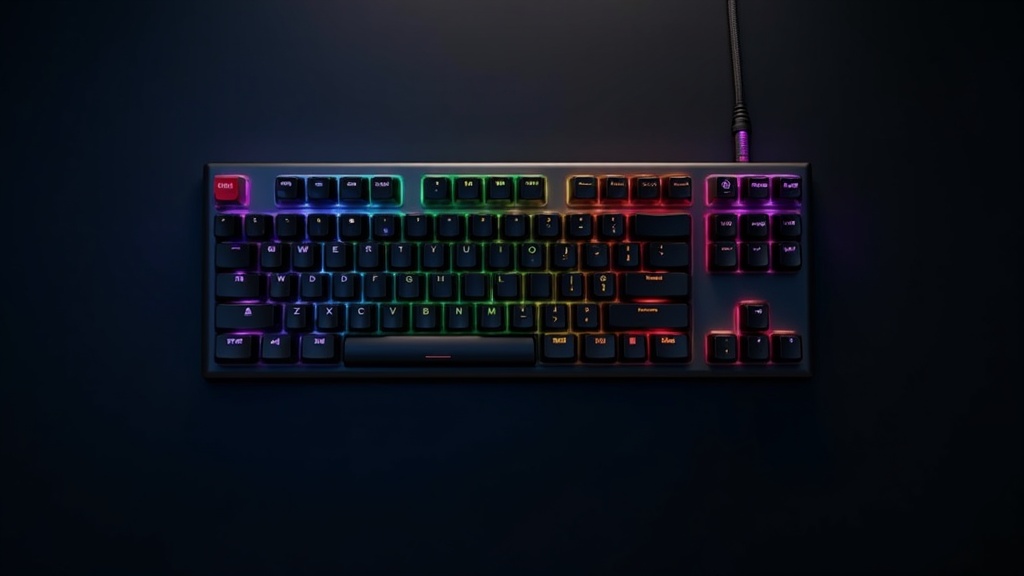
Verdict: Is the Keychron Q1 Pro Worth Buying?
Let me get straight to the point. The Keychron Q1 Pro is absolutely worth buying for anyone willing to invest in a tool built to last. That said, it’s not for everyone. Before pulling the trigger, it’s worth thinking carefully about how it fits your specific use case.
An Honest Assessment Based on Official Info and User Reviews
Looking at the full picture — official specs combined with user reviews from around the world — the consensus on the Q1 Pro comes down to this: “The engineering is excellent, but the price and weight are real barriers.” At a current US MSRP of $209.99, it runs two to three times the cost of entry-level mechanical keyboards. Yet the reviews remain strong, and for good reason: the design philosophy behind every dollar is evident throughout the board.
A note on pricing: Exact pricing varies by region and retailer. Always check the official site (keychron.com) or your local authorized seller for the latest figures before buying.
The body is machined from 6063 aluminum through a 24-step-plus process that includes CNC machining, polishing, and anodizing. Users consistently describe the sound as “tight and controlled, with little metallic resonance” — a stark contrast to plastic-bodied boards. The logic here is sound: less resonance from the case means less auditory fatigue over long typing sessions.
Gasket mounting is another feature you’d expect at this price point. The gaskets absorb keystroke impact before it reaches the case, softening the hard bottom-out feel typical of mechanical keyboards. Hot-swap support means you can swap out any MX-compatible 3-pin or 5-pin switch without tools, so you’re never stuck with a switch you’ve grown to dislike. QMK/VIA support is the cherry on top for programmers — full remapping and macro creation handled entirely through a GUI, no command line required.
One thing worth addressing honestly: the all-aluminum construction is heavy. Multiple reviewers agree that “you won’t be casually sliding this around your desk,” and portability is simply not in the cards.
Pros (based on user reviews and official specs)
- 6063 aluminum CNC body delivers excellent rigidity and a premium typing sound
- Bluetooth 5.1 with up to 3 device pairing; 1000Hz polling rate over wired connection
- 4000mAh battery — up to 300 hours with backlighting off, up to 90 hours at minimum brightness
- Tool-free hot-swap switch replacement
- Full QMK/VIA support for deep key customization
- Keycaps are praised for resisting fingerprint smudges
Cons (based on user reviews)
- Heavy — not suited for carrying around or frequent repositioning
- At $200+, it sits firmly in the premium price tier for mechanical keyboards
- Availability and support in your region may vary — check the official site
Who Is This For? (The Short Version)
The Q1 Pro shines brightest for programmers and writers who sit at a fixed desk for hours every day and refuse to compromise on their tools. Wireless connectivity plus QMK, an aluminum body with a premium typing feel, and hot-swap expandability — all in one board. If you need all three, your options at this price point are genuinely limited.
This keyboard is a great fit if you:
- Type for extended periods at a fixed desk
- Want wireless convenience without sacrificing QMK customization
- Enjoy experimenting with different switches to dial in your perfect feel
- Prefer buying one great tool and keeping it for years
This keyboard is probably not for you if you:
- Regularly take your keyboard to coffee shops or travel with it
- Want to try a mechanical keyboard without spending too much
For the latest pricing, stock availability, and purchase options, head over to the official Keychron website.
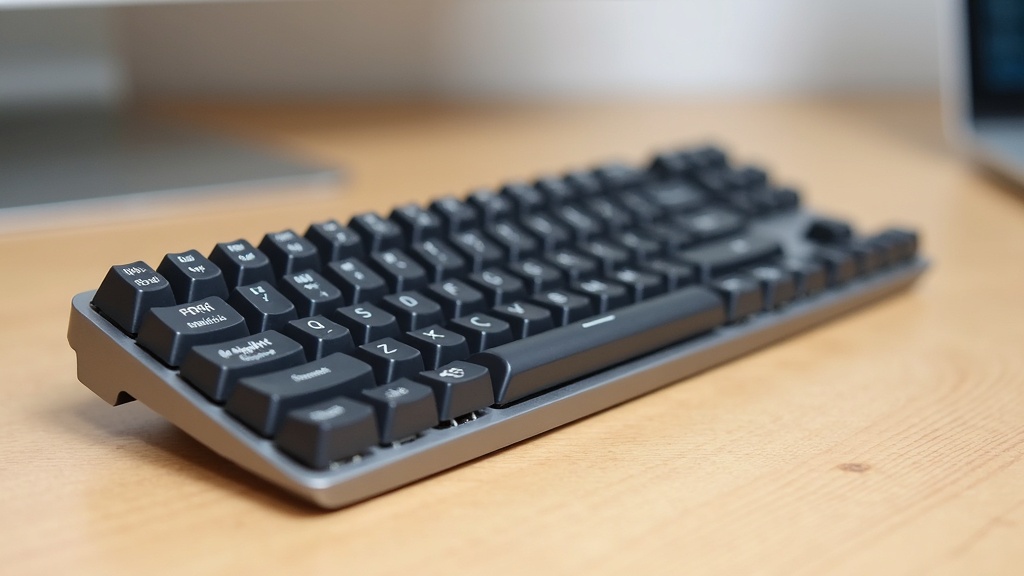
Keychron Q1 Pro: Design Overview and Specs
The previous section led with the verdict — who this keyboard is for. Now let’s dig into the specs and design decisions that back it up. Rather than just listing numbers, the goal here is to understand why each choice was made.
Keychron Q1 Proの最新価格や在庫状況が気になる方は、公式ページで詳細を確認してみてください。カラーバリエーションや軸の種類も複数展開されているので、自分好みのカスタマイズ構成を探してみるのも楽しいでしょう。
Why the 75% Layout Makes Sense
A 75% layout drops the numpad and trims some function keys from a full-size board, while keeping the arrow keys and a selection of navigation keys intact. Unlike 60% or 65% layouts, you still get dedicated Delete, PgUp, and PgDn keys — no layer-switching required.
Programmers tend to gravitate toward this layout because of what removing the numpad does to your desk setup: it brings the mouse closer to your body’s centerline, which reduces shoulder strain over long work sessions. Meanwhile, the arrow keys and nav cluster you actually use for coding are right there, so you avoid the layer-juggling that makes 60% layouts a harder sell for productivity work.
Where 75% sits in the layout spectrum
The 75% format is widely considered the sweet spot between compactness and practicality. The learning curve when switching from a full-size board is minimal, and the footprint is smaller than a tenkeyless — a meaningful desk space saver.
Body Material, Weight, and Color Options
The Q1 Pro is built from 6063 aluminum — the same alloy used in architectural window frames and precision equipment, valued for its excellent formability and corrosion resistance. The manufacturing process involves 24+ steps including CNC machining, polishing, and anodizing, resulting in a surface quality that stands apart from mass-produced boards.
Users repeatedly point out that this material choice directly shapes the sound profile. The aluminum frame suppresses resonance, giving keystrokes a tighter, more controlled sound compared to plastic-bodied alternatives. The trade-off, as mentioned, is weight — this is not a board you’ll be casually picking up and moving around. Check the official site for the exact weight figure.
Multiple color options and specific dimensions are available. For the latest stock and full specs, visit the official Keychron website.
What’s in the Box and What to Choose at Checkout (Switches, Bezels)
The first decision you’ll face when buying a Q1 Pro is whether to go Barebones or fully assembled.
| Version | Price (USD) | Switches |
|---|---|---|
| Barebones | From $179 | None (purchase separately) |
| Fully Assembled | From $199 (currently $209.99) | Includes Keychron K Pro switches |
The Barebones version lets you choose and install your own switches. Thanks to the hot-swap design, it accepts both 3-pin and 5-pin MX-compatible switches, so swapping to something new down the road is easy. If you’re not yet confident in your switch preferences, the fully assembled version with Keychron K Pro switches is the more straightforward starting point.
There’s also a knob version available, which adds a physical volume knob to the top-right corner. For detailed differences between the knob and standard versions, check the official site. If you’re buying outside the US, verify regional pricing and availability before ordering.
Pre-purchase checklist
- Want to choose your own switches → Go Barebones
- Want to start typing right away → Go fully assembled (K Pro switches included)
- Need a volume knob → Check knob version availability
- Buying outside the US → Confirm shipping terms or local retailers on the official site
A Technical Deep-Dive: Design Philosophy and Engineering Choices
The spec sheet only tells part of the story. To really understand the Q1 Pro, you need to look at why it was designed the way it was. Let’s break down the engineering decisions underneath the surface.
How Gasket Mounting Changes the Typing Experience
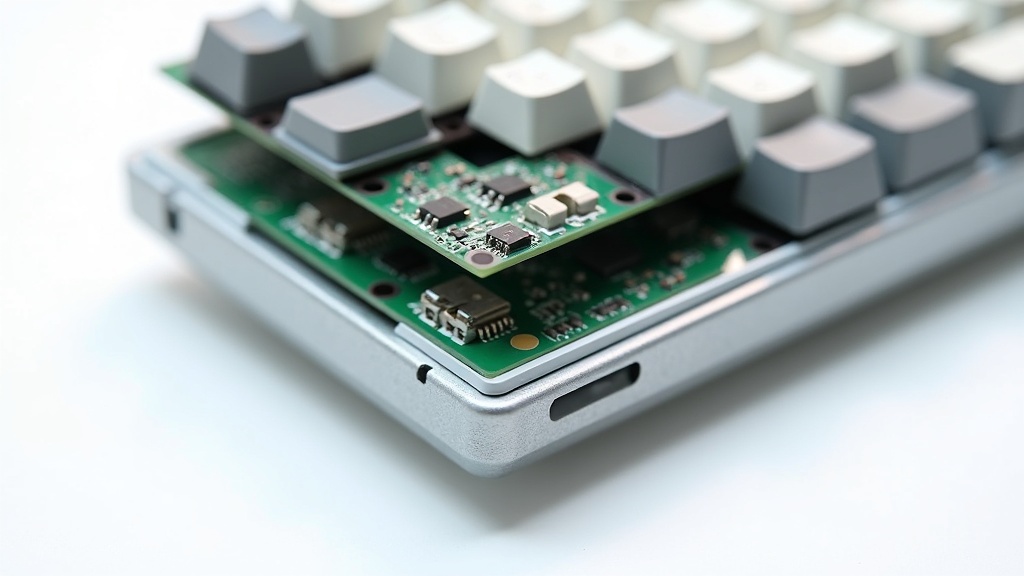
Mount style is one of the most critical factors in how a keyboard actually feels to type on. Unlike the common tray mount design — where the PCB is screwed directly to the case — gasket mounting places silicone gaskets between the PCB and the case walls, allowing a small degree of flex.
In practice, this means keystroke impact doesn’t travel directly into the case. Instead, the gaskets absorb some of that force, softening the bottom-out feel and reducing sound. Even on an aluminum body, that characteristic metallic ping is substantially dampened by this structure.
Gasket mount: pros and cons
- ✅ Each keystroke has a satisfying, slightly springy give
- ✅ Bottom-out sound stays controlled even on a metal body
- ✅ Reduced finger and wrist fatigue during long typing sessions
- ⚠️ Users who prefer a firm, solid feel may find it too flexible
- ⚠️ More complex construction adds to both cost and weight vs. tray mount
Pairing an aluminum body with gasket mounting is a deliberate answer to a design tension: how do you get the premium rigidity of metal without the unpleasant harshness it typically brings? Where a plastic-bodied keyboard relies on material flex to absorb impact, the Q1 Pro solves it structurally instead.
QMK/VIA Support and What Open-Source Firmware Really Means
The Q1 Pro supports QMK (Quantum Mechanical Keyboard) firmware and VIA, its graphical configuration front-end. Understanding why this matters beyond “you can remap keys” clarifies a lot about what kind of product this is.
QMK is an open-source firmware project maintained by a global community of developers. A manufacturer choosing to support it is making a statement: “We’re building on community infrastructure rather than locking you into our proprietary software.” That’s fundamentally different from keyboards that require a closed-source driver or a brand-specific app to configure.
What QMK/VIA support lets you do (key examples)
- Remap any key to any function
- Assign multiple actions to one key (tap vs. hold behavior)
- Create and assign macros (trigger complex sequences with a single keypress)
- Define multiple layers for a virtual second or third keyboard layout
- Configure everything through VIA’s GUI — no coding required
For programmers and power users, this matters a great deal. IDE shortcuts, shell command triggers, cross-platform config portability — all of it can be baked into the keyboard itself, independent of any software on the host machine. That said, for users who have no interest in customization, this is feature bloat. The Q1 Pro clearly knows its audience.
Wired vs. Bluetooth Switching — and Why There’s No 2.4GHz
The Q1 Pro supports Bluetooth 5.1 with pairing for up to three devices, switchable on the fly. Over wired USB-C, the polling rate hits 1000Hz (1ms input latency); over Bluetooth, it drops to 90Hz. The difference is real and measurable.
Some competing boards use a proprietary 2.4GHz wireless dongle to achieve near-wired response times. The Q1 Pro doesn’t offer this, which is worth flagging for anyone who games competitively or prioritizes input latency above all else.
Connection method comparison
| Connection | Polling Rate | Best For |
|---|---|---|
| Wired (USB-C) | 1000Hz | Latency-sensitive use, gaming |
| Bluetooth 5.1 | 90Hz | Multi-device switching, clean desk setups |
Keychron hasn’t officially explained the decision to skip 2.4GHz, but the reasoning seems clear from the design priorities: Bluetooth handles up to three paired devices from a single keyboard, no dongles to track, no per-device management. A 2.4GHz setup would require a receiver occupying a USB port and a separate pairing process per device. For a productivity-focused board aimed at office and creative workflows — not esports — the tradeoff makes sense. This is a deliberate choice to optimize for versatility over raw speed.
A Programmer’s Hands-On Review
The gasket mount structure and QMK/VIA support we covered earlier sound great on paper — but how do they actually hold up during real coding sessions? Technical specs only matter if they translate to a better experience in practice. Here, we dig into real-world performance from a programmer’s perspective, drawing on official specs and user reviews from around the world.
Typing Feel and Fatigue During Long Sessions
The combination of the gasket mount structure and 6063 aluminum body is central to what makes the Q1 Pro feel the way it does. Aluminum is rigid, which typically amplifies resonance — but the gasket mount is designed to absorb that vibration. Multiple users have noted that it feels “surprisingly soft for an aluminum board,” and this structural balance consistently earns high marks in reviews.
That said, the weight is worth considering. The all-aluminum body is heavy enough that moving it around your desk or throwing it in a bag is genuinely inconvenient — a common complaint across reviews. If you’re a programmer who stays at a fixed desk, that weight becomes a non-issue, but it’s a real drawback if you want to take it to a coffee shop.
User Feedback Summary: Typing Feel
- The gasket mount softens the rebound even on an aluminum body, reducing fatigue over long sessions
- The typing sound is subdued and controlled — well-suited for office environments or late-night work
- The keycap material resists fingerprints well, keeping the board looking clean after extended use
- The weight makes it impractical to move frequently or carry around
- Switch preference is personal — many users plan to swap the stock switches via hot-swap from the start
Fn Key and Arrow Key Placement for Coding
The 75% layout is more compact than tenkeyless, and the biggest trade-off compared to a full-size board is the absence of a dedicated function row. F1–F12 are accessed via the Fn key, which is the deciding factor for programmers who rely heavily on IDE shortcuts.
That said, the Q1 Pro’s full QMK/VIA support means you can completely remap the layout. For example, you can assign frequently used keys like F5 (run debugger) or F12 (go to definition) as standalone keys. This flexibility is exactly why the 75% layout’s constraints can be overcome through software. The arrow keys are independently placed in the bottom-right corner, so even non-Vim users won’t have trouble navigating code.
Layout Limitations QMK/VIA Can Fix
VIA is a browser-based GUI tool that lets you remap keys without any firmware knowledge. You can consolidate common Fn key combos into single keys, or build a Vim-like layer for navigation — all within reach for most developers, no matter their workflow.
Managing Keymaps Across macOS and Windows
For programmers who switch between operating systems, keyboard context-switching costs add up fast. The Q1 Pro supports Bluetooth 5.1 with up to three paired devices, letting you switch between machines with a button press. Since macOS and Windows swap the positions of Command and Ctrl, you can use QMK/VIA to pre-configure OS-specific layers and have the right keymap load automatically based on which device you’re connected to.
Polling rate is 1000Hz over USB and 90Hz over Bluetooth. Gamers might notice this difference, but for coding it’s essentially imperceptible. More relevant for wireless users is the 4000mAh battery, which lasts up to 300 hours with the backlight off — meaning you’ll rarely need to think about charging.
Multi-OS Setup Checklist
- Bluetooth 5.1 supports up to 3 devices — switch between them with a keystroke
- OS-specific QMK/VIA layers dramatically reduce keymap-switching overhead
- The polling rate difference between wired (1000Hz) and Bluetooth (90Hz) is unnoticeable for coding
- Up to 300 hours of battery life means wireless use doesn’t mean constant recharging
The 75% layout’s limitations and the QMK/VIA design that compensates for them should be evaluated together. If you’re willing to invest time in the layout adaptation, the Q1 Pro offers a compelling combination of aluminum build quality and wireless freedom. For detailed specs and current availability, check the Keychron official website.
Pros and Cons: The Full Picture
Building on the hands-on impressions from the previous section, here’s a structured breakdown of the Q1 Pro’s strengths and weaknesses. This is meant to give you an objective foundation for your buying decision.
5 Standout Advantages
Based on reviews from multiple tech bloggers and reviewers both in Japan and internationally, plus official specs, these are the five benefits that consistently come up:
Advantage 1: Premium Typing Sound from a Full Aluminum Body
The 6063 aluminum body is CNC-machined and finished through 24+ manufacturing steps including anodization. Compared to plastic cases, it significantly reduces hollow resonance. Combined with the gasket mount, the result isn’t the harsh clack you might expect from metal — it’s a deeper, more controlled sound that users consistently praise.
Advantage 2: Full Customization Freedom via QMK/VIA
QMK (Quantum Mechanical Keyboard) is an open-source firmware that lets you redefine virtually any key behavior at the software level. Programmers benefit most from the layer system and custom macros — you can map entire IDE shortcut sequences or shell commands to a single key. Unlike proprietary software, QMK isn’t going anywhere, which matters for long-term investment.
Advantage 3: Hot-Swap Support Lowers the Barrier to Switch Experimentation
The board supports 3-pin and 5-pin MX-style hot-swap sockets, so you can swap switches without soldering. If you’ve ever wanted to try a different switch feel but balked at the soldering requirement, this removes that barrier entirely — pull out the switch, push in a new one, done.
Advantage 4: Bluetooth 5.1 with Up to 3 Devices
If you work across a dev machine, personal laptop, and tablet, the multi-device pairing is genuinely useful. Wired polling is 1000Hz vs. Bluetooth’s 90Hz, but for text-heavy work the difference is negligible. The 4000mAh battery delivers up to 300 hours of wireless use with the backlight off, so charging fatigue isn’t a concern.
Advantage 5: Fingerprint-Resistant Keycaps and the Practicality of 75%
Multiple reviewers call out how well the keycaps resist visible fingerprints — a small thing that reduces visual noise during long work sessions. The 75% layout itself is also a practical sweet spot: it retains the function row and arrow keys while taking up less desk space than a full-size board, keeping common shortcuts accessible.
3 Drawbacks You Shouldn’t Overlook
There are real drawbacks to be aware of before buying. If you plan to carry this board regularly, pay close attention to these points.
Drawback 1: The Weight That Comes with Full Aluminum
Aluminum looks and sounds great, but it’s heavy. Multiple reviews — both domestic and international — mention that it’s awkward to reposition on a desk and noticeably heavy in a bag. This board is built for a permanent desk setup, not for commuting. Check the official site for exact weight figures.
Drawback 2: The Price Is Steep for Entry-Level Buyers
At $179 USD for the Barebone and $199–$209.99 USD for the assembled version, this sits at the upper end of the “custom keyboard entry price” range. Factor in shipping and import fees for buyers outside the US, and the total cost climbs further. If you’re just looking to dip your toes into mechanical keyboards, this may be a heavier investment than you need.
Drawback 3: QMK/VIA Has a Learning Curve
The flip side of deep customization is complexity. VIA’s GUI is fairly intuitive, but concepts like layers and keycodes aren’t immediately obvious if you haven’t encountered them before. Programmers will likely find the mental model familiar, but you should budget time for the initial setup — it’s not plug-and-play out of the box.
Each of these drawbacks is essentially the other side of the “full aluminum + deep customization” design philosophy. The Q1 Pro isn’t trying to be everything to everyone — it’s a keyboard with a clear target user in mind, and both the pros and cons reflect that intentional design.
How It Compares to the Competition
With the pros and cons laid out, the natural next question is: what else can you get for the same money? The Q1 Pro sits in the $199–$209.99 USD range (assembled), and there are a few strong alternatives at that price point. Understanding what each one prioritizes will help you make the right call.
Q1 Pro vs. Keychron Q1 Max (Wireless Specs and Price)
Both boards are from Keychron, but they diverge meaningfully on wireless. The Q1 Pro is Bluetooth 5.1 only (up to 90Hz polling). The Q1 Max adds 2.4GHz USB receiver support on top of Bluetooth, enabling a higher polling rate over the wireless dongle connection.
For most coding workflows, this difference won’t matter. But if you also game, or if low-latency input responsiveness is important to you, the Q1 Max has the edge there.
How to Choose
- Primarily typing and coding → Bluetooth 5.1 is plenty; the Q1 Pro works fine
- Gaming crossover or low-latency wireless priority → Q1 Max and its 2.4GHz support wins
- Budget-conscious → Q1 Pro is the more cost-effective option
Q1 Max pricing shifts over time and by retailer — check the Keychron official site for the latest.
Q1 Pro vs. HHKB Professional Hybrid Type-S
Comparing these two requires acknowledging upfront that they’re built on fundamentally different philosophies. The HHKB uses Topre’s electrostatic capacitive switches — a mechanism that detects key input through electrical changes rather than physical contact, completely unlike the MX-compatible switches in the Q1 Pro.
Layout is another major difference. The HHKB uses a compact proprietary 60% layout with no function row or arrow keys. The Q1 Pro’s 75% layout keeps the F row, arrow keys, and Delete cluster — a practical advantage for programmers who live in the terminal or an IDE.
| Keychron Q1 Pro | HHKB Pro Hybrid Type-S | |
|---|---|---|
| Switch Type | MX mechanical (swappable) | Topre electrostatic capacitive (fixed) |
| Layout | 75% (with F row and arrow keys) | 60% (HHKB proprietary layout) |
| Customization | QMK/VIA + hot-swap | Proprietary software only |
| Case Material | Full aluminum | Plastic |
The HHKB has a devoted following and a typing feel that’s genuinely unlike any standard mechanical keyboard. But the lack of hot-swap support and QMK compatibility makes it a poor fit for programmers who want to experiment with switches or build custom key layouts. The deciding question is whether the HHKB’s unique typing experience is worth those trade-offs.
Best Value Alternatives at the Same Price Point
The NuPhy Air75 sometimes comes up as a comparison at this price range. As the name suggests, it prioritizes a lightweight, low-profile build — a genuinely appealing option if portability is your top priority.
The Q1 Pro takes the opposite approach: the full aluminum body adds weight by design, and that weight pays off in desk stability and tighter, more controlled acoustics. If you’re hauling your keyboard to coffee shops or coworking spaces regularly, a lighter board like the Air75 is the more practical choice.
Q1 Pro Is a Good Fit If You:
- Work from a fixed desk and prioritize typing sound and feel above all else
- Want to take full advantage of deep QMK/VIA customization
- Plan to experiment with different switches over time
- Can work comfortably within Bluetooth’s 90Hz polling rate
Consider Something Else If You:
- Need low-latency 2.4GHz wireless for gaming crossover → Q1 Max
- Want the Topre typing experience specifically → HHKB
- Prioritize portability and light weight → NuPhy Air75 or similar
Prices and availability shift frequently across all these options — confirm the latest from each manufacturer’s official site or authorized resellers before buying.

Workflow Use Cases
The “differences in design philosophy” that emerged from our competitor comparison only matter when applied to real-world workflows. Here’s a breakdown of where the Keychron Q1 Pro truly shines, based on official specs and user reports.
A Staple for the Home Office Desk Setup
Have you ever wanted to consolidate your home office down to a single keyboard? The Q1 Pro is a strong contender for that role. Users consistently praise the combination of its gasket mount structure and full aluminum body (6063 aluminum, CNC-machined) for suppressing unwanted resonance while still delivering a satisfying typing feel.
That said, the aluminum construction does come with some weight — and several users have noted it’s not ideal for frequent repositioning on the desk. That heft works in your favor if you keep the keyboard in a fixed spot, but it’s worth considering if you tend to rearrange your workspace regularly.
Key highlights for home desk setups
- Aluminum body improves typing sound quality (users report reduced resonance)
- Keycaps resist fingerprint smudges, keeping the board looking clean during long sessions
- Heavy build makes it best suited for stationary, permanent desk use
- Hot-swap compatible (MX 3-pin/5-pin) — leaves room for switch customization down the road
Multi-Device Workflow via Bluetooth
The demand for a single keyboard that seamlessly switches between a MacBook, a work-issued Windows PC, and an iPad has only grown with the rise of remote work. The Q1 Pro supports up to three devices simultaneously via Bluetooth 5.1, with instant switching via dedicated keys.
One thing worth knowing: Bluetooth polling rate is 90Hz. Compared to the 1000Hz you get over wired, there is a measurable difference in response time — so if you’re sensitive to input latency in gaming or high-speed typing scenarios, stick with the wired connection. For coding and document work, though, 90Hz is unlikely to cause any noticeable issues in practice.
The 4000mAh battery delivers up to 300 hours with backlighting off, or up to 90 hours at minimum brightness. That translates to charging just a few times per week — the kind of battery life where you genuinely forget when you last plugged it in, which is a real practical advantage in a multi-device setup.
What to know for multi-device use
- Bluetooth 5.1 supports up to 3 paired devices simultaneously
- Bluetooth polling rate is 90Hz (wired is 1000Hz)
- Use wired connection for latency-sensitive tasks
- Turning off backlighting significantly extends battery life
Real-World VIA Keymap Customization
QMK/VIA support is at the heart of the Q1 Pro’s design philosophy. VIA is a browser-based GUI tool that lets you remap keys without any command-line knowledge. For programmers, the ability to remap CapsLock to Ctrl or register frequently used shortcuts as macros — all via drag and drop — is a major quality-of-life win.
Another key advantage: keymap settings stick even when you switch computers. Since the layout is written directly to the firmware, no driver or software installation is required — your config works regardless of OS. This is especially useful for engineers who regularly switch between Mac and Windows.
Common VIA customization examples
- CapsLock → Ctrl (the classic remap for UNIX/Linux developers)
- Assigning media keys and volume controls to the Fn layer
- Expanding code snippets via custom macros
- Managing different Mod key layouts for Mac vs. Windows via device profiles
If you go straight to QMK, you can implement more advanced layer configurations and tap-dance functionality (where a single key triggers different inputs based on single vs. double tap). That said, QMK requires a command-line build process, so starting with VIA is the smoother on-ramp. Keychron’s official site has a VIA setup guide worth checking out before you dive in.
Who Should (and Shouldn’t) Buy This
As covered in the previous section, the Keychron Q1 Pro is built to handle a wide range of scenarios — home office, café work, dual-PC setups. But it’s not the perfect keyboard for everyone. Here’s an honest breakdown of who will get the most out of it and who might be better served by something else.
Who the Q1 Pro Is Built For
The Q1 Pro is at its best in the hands of users who think of a keyboard as a long-term investment rather than a disposable peripheral. The trifecta of 6063 aluminum full-metal body, gasket mount, and hot-swap support delivers an impressive balance of typing feel, sound quality, and extensibility.
This keyboard is an especially strong fit if you:
- Are a programmer or engineer who wants full control over keymaps and macros via QMK/VIA
- Run a dual-PC setup switching between Mac and Windows (Bluetooth 5.1 supports up to 3 devices)
- Enjoy swapping switches to dial in your perfect typing feel
- Are a writer or coder who types for long stretches and cares about how your keyboard sounds
- Want a clean, cable-free desk setup (up to 300 hours of battery life with backlight off)
In particular, “QMK-compatible wireless keyboard” is a rare combination — and that alone puts the Q1 Pro on the short list for a lot of buyers.
You can check the latest pricing and availability for the Keychron Q1 Pro on the official site. With multiple color options and switch choices available, it’s worth confirming whether there’s a configuration that fits your specific needs.
Cases Where You Should Consider Something Else
On the flip side, the Q1 Pro’s design can work against you in certain situations. The weight that comes with a full aluminum body is a genuine drawback for anyone who plans to carry their keyboard around. Multiple user reviews mention that even moving it around the desk feels like a chore.
You may want to look at other options if you:
- Commute daily with your keyboard between home and the office — frequent portability is a non-starter here
- Are budget-conscious (US MSRP is $179–$209; international buyers may face additional shipping and import costs)
- Need a full-size or TKL layout with a numpad (the 75% layout includes F-row and arrow keys, but no numpad)
- Just want something plug-and-play with no interest in customization
- Prioritize silence above all else (silent switches are available via hot-swap, but that’s an added cost)
If price, weight, or layout are dealbreakers, it’s worth looking at other Keychron lines — like the polycarbonate-bodied K or V series — or lightweight wireless options from other brands. The Q1 Pro is designed to be a premium, permanently desk-mounted keyboard, and whether that philosophy resonates with you is really the core question behind any purchase decision.
Summary: Keychron Q1 Pro Overall Review
In the previous section, we established that the Q1 Pro is a keyboard that draws a clear line between who it’s for and who it isn’t. So when it comes to making a purchase decision, what should you prioritize? Let’s break it down by category and land on a final verdict.
Category Ratings: Typing Feel, Customization, Portability, and Value
These ratings are based on a combination of official specs and evaluations from multiple reviewers both domestically and internationally. Note that this is an analytical assessment drawn from reliable sources, not a hands-on unit review.
Category Scores (out of 5)
| Category | Score | Notes |
|---|---|---|
| Typing Feel & Sound | ★★★★★ | The 6063 aluminum case combined with gasket mount delivers resonance dampening that consistently earns top marks across multiple reviews |
| Customizability | ★★★★★ | QMK/VIA support paired with hot-swap capability sets the bar for what’s currently possible in a wireless mechanical keyboard |
| Connection Stability | ★★★★☆ | Bluetooth 5.1 with 90Hz polling is more than adequate for everyday use. For gaming, wired 1000Hz polling is recommended |
| Battery Life | ★★★★★ | 4,000mAh with up to 300 hours (backlight off) stands out even among competing wireless keyboards |
| Portability | ★★☆☆☆ | The aluminum body’s weight makes desk-to-desk moves and travel a real inconvenience. Not suited for mobile use |
| Value for Money | ★★★★☆ | At $199–$209.99 USD, the price is right in line with the custom keyboard market — just don’t expect a budget-friendly entry point |
What stands out most is how the Q1 Pro manages to deliver both deep customizability and exceptional battery life in a single package. Wireless keyboards with QMK support are still rare, and for anyone who wants full layout freedom without being tethered to a cable, the Q1 Pro is about as close to a no-compromise answer as you’ll find right now.
That said, the lack of portability is an inherent trade-off by design. The sound quality, rigidity, and durability that come from an aluminum chassis simply cannot coexist with a lightweight build. If weight is a dealbreaker for you, the Q1 Pro is solving a different problem than the one you have.
Who the Q1 Pro is really built for
- Programmers and creators who want a clean wireless setup at a fixed desk
- Anyone planning to eventually get into switch swapping and keycap customization
- Users who want to minimize how often they charge (once or twice a week is totally workable)
- Those looking for a high-value entry point into the custom keyboard hobby
Things to Check Before You Buy & Where to Find Official Info
Before pulling the trigger, there are a few things worth confirming on your end.
Pre-Purchase Checklist
- Current price, shipping, and import duties: The US MSRP is $199–$209.99 USD, but be sure to check the cart on the official site to see the actual total cost including international shipping and any applicable import fees
- Barebones vs. fully built: The Barebones version (from $179 USD) comes without switches or keycaps, while the complete version is priced higher. If you already have switch preferences, Barebones is the more practical choice
- Knob version availability: For specs and pricing on the knob (volume dial) variant, check the official site for the latest details
- Stock availability: Availability varies by color and switch type. Check the official site directly for the exact configuration you want
The authoritative source for all official information is the Keychron website (keychron.com). Full specs, firmware update notes, and QMK/VIA setup guides are all available there and on the Keychron GitHub repository. It’s worth a look before you buy.
The bottom line
If you’ve already decided you want one wireless keyboard to live on your desk for the long haul, the Q1 Pro is one of the most well-rounded options available right now. Very few keyboards at this price point manage to balance customization freedom, battery endurance, and typing acoustics this well. On the other hand, if your priorities lean toward portability, budget, or gaming performance, you’ll likely find more satisfaction looking elsewhere.

Comments